Getting More Help
Look here first
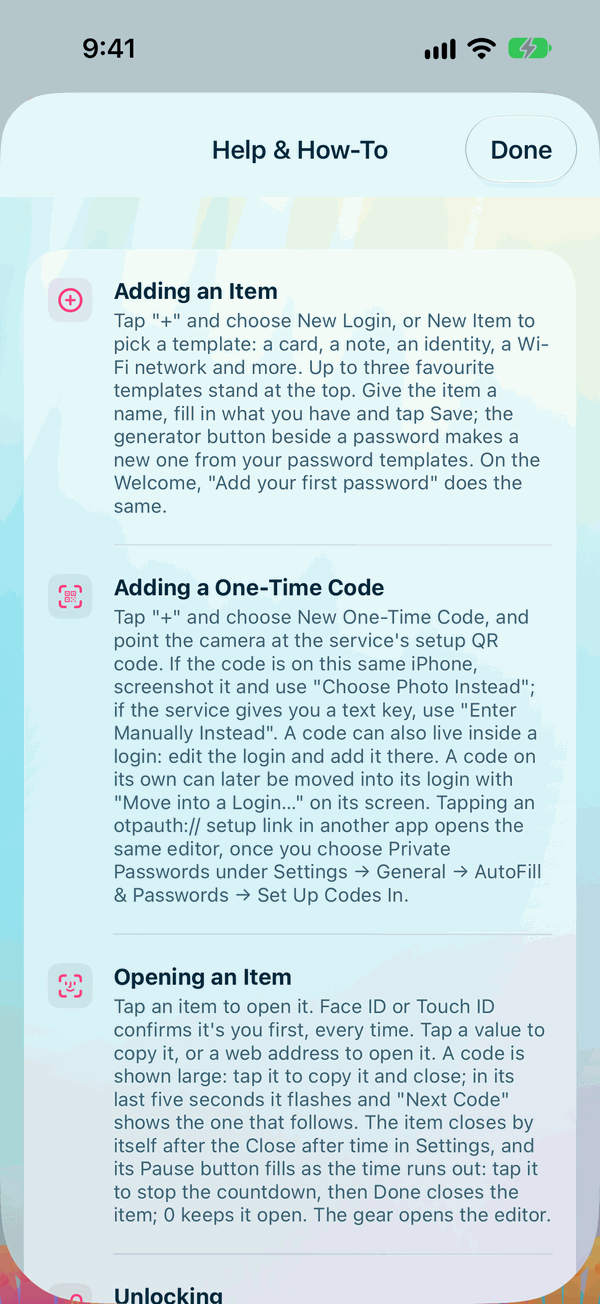
- In the app. On iPhone, open Info and, under Help, tap Help & How-To for short answers to the questions people ask most; its last row, More Help, brings you to this site. On both devices, the documentation link under About on the Info page opens this site, and on the Mac so does Help in the key's own menu.
- On this site. Search with the box at the top of any page, or start from the Frequently Asked Questions and the troubleshooting pages: on iPhone and on the Mac.
Contacting Pebble IT
Private Passwords is made by Pebble IT Solutions in Australia. Email Pebble IT Support at privpass@pebbleit.com.au, or reach us through our website, www.pebbleit.com.au, which is also linked from the Info page in the app, under About.
If something isn't working, open Info and choose Send to Support: see below. If the app won't open at all, see If Private Passwords Won't Start, on iPhone or on the Mac.
To help us help you quickly, tell us:
- which device you're using, iPhone or Mac, and its iOS or macOS version;
- the version of Private Passwords, shown under About on the Info page, for example Version 1.0 Build 12;
- what you did, what you expected, and what happened instead, in your own words;
- the exact words of any message the app showed you.
Send to Support
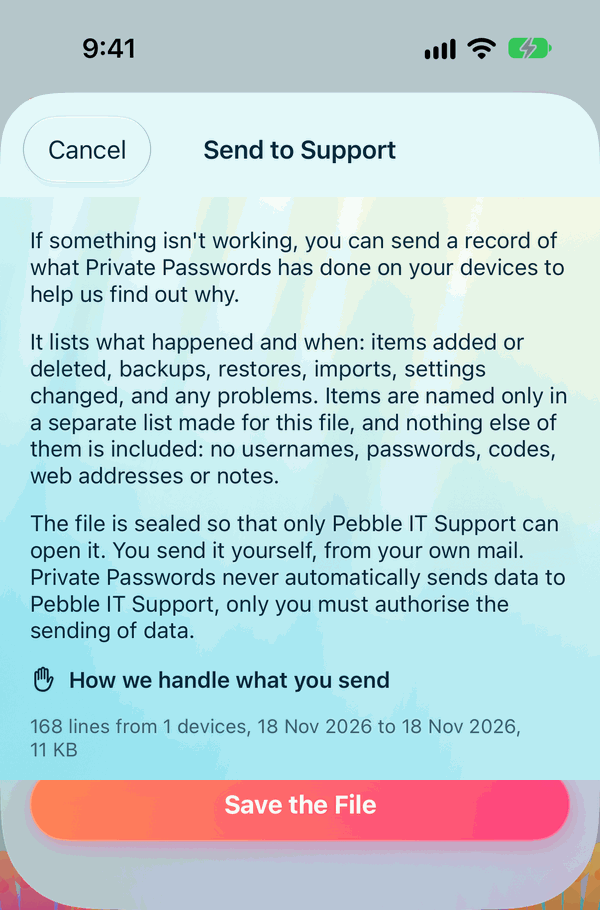
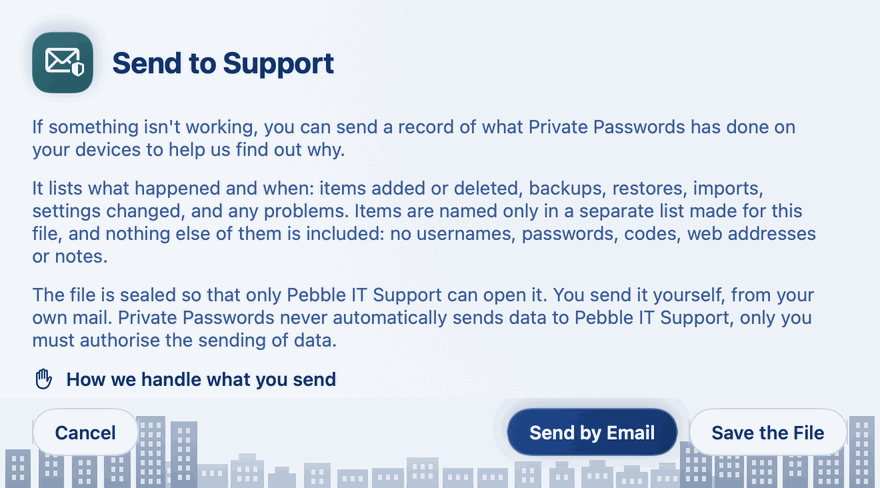
Open Info and, under Help, choose Send to Support. It gathers a record of what Private Passwords has done on your devices, to help us find out what went wrong.
- What it holds: what happened and when: items added or deleted, backups, restores, imports, settings changed, and any problems, from each of your devices; and each device's type, model and system version. Items are named only in a separate list made for the file. No username, password, code, web address or note is ever in it.
- You see it first. The page shows how many lines it holds, from how many devices, and the first and last lines, so you can see what it is before it goes.
- Only Pebble IT Support can open it. The file is sealed, so that nobody else can read it on the way.
- You send it yourself. Send by Email opens a new email to Pebble IT Support with the file attached, after Face ID or Touch ID. Save the File saves it instead, your backup folder offered first, to attach to an email yourself. Private Passwords never sends it by itself.
Each device keeps its record in your own iCloud for 14 months, where only you can reach it; that's how one file can hold what happened on all your devices. Delete Everything, Including iCloud, on the Info page, deletes them all.
Never send us
We will never ask for any of these, and you should never send them to anyone:
- a password, a one-time code or a passkey;
- a backup's recovery key;
- a backup file or an export file: an export holds your passwords in plain text;
- a screenshot of an open item, which may show its password or code.
A screenshot of a list, a setting or a message is fine, as long as nothing private shows on it.
Anyone who asks for those, whatever name they give, isn't us.