Troubleshooting on iPhone
If Private Passwords Won't Start
If Private Passwords stops each time you open it, the next time you open it, it offers to send a record of what happened to Pebble IT Support. Tap Send to Support, then Send by Email or Save the File.
If it doesn't get that far, open Private Passwords on your other iPhone or Mac and choose Info, then Send to Support. When you're signed in to iCloud, each device keeps its record there, so a file sent from one device includes the others' too, up to the last time each was used.
The file holds no passwords, usernames, codes, web addresses or notes.
AutoFill doesn't offer my login
- Check that Private Passwords is turned on: Settings app, General, AutoFill & Passwords.
- Check that AutoFill in Safari and apps is on in Private Passwords' own Settings, under AutoFill.
- Check that the login's Website is the site you're on. A login for
example.comis offered onlogin.example.comtoo, but not on a different name altogether. Add the other address to the login's Other Websites. - Tap the key above the keyboard, or Passwords, and use Show Other Logins to pick the login by hand.
The password goes in but the username doesn't
Some sites build their username box in a way Safari doesn't recognise. Tap the box, tap it again, choose AutoFill, then Insert Text, and pick the username. Or turn on Copy username when filling in Settings. See AutoFill in Safari and Apps.
Face ID or Touch ID doesn't work
- Locked after too many tries? Unlock your iPhone with its passcode, then try again.
- Not set up? Set up Face ID or Touch ID in the Settings app, or Private Passwords asks for your passcode.
My items aren't on my other device
- Both devices must be signed into the same Apple Account, with iCloud Keychain on: Settings app, your name, iCloud, Passwords, Sync this iPhone.
- Both must have chosen Sync via iCloud Keychain during the Welcome. Check under Sync in Settings.
- Give it a minute or two. If Private Passwords was already open on the other device, close it and open it again.
"Private Passwords can't read its records just now"
Lock your iPhone, unlock it again, then tap Try Again. This happens when the Keychain isn't ready, usually just after your iPhone has started.
"Update Private Passwords to continue"
Another of your devices has a newer Private Passwords, which has written something this one can't use safely yet. Update Private Passwords from the App Store on this device.
My Apple Watch has no codes
- Check Use Device Sync is on in Settings, under Apple Watch.
- Open Private Passwords on the Watch while your iPhone is nearby.
- Archived items and items in the Bin are never sent.
See Codes on Your Apple Watch.
My backup to iCloud didn't work
- Your iCloud is full: free up space in iCloud, or turn on Backup to file in Settings and back up to a file.
- iCloud couldn't be reached: check that this iPhone is online, and try again.
- iCloud isn't available: sign in to iCloud in the Settings app.
- Waiting for Your iCloud Backup Key: your key hasn't reached this iPhone from your other device yet. With iCloud Keychain on, it usually arrives within minutes. If you no longer have a device that holds it, Make New Key is offered after an hour; backups made with the old key still need the old key to open.
- A backup from iCloud asks for its key: this iPhone doesn't hold your iCloud Backup Key yet. Turn on iCloud Keychain and wait for it to sync, or paste the key you kept with Copy iCloud Backup Key on your other device.
See Making and Restoring a Backup.
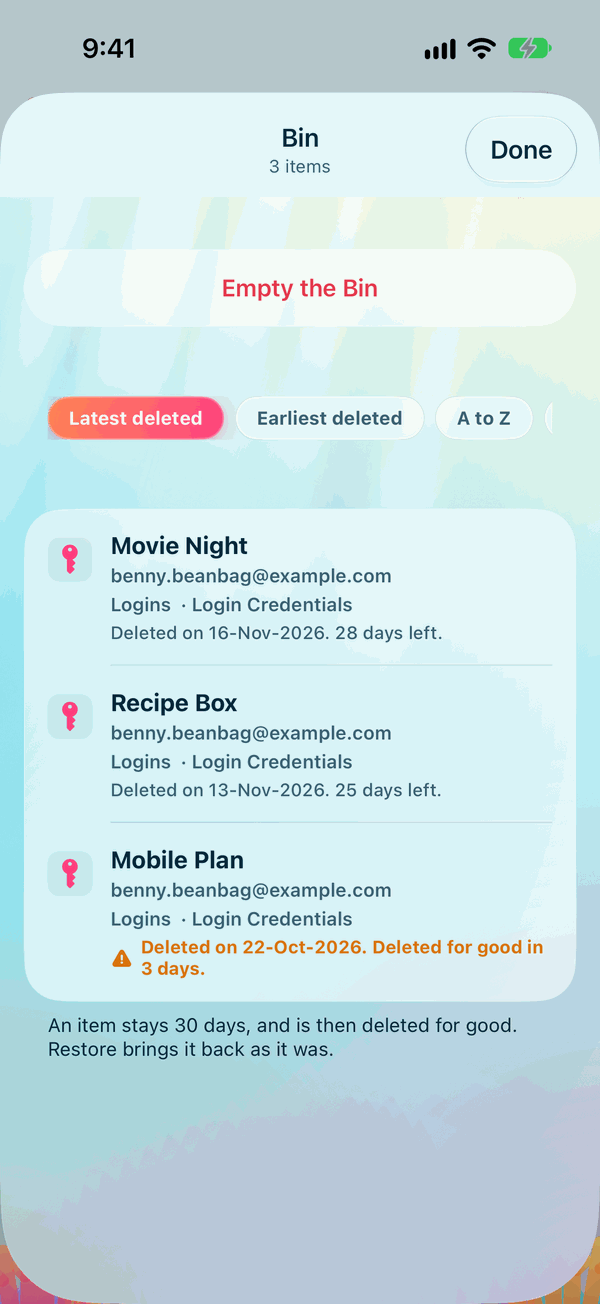
I deleted something by mistake
Open Info, then Bin, and restore it. Items stay in the Bin for 30 days unless you've changed that. See The Archive and the Bin.
Still stuck?
See Getting More Help.