Exporting Your Items
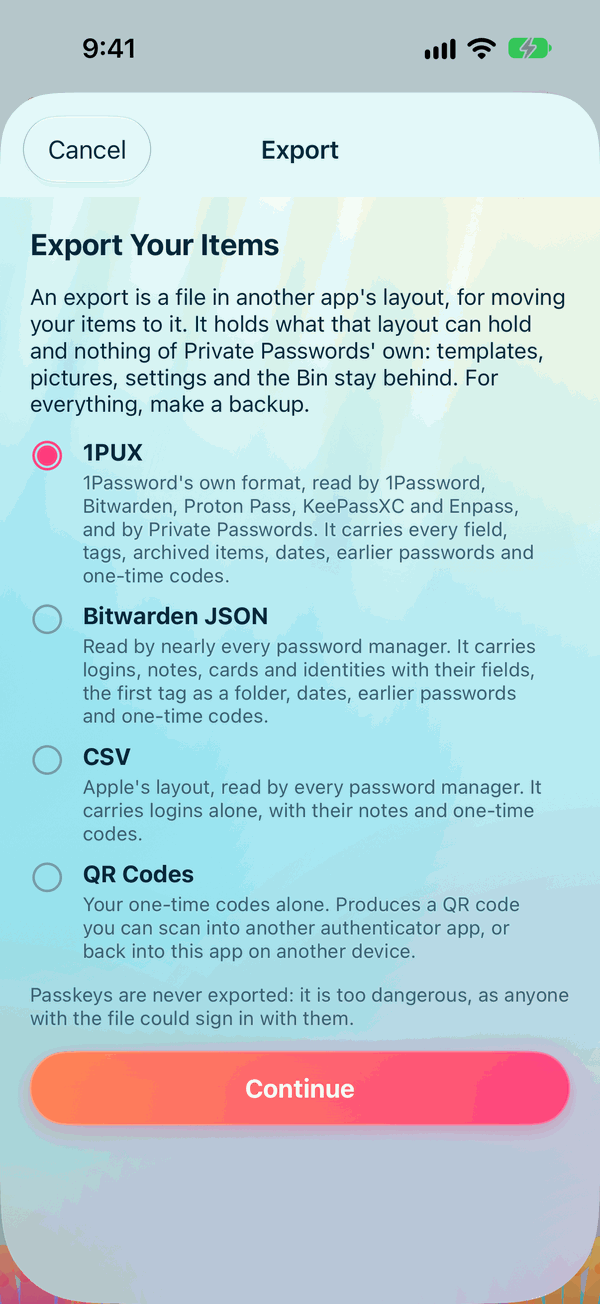
An export writes your items into a file laid out the way another password manager reads it, so that you can move them there. It holds what that layout can hold and nothing of Private Passwords' own: templates, pictures, settings and the Bin stay behind. To keep a copy of everything, make a backup instead.
Passkeys are never exported: it is too dangerous, as anyone with the file could sign in with them. A backup keeps them, sealed with its recovery key.
Export is on the iPhone: tap the logo to open the menu and choose Export, or tap Export on the Info page.
Export is on the Mac: open the menu and choose Export…, or click Export… on the Info page.
The three formats
| Format | Read by | What it carries |
|---|---|---|
| 1PUX | 1Password, Bitwarden, Proton Pass, KeePassXC, Enpass, and Private Passwords' own Import | Every field, tags, archived items, dates, earlier passwords, one-time codes and Other Websites |
| Bitwarden JSON | Nearly every password manager | Logins, notes, cards and identities with their fields, the first tag as a folder, dates, earlier passwords, one-time codes and Other Websites |
| CSV | Every password manager | Logins alone, in the layout of Apple's Passwords app, with their notes and one-time codes, and one web address each |
1PUX keeps the most, so choose it where the app you're moving to reads it. One-time codes go out only when you turn on Include one-time codes; each is then written as its setup link wherever the layout has a place for one. Under CSV, any item that isn't a login is left out, and the screen says how many.
The file is named by the day and the minute, for example Private Passwords Export 2026-10-17 1433.1pux (or .json, or .csv).
Step by step
- Open Export from the menu or the Info page.
- Export Your Items. Choose 1PUX, Bitwarden JSON, CSV or QR Codes, and tap Continue.
- For a file, Files opens at once: choose the folder it goes in and tap Open.
- The next screen shows the file's Name, the export's own to start, which you can change, and its folder, with Change… to choose another. Turn on Include archived items if you want them; it is off to start. Turn on Include one-time codes if you want your codes to go too; it is off at every export, and it says how many of the items hold a code. The screen says how many items will be exported.
- Tap Generate, and confirm with Face ID or Touch ID. A bar shows the items being read, and the file is written in the folder you chose, once. If a file of that name is there already, the new one's name ends in a number, for example
Private Passwords Export 2026-10-17 1433-1.1pux. - The last screen says what the file holds, its name and its folder. Tap Done.
- Open Export from the menu or the Info page.
- Export Your Items. Choose 1PUX, Bitwarden JSON, CSV or QR Codes, and click Continue.
- For a file, the save window opens at once, with the export's name: choose where it goes and click Save. Change… names it again.
- Turn on Include archived items if you want them; it is off to start. Turn on Include one-time codes if you want your codes to go too; it is off at every export, and it says how many of the items hold a code. The screen says how many items will be exported.
- Click Generate, and confirm with Touch ID or your Mac's password. A bar shows the items being read, and the file is written where you named it, once.
- The last screen says what the file holds and where it is. Click Done.
With Include one-time codes off, each item goes without its code, and an item that is a one-time code and nothing else stays behind; the screen says how many.
Items in the Bin are never exported. Exporting doesn't count as using an item, so your Recent order stays as it was.
Keeping the file safe
The screen says it plainly: The file holds your passwords in plain text. Anyone who has the file can read them. Save it only where you must, and delete it once it has served. With Include one-time codes on, it says more: The file holds your passwords and the setup keys of your one-time codes in plain text. If it is stolen, whoever has it holds your complete credentials and can sign in as you. Save it only where you must, and delete it once it has served. Once the file is written, the last screen says it again: This file holds your password in plain text, ensure it is secured.
- Save it on your own device, not in a shared folder, and not where it is copied anywhere automatically if you can help it.
- Import it into the other app straight away.
- Then delete it, and empty Recently Deleted in Files, so it is truly gone.
A backup is different: it is encrypted, and safe to keep. An export is for moving, not for keeping.
One-time codes to another authenticator app
The QR Codes choice on Export shows your one-time codes as QR codes in Google Authenticator's format, for another authenticator app to scan, or Private Passwords on another device.
- On Export, choose QR Codes and tap Continue.
- Every item holding a code is listed and chosen. Untick any you'd rather leave out, then tap Generate QR Code.
- Confirm with Face ID or Touch ID. Only then are the chosen codes read.
- The QR code fills the screen. With more than ten codes there are several, Code 1 of 3 and so on: swipe to the next, and scan each with the other app.
- Tap Done.
Google's format holds only codes of 6 or 8 digits that change every 30 seconds, and no Steam codes. Any others are skipped, and the screen says how many.
- On Export, choose QR Codes and click Continue.
- Every item holding a code is listed and chosen. Untick any you'd rather leave out, then click Generate QR Code.
- Confirm with Touch ID or your Mac's password. Only then are the chosen codes read.
- The QR code shows in the window. With more than ten codes there are several, Code 1 of 3 and so on: use the arrows, and scan each with the other app.
- Click Done.
Google's format holds only codes of 6 or 8 digits that change every 30 seconds, and no Steam codes. Any others are skipped, and the screen says how many.
Treat an export QR code as the keys it contains
Anyone who scans it can make your codes. Show it only to your own device, and don't take a screenshot of it.
Continue to Moving to a New iPhone or Mac.