Site Check
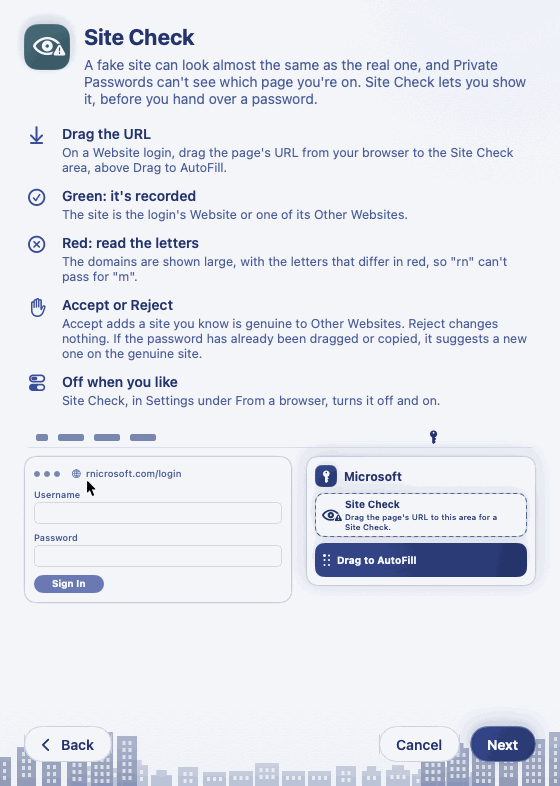
A fake site can look almost the same as the real one. In the small letters of an address bar, rnicrosoft.com can
pass for microsoft.com, because an "r" beside an "n" looks like an "m".
Private Passwords stays out of your browser, so it can't see which page you're on. Site Check lets you show it, before you hand over a password. You drag the page's URL to the login, and Site Check tells you whether that site is recorded for the login.
On the Mac
On the Mac, you show Site Check the page yourself, by dragging its URL. On iPhone, Site Check acts in AutoFill. See Site Check on iPhone.
Checking a site
- Open the login you're about to use: click the key, then Recent, then the login.
- Find the Site Check area, above Drag to AutoFill.
- In your browser, drag the page's URL from the address bar, or the small icon beside it, and drop it on the Site Check area.
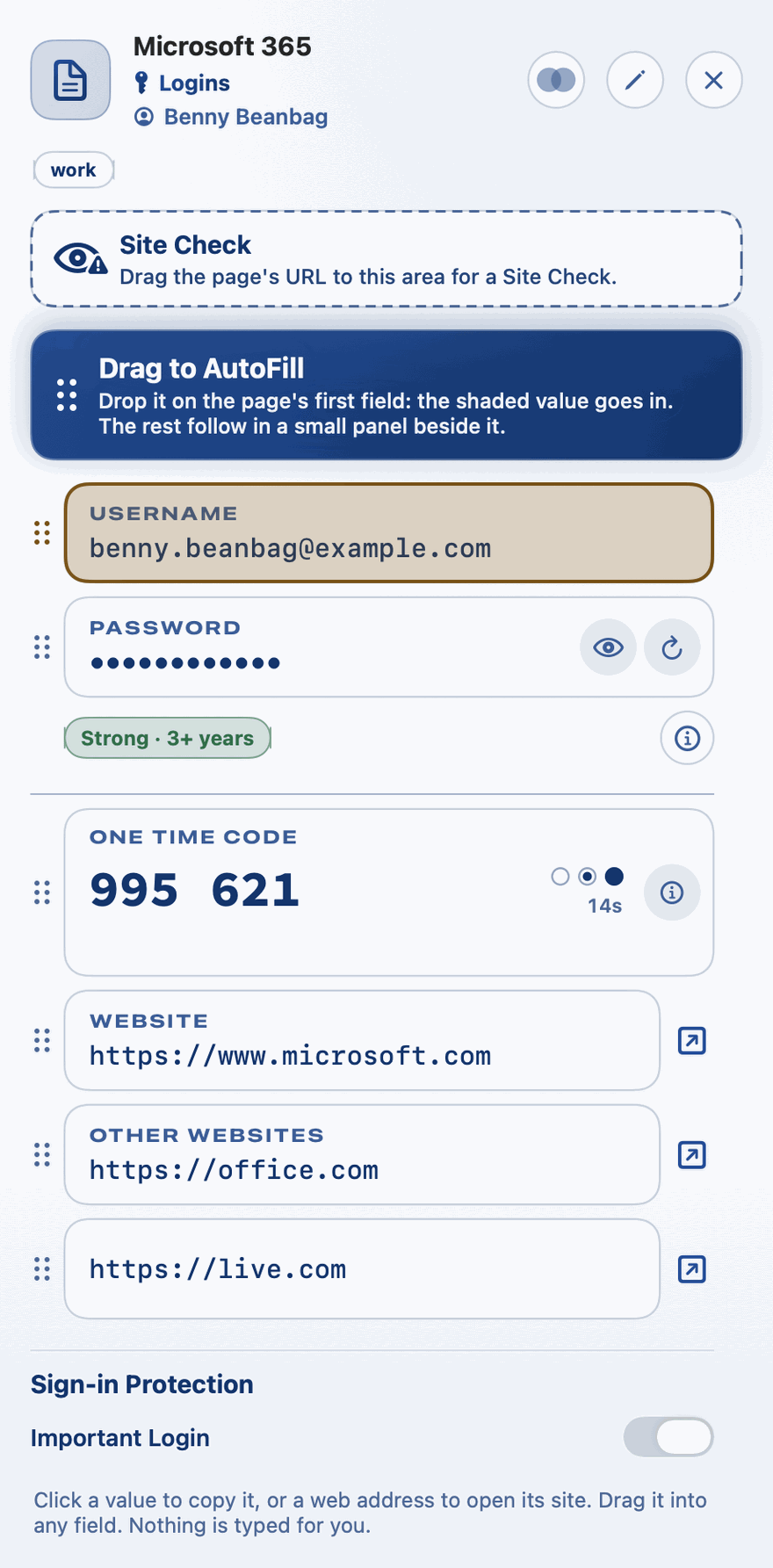
Site Check shows on logins that sign in at a website. It isn't on other types of item, or on a login that signs in at an app.
Green: the site is recorded
Green with a tick means the page's site is the login's Website or one of its Other Websites.
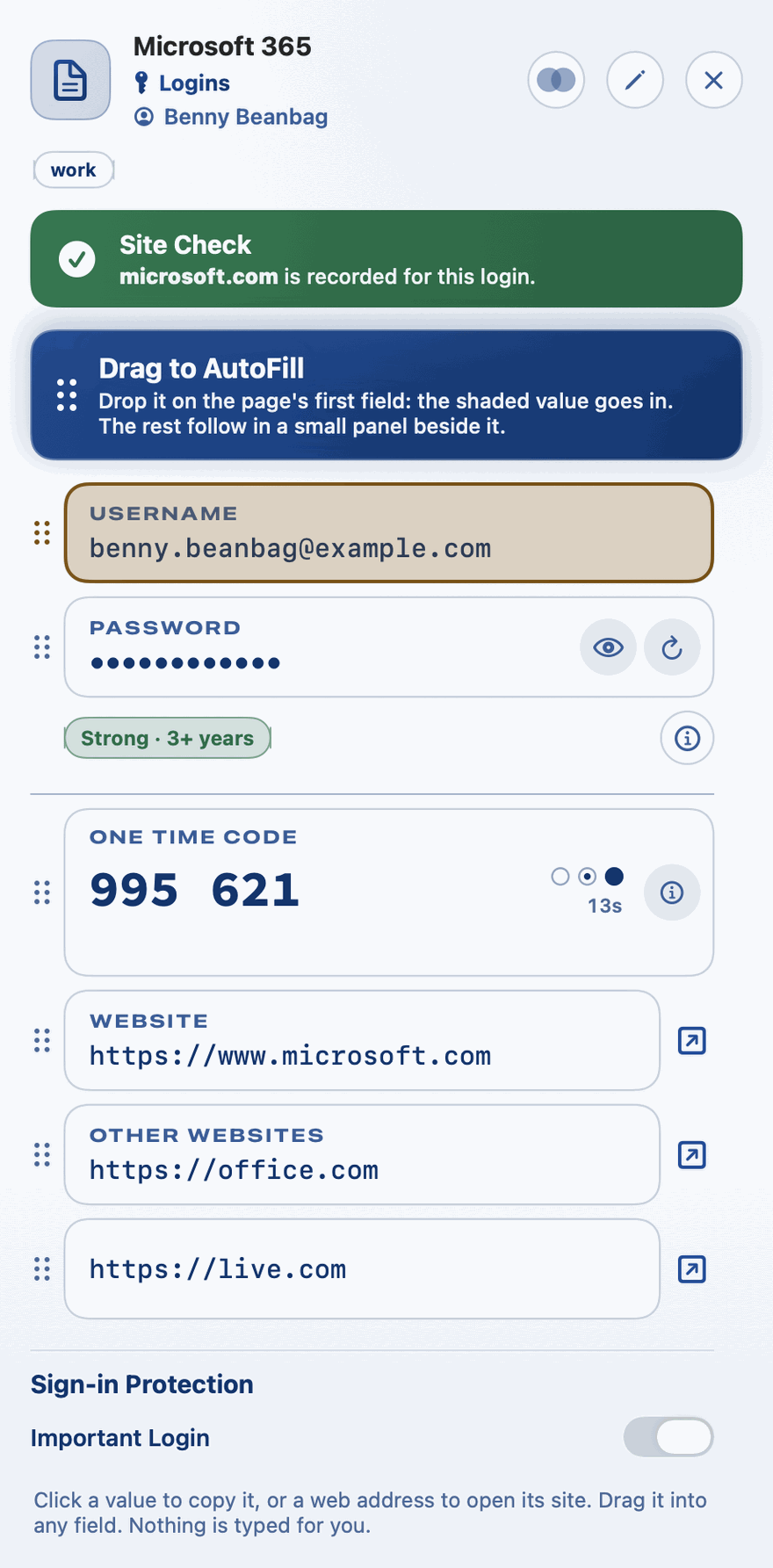
The tick stays until you close the login or drop another URL. Now drag your username and password into the page. See Dragging a Value into a Form.
What green means
Green means the site is recorded for this login. It doesn't prove a site is safe, so only accept sites you trust.
Red: the site isn't recorded
Site Check goes red and a dialog opens. It shows The site you are filling, then the login's Website and Other Websites, in the same large, clear lettering as a password shown large.
The letters that differ from the closest recorded site are in red. Digits and symbols each have a colour of their own,
so a 1 can't pass for an l.
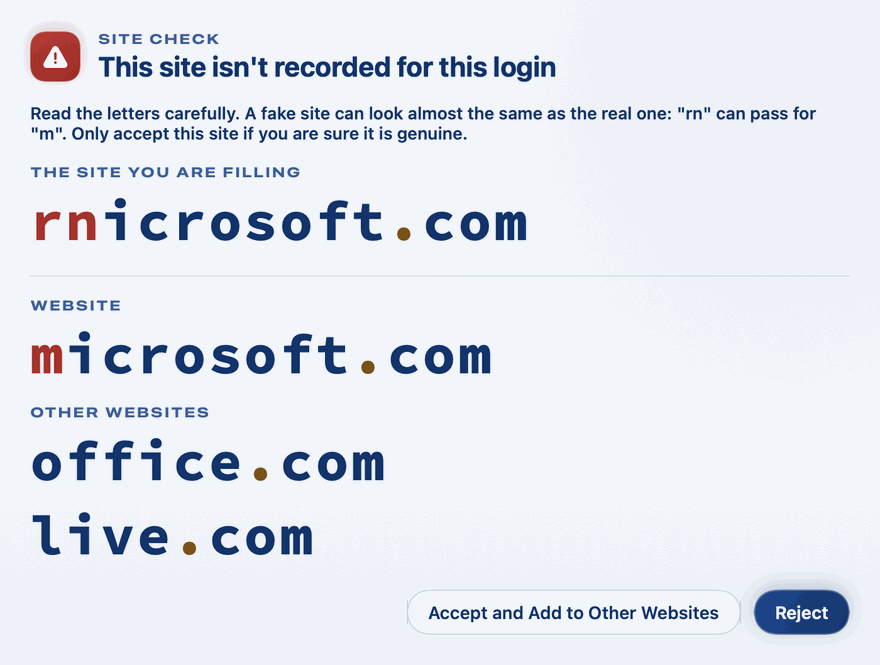
Read the letters carefully, then choose.
Reject
Not sure? Choose Reject. Nothing changes, and Site Check goes back to how it was.
If you've already dragged or copied the login's password, this site may have it, so the dialog suggests what to do next:
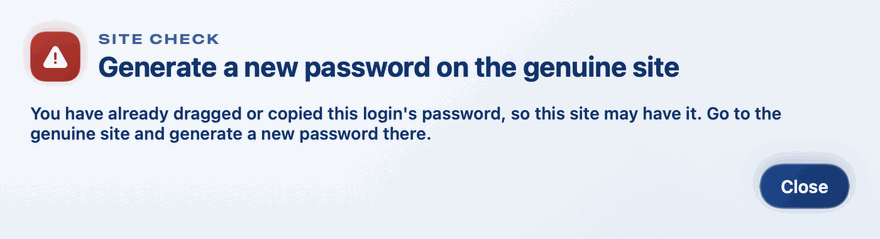
Click Close, then go to the genuine site and generate a new password there. Type the site's address yourself, or use a bookmark you trust, so you know you're in the right place.
Accept
Some companies sign you in at a second address. For example, a Microsoft login can sign you in at login.live.com.
If you know the site is genuine, choose Accept and Add to Other Websites. The site joins the login's Other Websites, Site Check goes green, and it goes green there from then on.
A login with no Website yet has nothing to compare with, so any site goes red. Its dialog offers Accept and Make It the Website.
What's compared
Site Check compares the core domain: the site's address without its first part, unless that would leave only its
ending, such as com.au.
| Page's address | Core domain |
|---|---|
www.microsoft.com/account |
microsoft.com |
login.microsoft.com |
microsoft.com |
signin.aws.amazon.com |
aws.amazon.com |
www.amazon.com.au |
amazon.com.au |
The two must match exactly. So a login recorded for amazon.com goes red at signin.aws.amazon.com and at
amazon.com.au, until you accept them.
A look-alike letter from another alphabet never matches. The dialog shows such a site in its coded form, starting
xn--, so it stands out.
Turning Site Check off
Site Check is on to begin with. To turn it off, click the key, then Info, then Settings, and under From a browser turn off Site Check. Nothing then shows on your logins.