Your First Launch
The first time you open Private Passwords, the Welcome asks a few quick questions, then gives you a short tour. It takes a couple of minutes.
The questions
Where are your passwords kept?
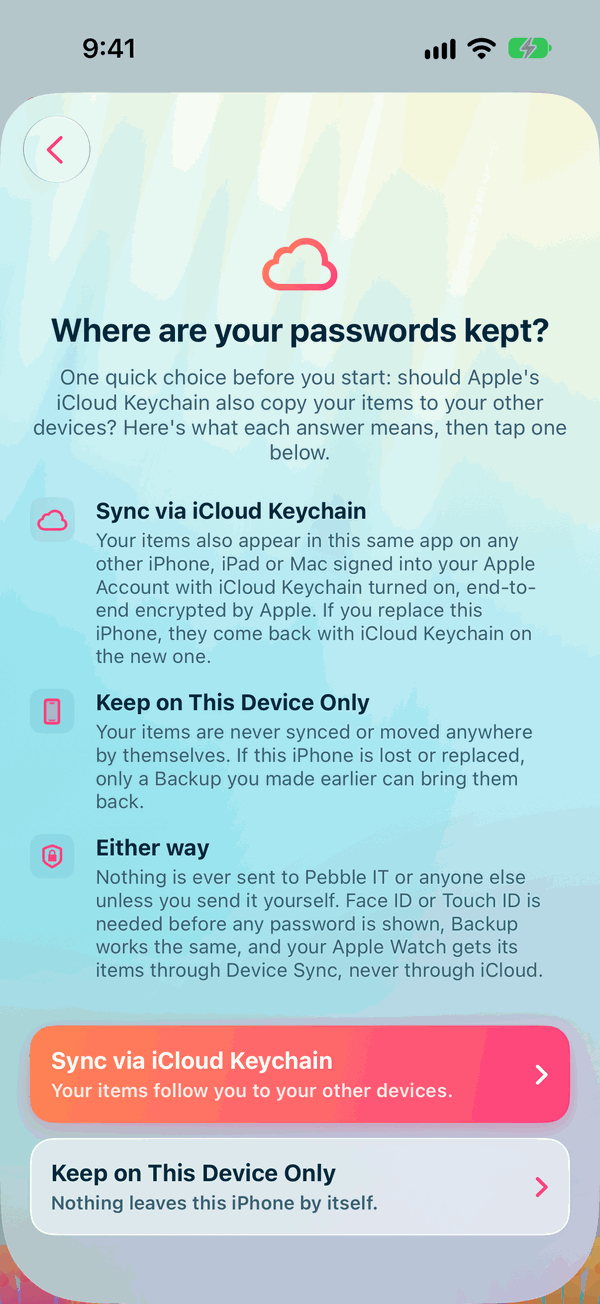
Choose one:
- Sync via iCloud Keychain. Your items also appear in Private Passwords on your other iPhone, iPad or Mac signed into the same Apple Account, with iCloud Keychain turned on. Apple encrypts them end to end. If you replace your iPhone, they come back on the new one.
- Keep on This Device Only. Your items never leave this iPhone by themselves. If it's lost or replaced, only a backup you made earlier can bring them back.
Either way, nothing is ever sent to Pebble IT or anyone else unless you send it yourself, and Face ID or Touch ID is needed before any password is shown.
Choose carefully
Everything you keep remembers the choice it was made with, so you can only choose while Private Passwords is empty. To change it later you'd make a backup, use Delete All Data on the Info page, and answer again.
Is Private Passwords already on another of your devices?
You're asked this if you chose iCloud Keychain.
- No, this is my first. Private Passwords sets up its starter templates on this iPhone.
- Yes, on another device. Nothing is set up here. Your items, templates and tags arrive from your other device, usually within a minute.
Your templates
Choose your country. Templates then use the names your country uses, such as Postcode or ZIP code, and BSB or Sort code. Dates are typed and shown the way your country writes them. You can rename any label later, and change how dates look in Settings.
The tour
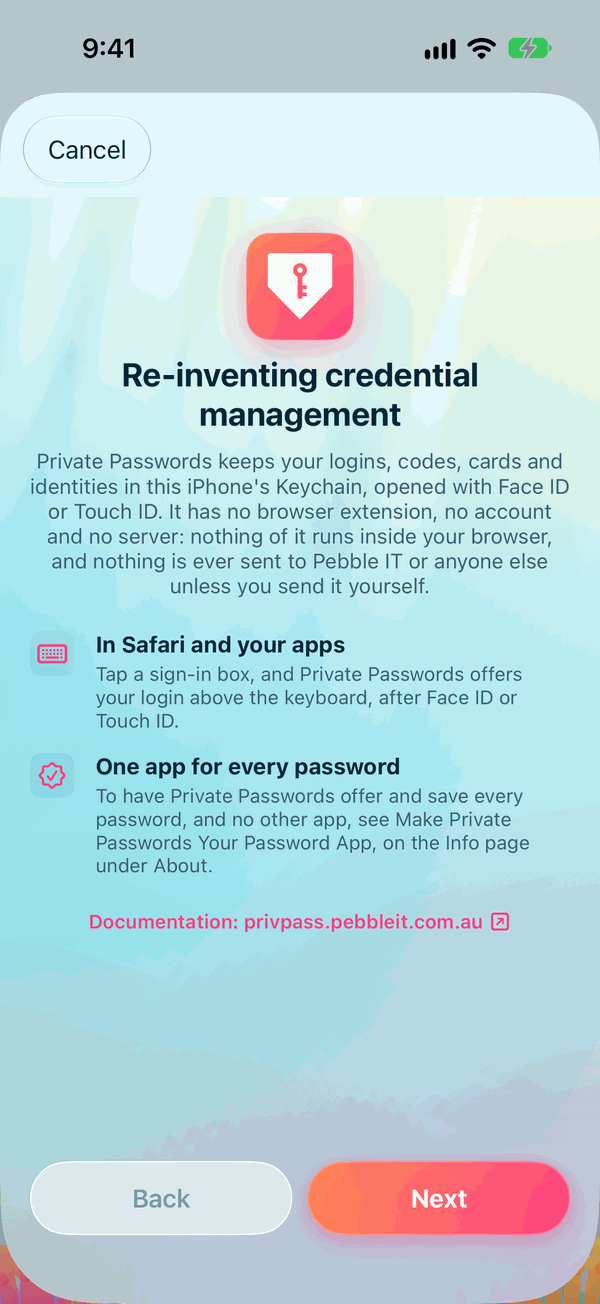
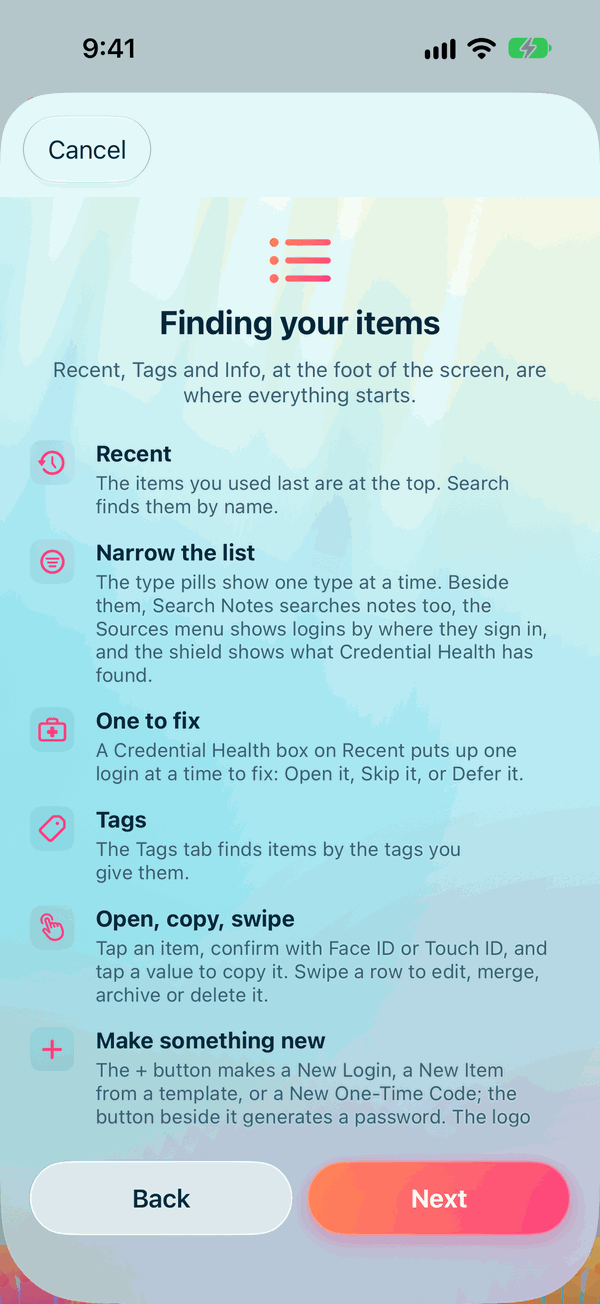
Ten short pages show you around. Tap Next to move on, Back to go back, or Cancel at the top to skip the rest.
- Re-inventing credential management: what Private Passwords is, and that nothing of it runs in your browser.
- Finding your items: Recent, Tags and Info at the foot of the screen, the type pills, and the + button.
- AutoFill on your iPhone: your logins, codes and passkeys offered above the keyboard.
- Site Check: how AutoFill shows you a site that isn't recorded for the login you picked.
- Signing up and saving new logins: your identity, New Login and keeping a new password.
- One-time codes and your Apple Watch: scanning a site's code, and seeing it on your wrist.
- Make it yours: themes, Face ID, copying and more, in Settings.
- Your other Apple devices: how syncing with iCloud Keychain works.
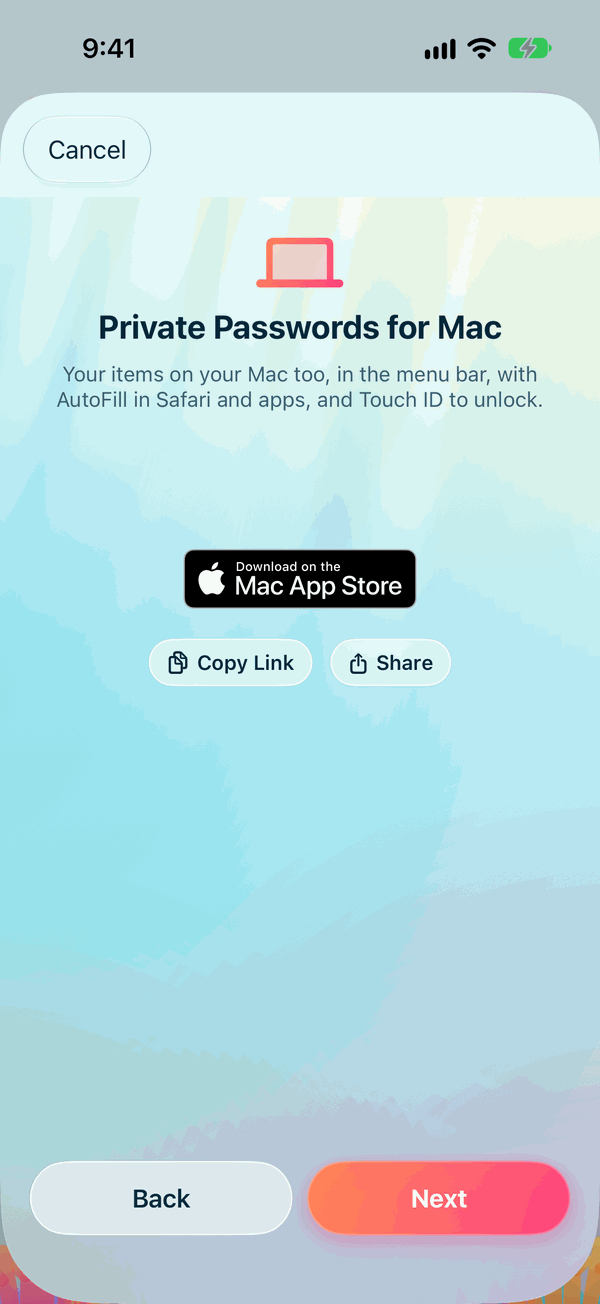
- Private Passwords for Mac: the app for your Mac, with its Mac App Store badge, Copy Link and Share.
- Bring in, back up, begin: importing, backing up and exporting.
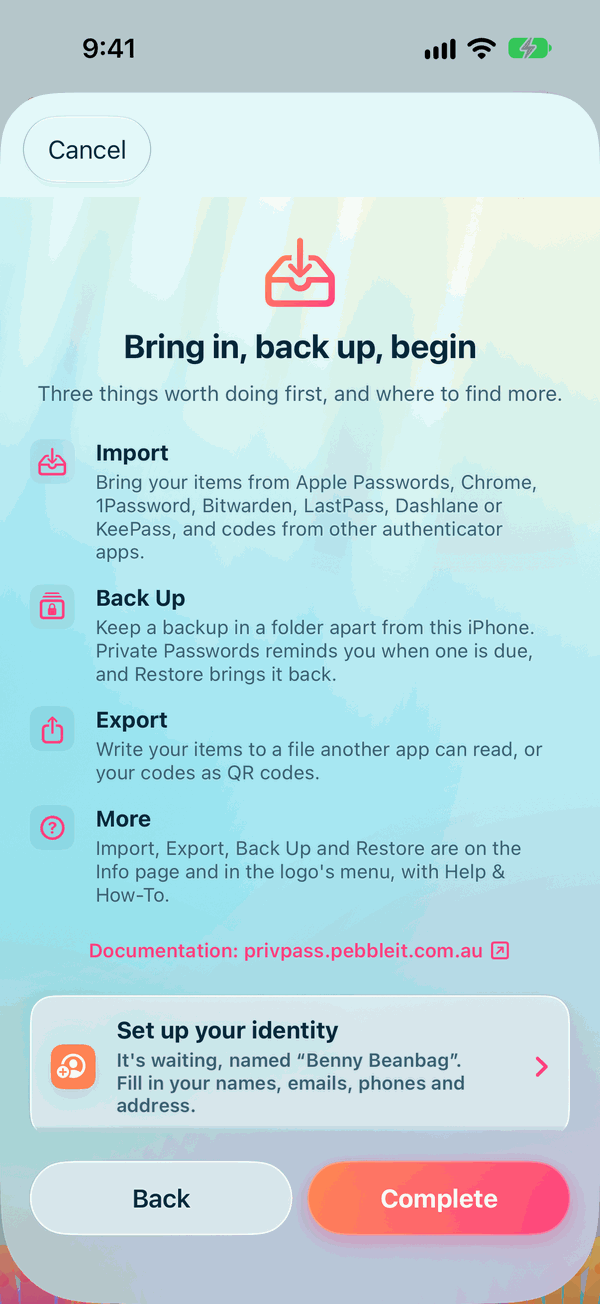
The last page offers five ways to begin:
- Set up your identity. Your starter identity is waiting for you: fill in your names, emails, phones and address, ready for sign-up forms. See Identities.
- Add your first password. See Adding Your First Login.
- Scan your first code, for a site's one-time code.
- Bring passwords from another app. See Importing from Another App.
- Restore a backup, if you already have a Private Passwords backup and its recovery key.
Or tap Complete to start using the app.
If iCloud Keychain has already brought your items from your other devices by the time you first open Private Passwords, there's nothing to choose: it uses them as they are, skips the questions, and still shows you the tour.
Seeing the tour again
The tour is always there: open Info, and tap Welcome to Private Passwords under About or under Help.
Face ID and Touch ID
Private Passwords asks for Face ID or Touch ID before it shows a password or opens an item. Face ID asks each time, as it's so quick. With Touch ID, or your iPhone's passcode, it doesn't ask again for a while, and you can choose how long. See Face ID, Touch ID and the unlock period.