The Settings Page
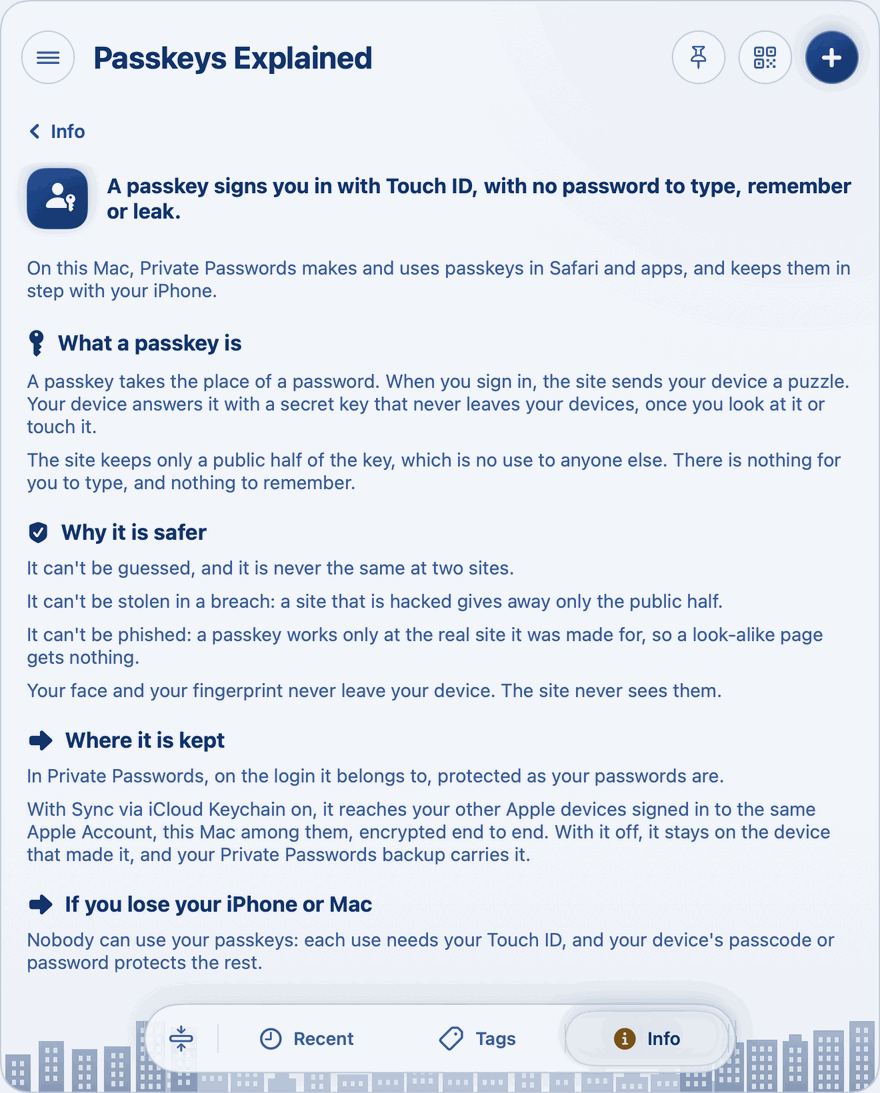
Right-click the key and choose Settings, or click the key, then Info, then Settings…. Private Passwords asks for Touch ID or your Mac's password first. Settings are kept on this Mac: your other devices have their own.
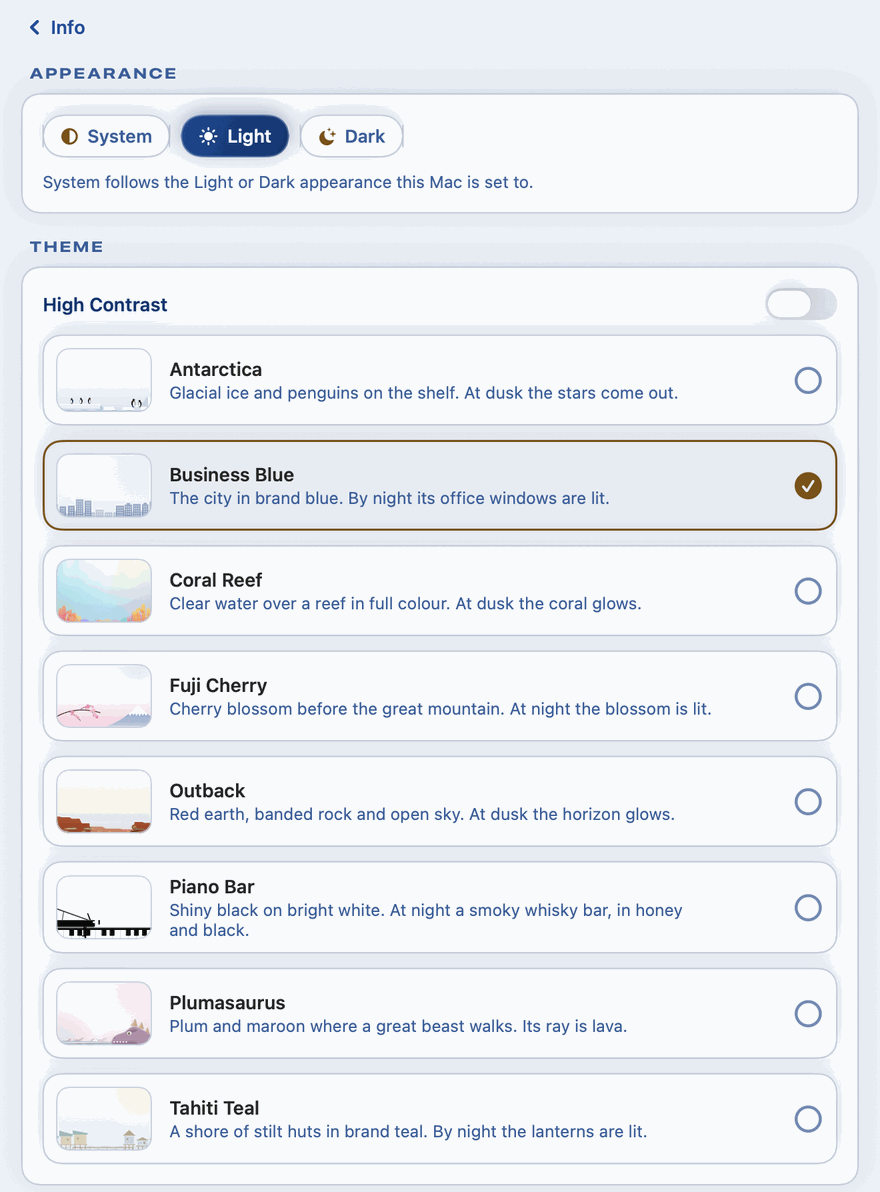
Appearance and Theme
- Appearance: System follows your Mac's Light or Dark setting, or choose Light or Dark.
- Theme: eight themes, each with its own colours and scene.
- High Contrast: at the top of Theme, off to begin with. Turn it on for plain, strong colours that are easier to read, with no pictures: dark blue, white, black and red, in Light or Dark. AutoFill follows it. The list of themes hides while it is on, and the theme you chose comes back when you turn it off.
Security
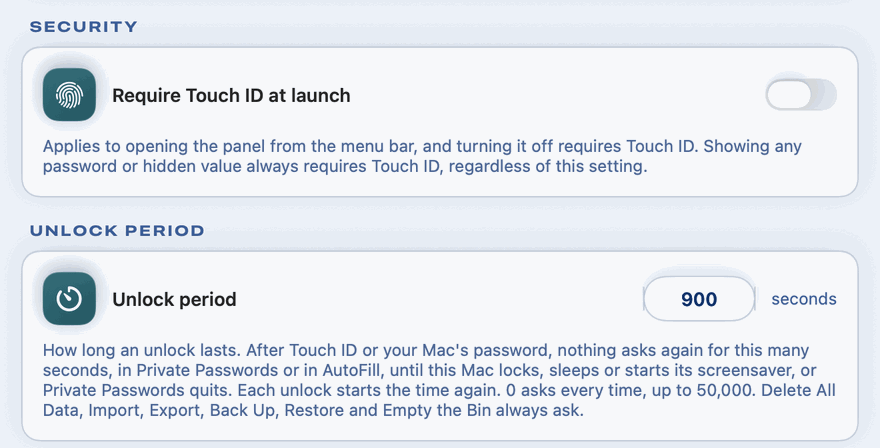
- Require Touch ID at launch: asks for Touch ID, or your Mac's password, each time Private Passwords starts. Off to begin with.
- Unlock period: how long Private Passwords stays open after Touch ID before asking again. See Touch ID, Your Password and the unlock period.
Starting
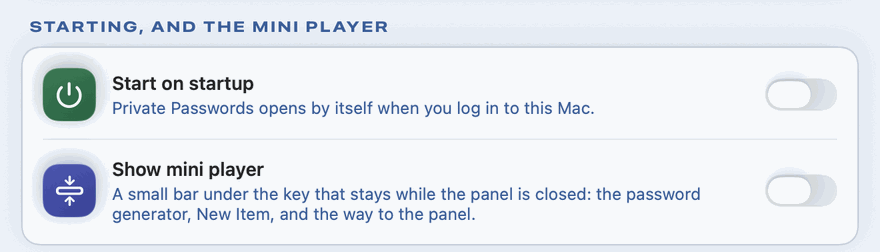
- Start on startup: opens Private Passwords each time you log in to your Mac, so the key is always there.
- Show mini player: the small bar under the key with the generator and +. See The Panel.
Sync
Shows whether your items sync through iCloud Keychain or stay on this Mac. You chose this during the Welcome. See Syncing Between Your Devices.
The panel
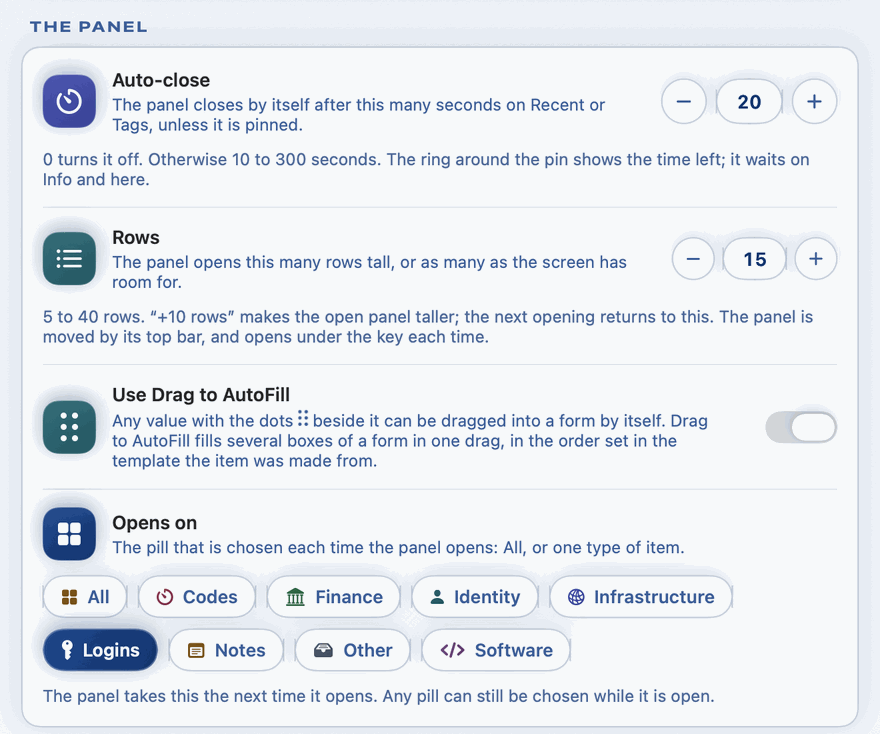
- Auto-close: the panel closes by itself after this many seconds on Recent or Tags, unless it's pinned.
- Rows: how many rows tall the panel opens, or as many as your screen has room for.
- Use Drag to AutoFill: on to start. Turned off, items no longer show the Drag to AutoFill handle; every value can still be dragged by its dots.
- Opens on: the type pill the panel shows each time it opens: All, or one type.
Credential Health
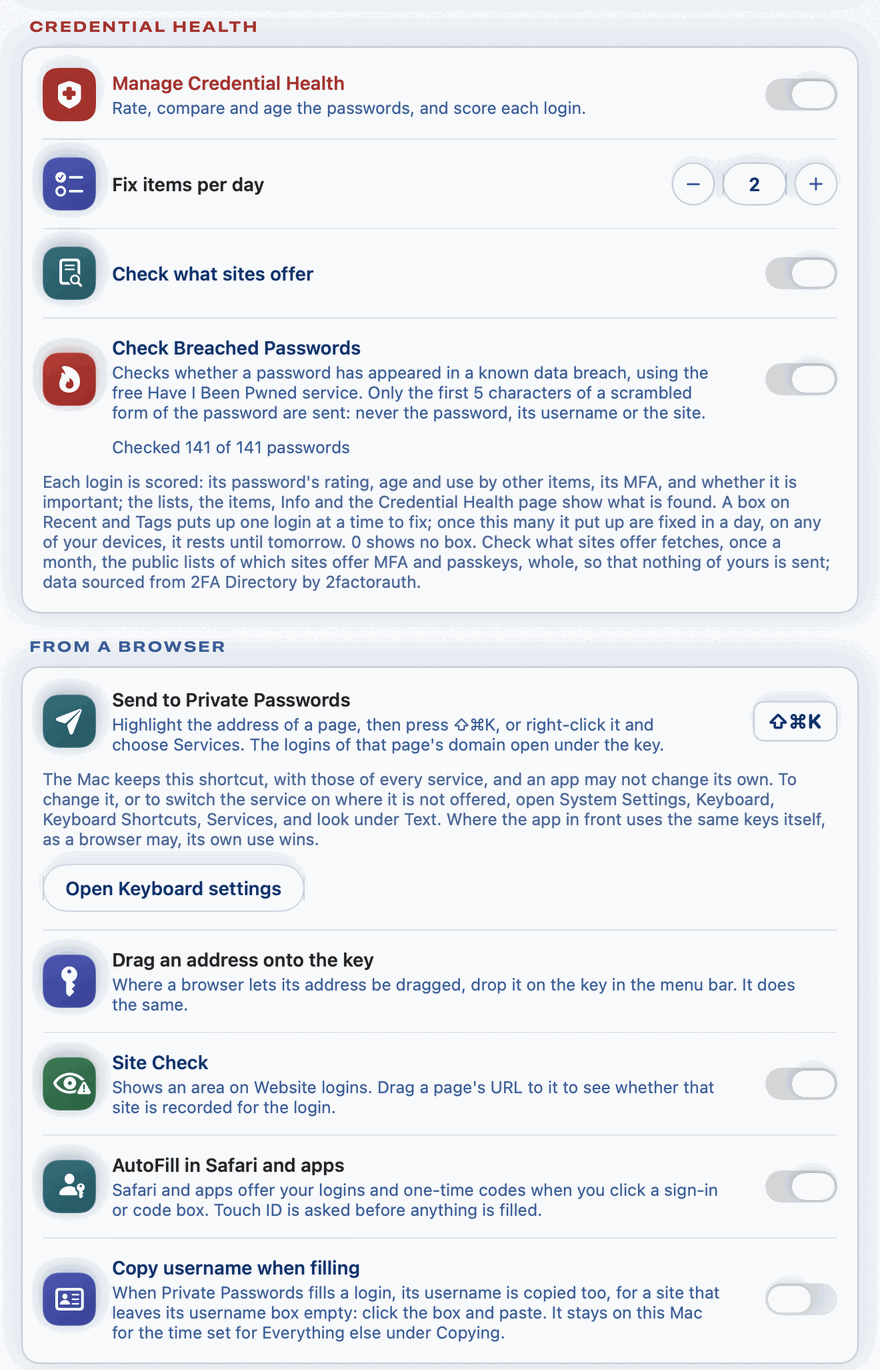
- Manage Credential Health: scores your logins and shows which need attention. See Credential Health.
- Fix items per day: how many logins a day the box on Recent offers you to fix. 2 to begin with.
- Check what sites offer: once a month, fetches the public lists of which sites offer MFA and passkeys, each whole, so nothing of yours is sent. On to begin with. See What sites offer.
- Check Breached Passwords: checks your passwords against known data breaches, sending only the first 5 characters of a scrambled form of each, never the password. On to begin with, and off while Credential Health is off. Under it, how many of your passwords have been checked. See Breached passwords.
From a browser
- Send to Private Passwords: the ++shift+command+k++ shortcut that sends a highlighted address to the key. Open Keyboard Settings changes it. See Dropping a Page on the Key.
- Site Check: shows an area on Website logins, to check whether the page you're on is a site recorded for the login. On to begin with. See Site Check.
- AutoFill in Safari and apps: offers your logins and codes in Safari's and your apps' own menus. See AutoFill in Safari and Apps.
- Copy username when filling: when Private Passwords fills a login, its username is copied too, for a site that leaves its username box empty. Off to begin with. See AutoFill in Safari and Apps.
Passkeys
Automatic passkey upgrades: off to begin with. When it's on, a site that supports passkeys may add one to your login right after Private Passwords fills the password. Your other devices follow the same setting.
Icons
Icons from sites: asks each item's own website for its icon. Private Passwords itself never uses the network: a small helper inside it asks the site. The same helper fetches the lists for Check what sites offer. It's the only part of Private Passwords that uses the network, and it can't reach your passwords.
Archive and Bin
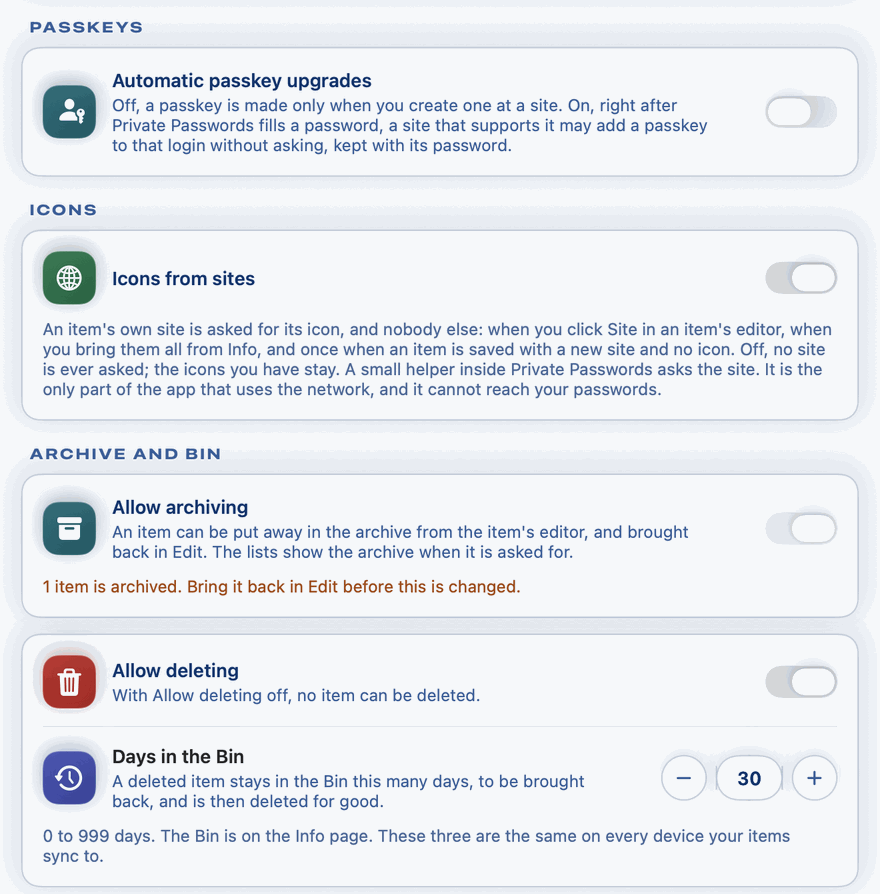
- Allow archiving and Allow deleting: turn either off to keep items from being archived or deleted.
- Days in the Bin: how long a deleted item stays in the Bin before it's gone for good. 30 days to begin with; 0 means items are deleted straight away.
Backup
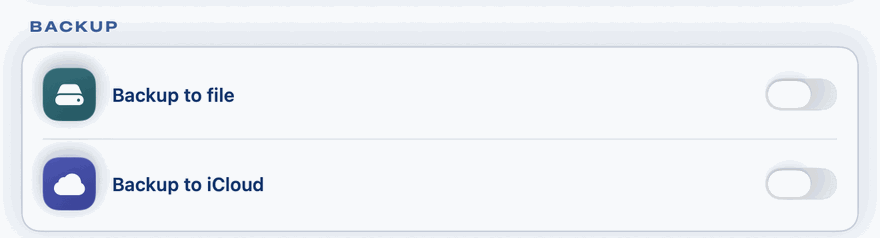
Where your backups may go. Both are off to begin with: turn on at least one before you back up.
- Backup to file: Back Up saves a file in a folder on this Mac, named by the day and the minute. Once it's on, the folder is shown, with Change folder… to choose another. Until you choose one, it's your home folder.
- Backup to iCloud: Back Up sends the backup straight to your own iCloud. Once it's on, iCloud backups to keep sets how many are kept, 3 to begin with; the oldest beyond that is deleted after each new backup. With 0, none are deleted.
See Making and Restoring a Backup.
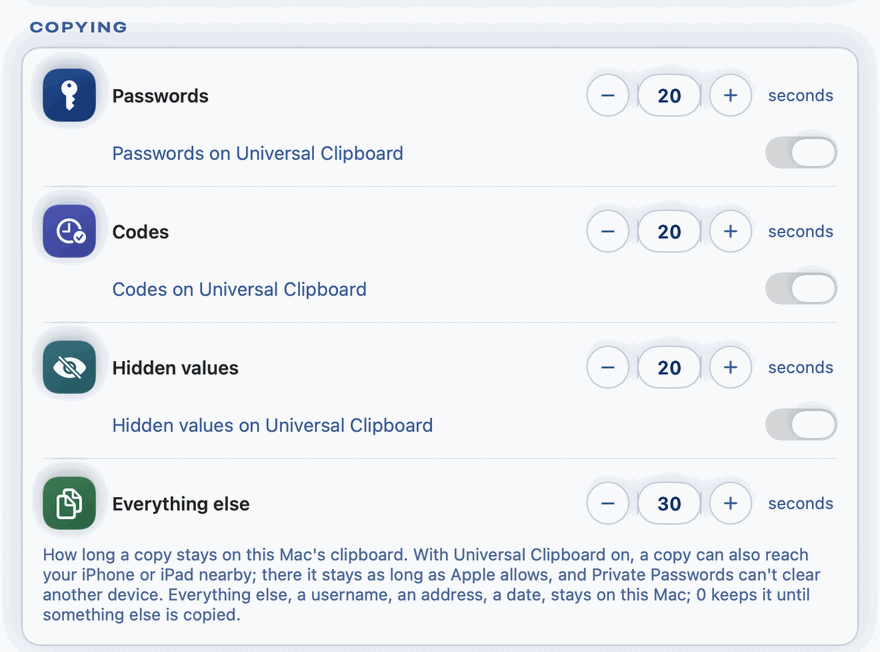
Copying
How long a copied password, code or other value stays on the clipboard, and whether it may reach your iPhone or iPad. See Copying and the Clipboard.
Dates
- Entered as: how you type a date into an item, such as day before month.
- Shown as: how dates are shown.
They start the way your country writes them. A date you drag or copy out of an item always leaves in digits, with its year in full, in the order you type it.
Return to top, at the foot of the page, takes you back up.