Where to Go Next
You've got Private Passwords set up and your first login in. Here's what's worth doing next.
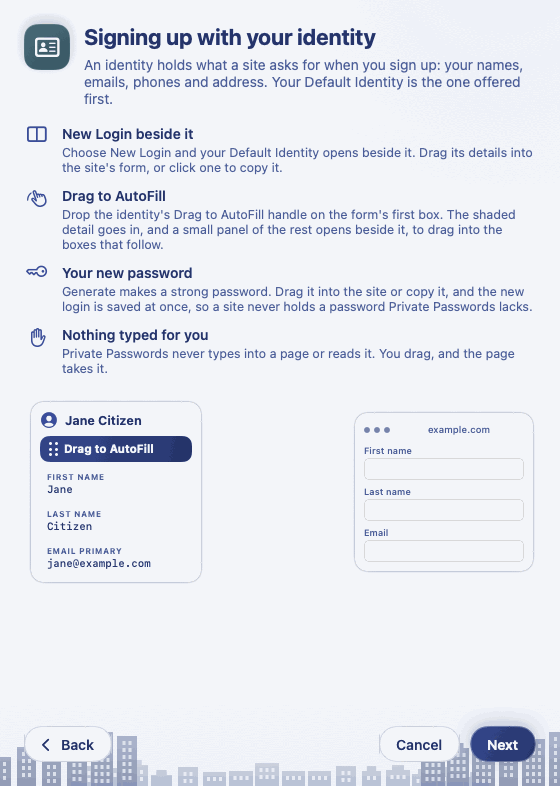
Learn the quickest ways to fill in
Private Passwords never types into a page or reads it. Instead you bring the page to the key, and drag in what it asks for. It takes a moment to learn and then becomes second nature. See Dropping a Page on the Key and Dragging a Value into a Form.
Turn on AutoFill
Let Safari and your apps offer your logins in their own menus, after Touch ID. See AutoFill in Safari and Apps.
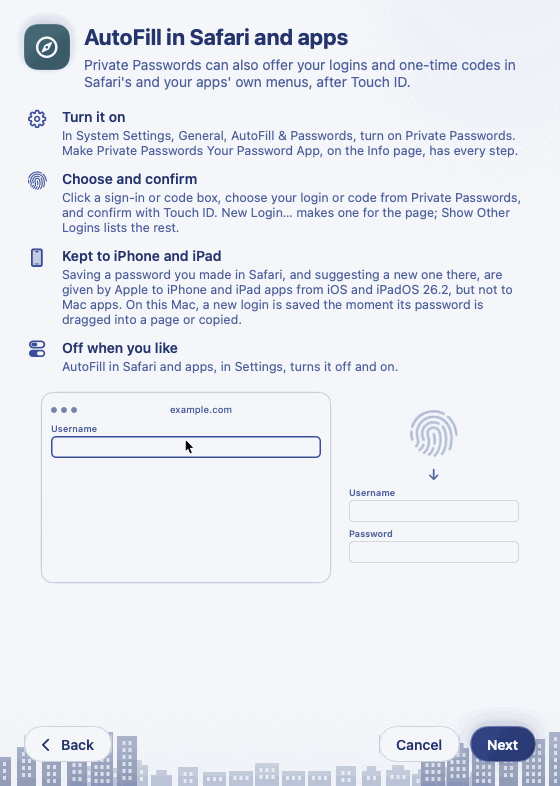
To have Private Passwords offer and save every password, and no other app, click the key, then Info, then Make Private Passwords Your Password App. It walks you through each step.
Bring in your other passwords
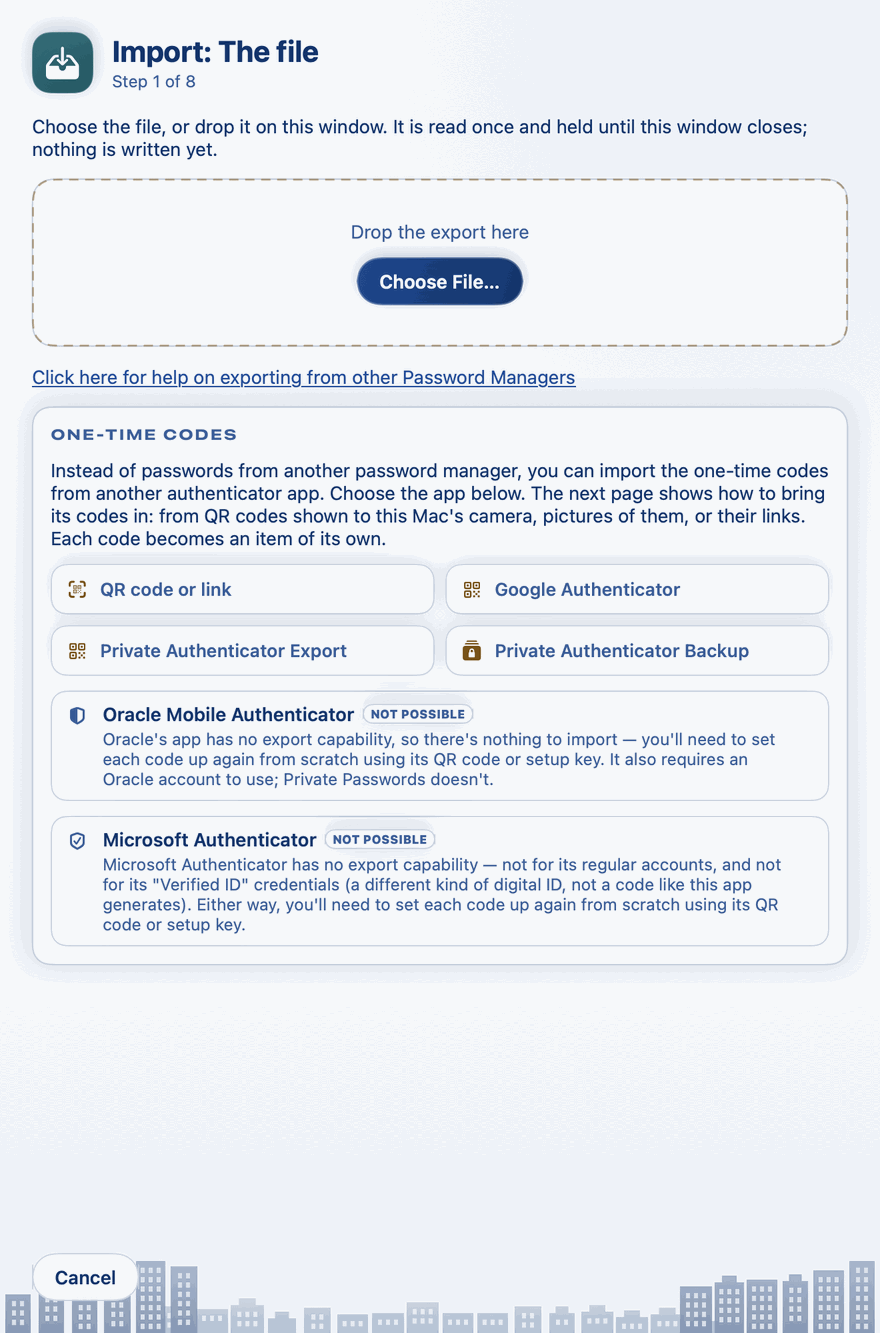
Moving from Apple Passwords, Chrome, 1Password, Bitwarden, LastPass, Dashlane or KeePass? Bring everything across in one go. See Exporting from Your Old App and Importing from Another App.
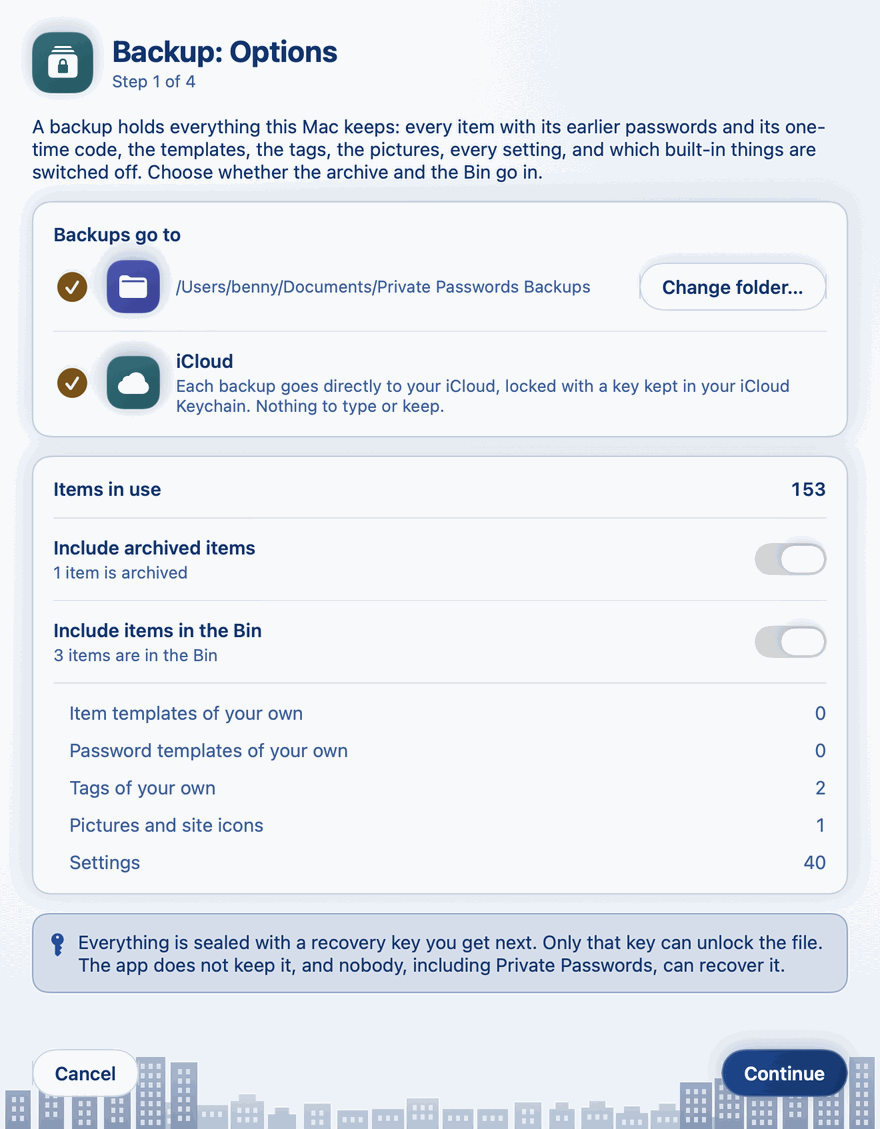
Make a backup
Even with iCloud Keychain, a backup is your safety net if something goes wrong. Private Passwords reminds you when one is due. See Why Back Up?.
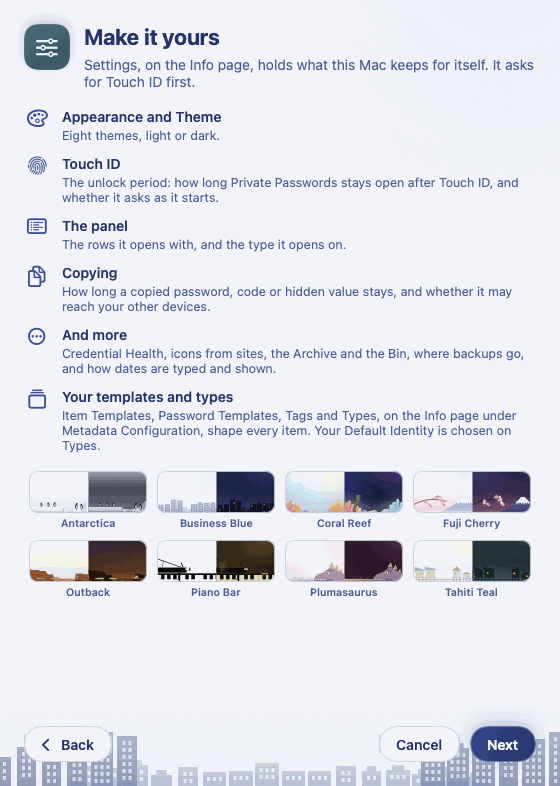
Make it yours
Choose a theme, set how long Private Passwords stays open after Touch ID, how tall the panel opens, and more. See The Settings Page.