Tags
Tags are labels you give your items, such as Work, Family or Travel. An item can have as many tags as you like, and the Tags tab lists your items under each of them.
Using the Tags tab
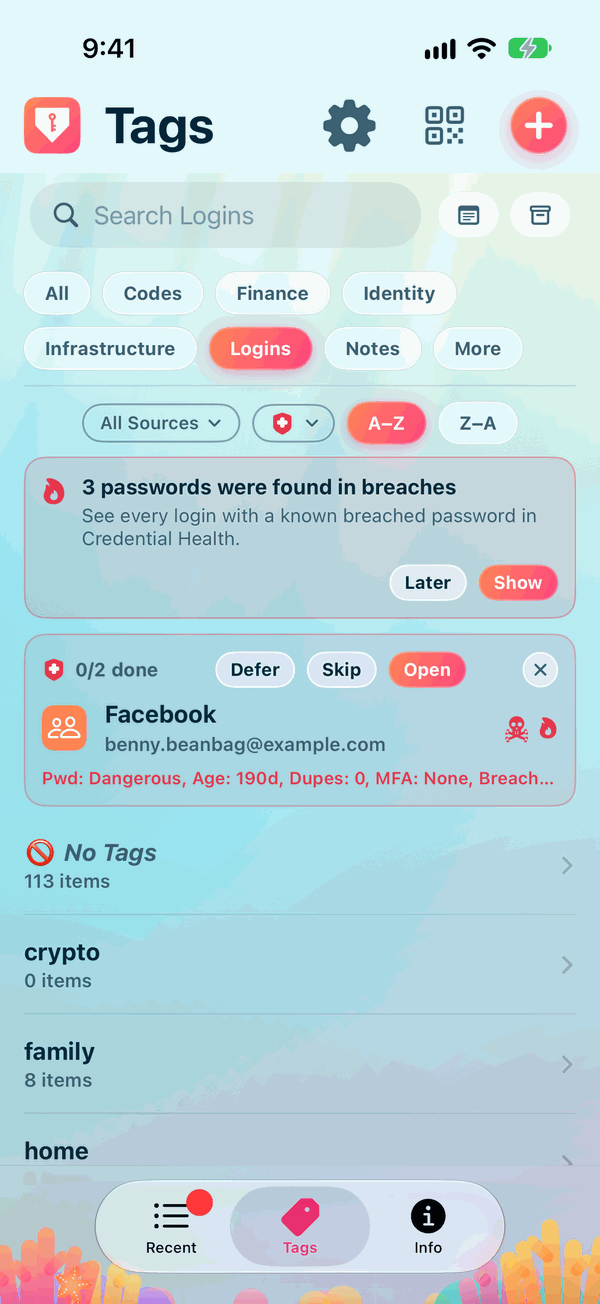
- Tap Tags at the foot of the screen.
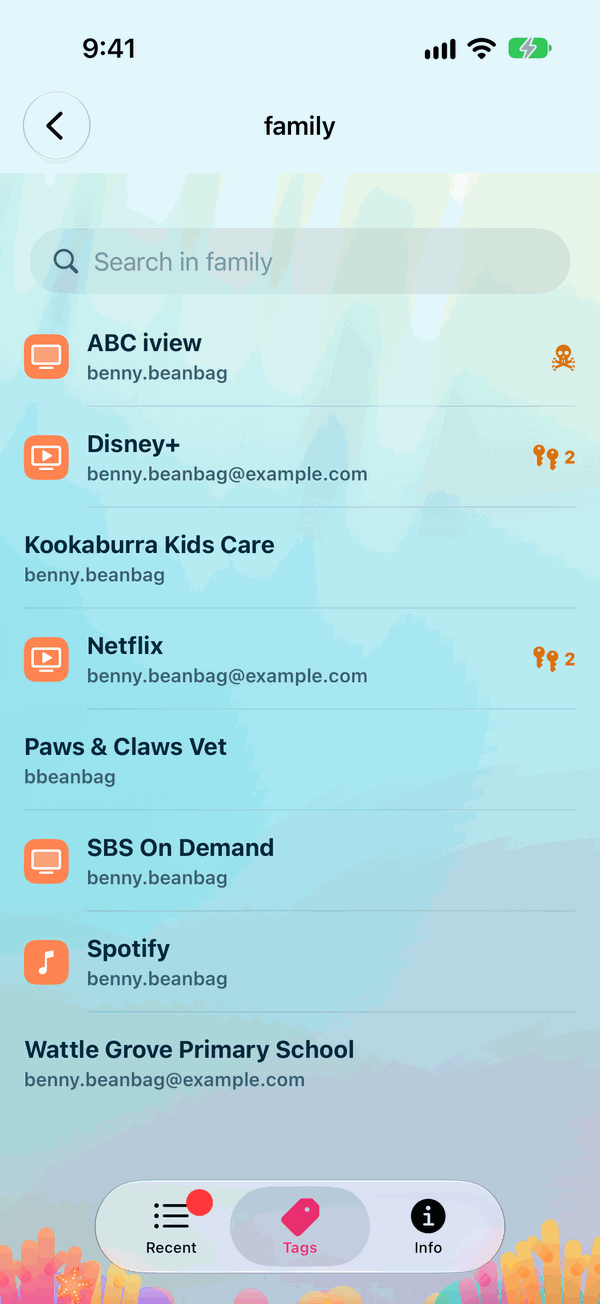
- Each tag is listed with how many items carry it. Tap a tag to see its items. An item with two tags appears under both.
- Items with no tag are listed under No Tags.
- A tag's page has a search box at its top, Search in and the tag's name, which narrows the list to the items within that tag.
- The type pills, search, Search Notes, the Archived button, Source and Credential Health work here just as they do on Recent. A–Z and Z–A turn the order of the tags, and of the items within each. With no items at all yet, Tags offers Import and Restore, as Recent does.
Giving an item a tag
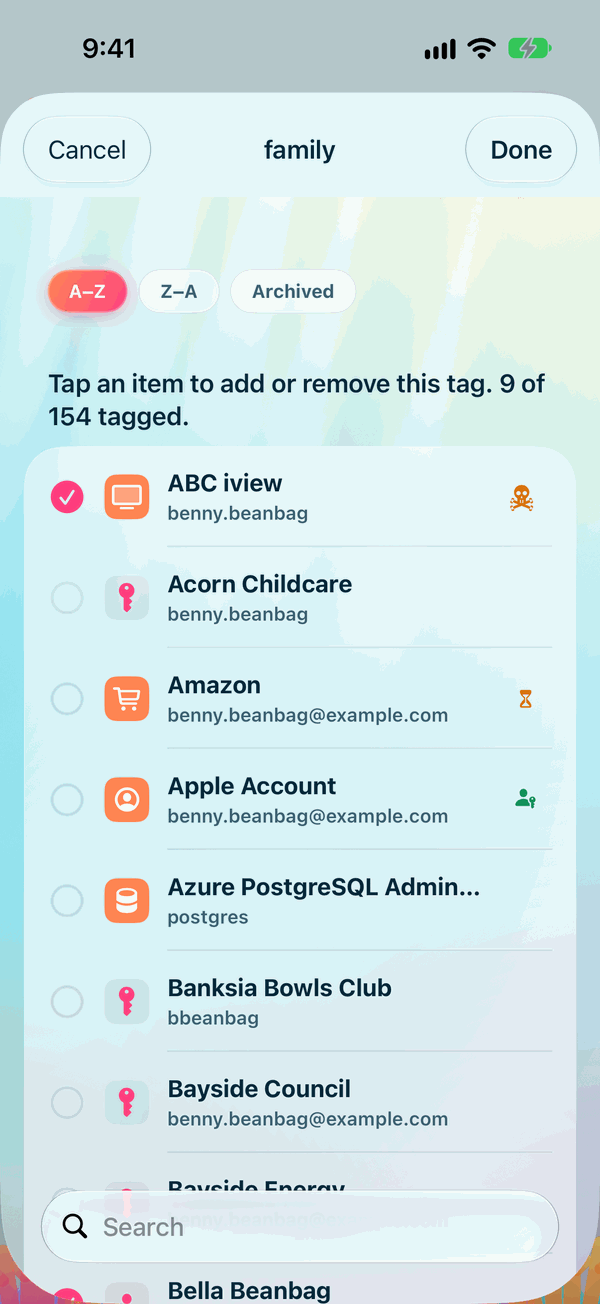
Open the item, tap Edit, and choose its tags: every tag you have is offered. Tap Save.
Managing your tags
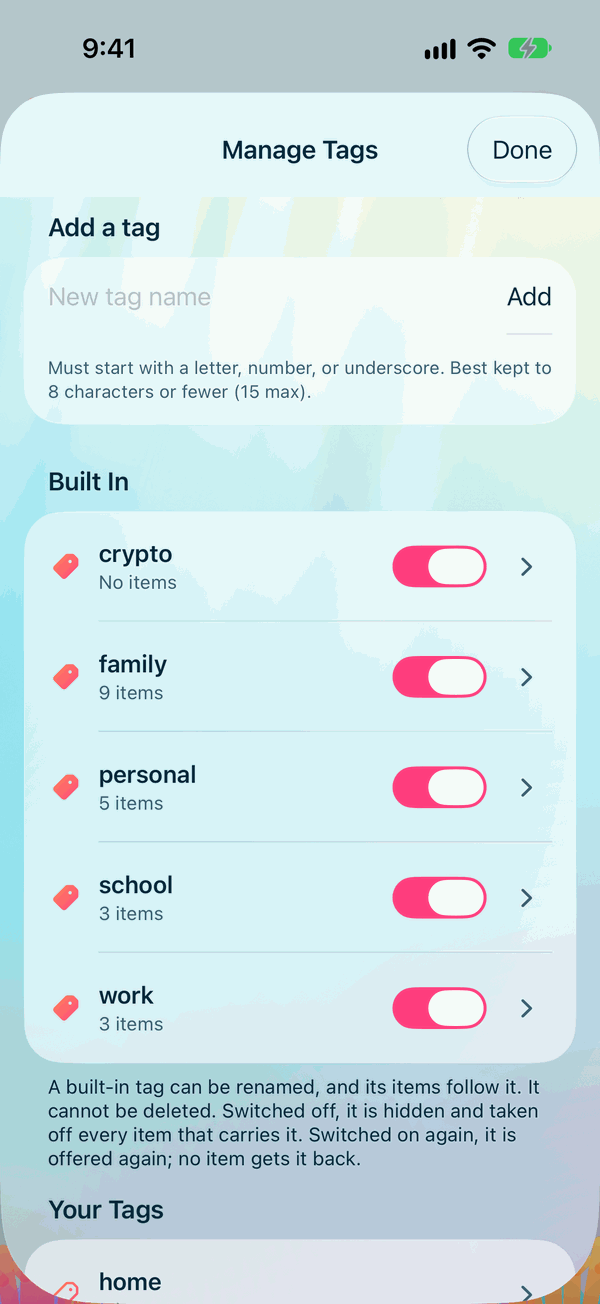
Tap the gear at the top of the Tags tab to open Manage Tags. There you can add a tag, rename one, or delete one you no longer use. Private Passwords starts you off with a few tags, such as work, family and personal. You can rename them, or switch off any you don't want.