AutoFill in Safari and Apps
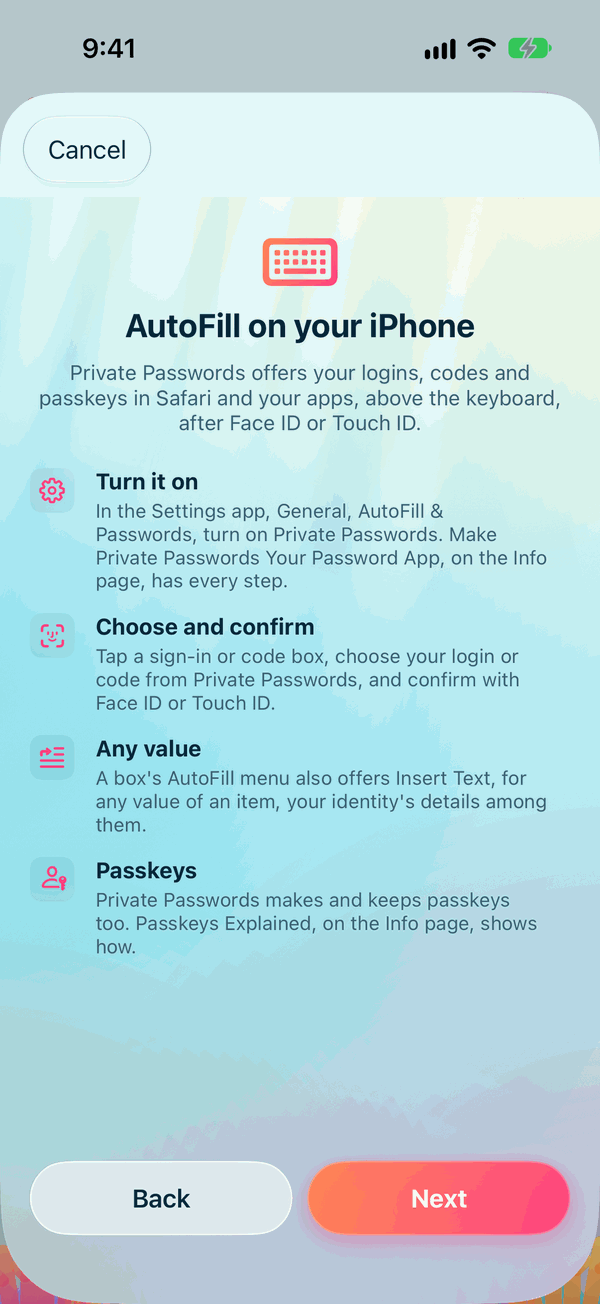
With AutoFill, Safari and your apps offer your logins right above the keyboard. You rarely need to open Private Passwords to sign in.
Turning it on
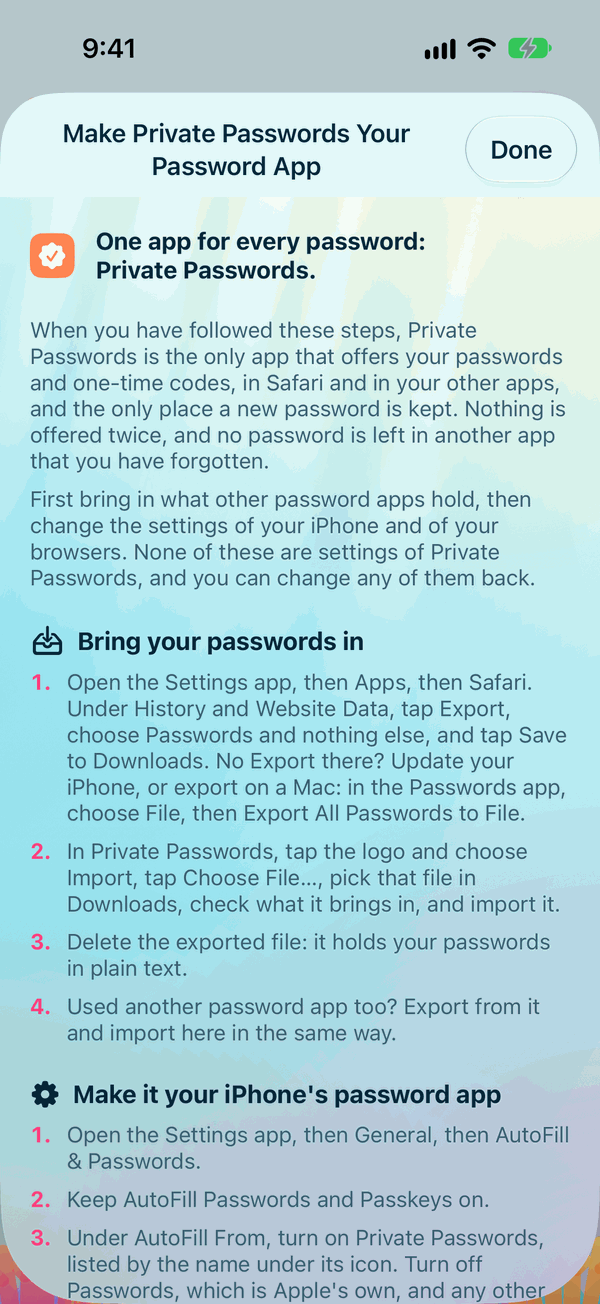
- Open the Settings app.
- Tap General, then AutoFill & Passwords.
- Turn on Private Passwords.
To have Private Passwords offer and save every password, and no other app, open Private Passwords, tap Info, then Make Private Passwords Your Password App. It shows each step.
Private Passwords' own Settings has a switch too, AutoFill in Safari and apps, under AutoFill. It's on to begin with. Below it, Settings tells you whether Private Passwords is switched on in the Settings app, and if it isn't, Open AutoFill settings takes you there. Turn the switch off and Safari and your apps are told of none of your items.
Signing in
- Tap the site's username or password box.
- Above the keyboard, Private Passwords offers the login for this site. Tap it.
- Confirm with Face ID or Touch ID.
The username and password go in. Tap the site's sign-in button.
When a login holds only its site's address, the first time it's filled on one of that site's pages it's given that page's address too, with nothing asked.
When there's more than one login, or none
Tap the key above the keyboard, or Passwords, to open Private Passwords' own list:
- Logins for this site come first, including logins that list this site among their Other Websites.
- Show Other Logins lists all your other logins, with Search Logins to find one.
Signing up at a new site? Safari offers to save the new login in Private Passwords once you've signed up. See Saving a Login as You Sign Up.
If you pick a login from Show Other Logins for a site it isn't recorded for, Site Check shows you the two sites first, letter by letter, before anything is filled. See Site Check.
One-time codes
When a site asks for its six-digit code, tap the code box. Private Passwords offers the site's code above the keyboard: tap it and confirm with Face ID or Touch ID. Show Other Codes lists the rest. See One-Time Codes.
Passkeys
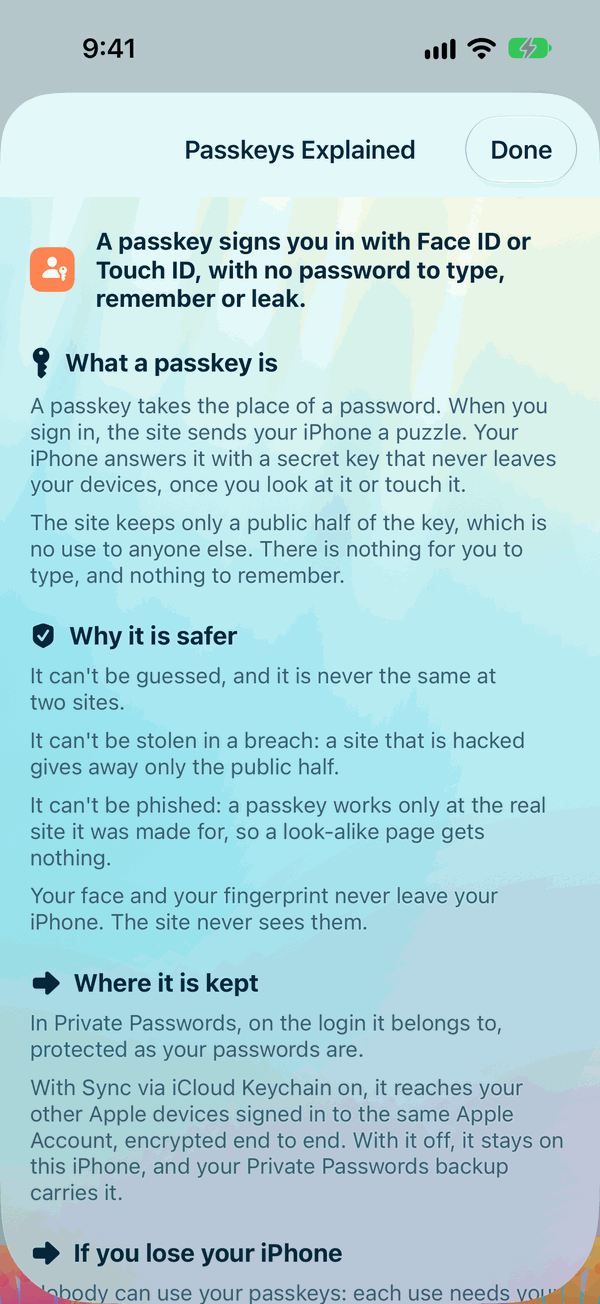
Private Passwords also makes and keeps passkeys, which let you sign in with Face ID or Touch ID instead of a password. When a site offers to make one, choose Private Passwords. Open Info, then Passkeys Explained, to see how they work.
When the username isn't filled
Some sites build their username box in a way Safari doesn't recognise, often a box for a customer or member number, and only the password goes in. To fill that box:
- Tap it, tap it again, choose AutoFill, then Insert Text, and pick the login's username. See Insert Text.
- Or turn on Copy username when filling in Settings. Each time a login is filled, its username is also copied, so you can tap the empty box and paste.
How long before it asks again
With Face ID, each fill asks for it. With Touch ID, or your passcode, a fill doesn't ask again within your Unlock period. See Face ID, Touch ID and the unlock period.