Codes on Your Apple Watch
Your one-time codes can be on your wrist, so you can read a code without picking up your iPhone. The Apple Watch app shows your codes only: your passwords stay on your iPhone.
Setting it up
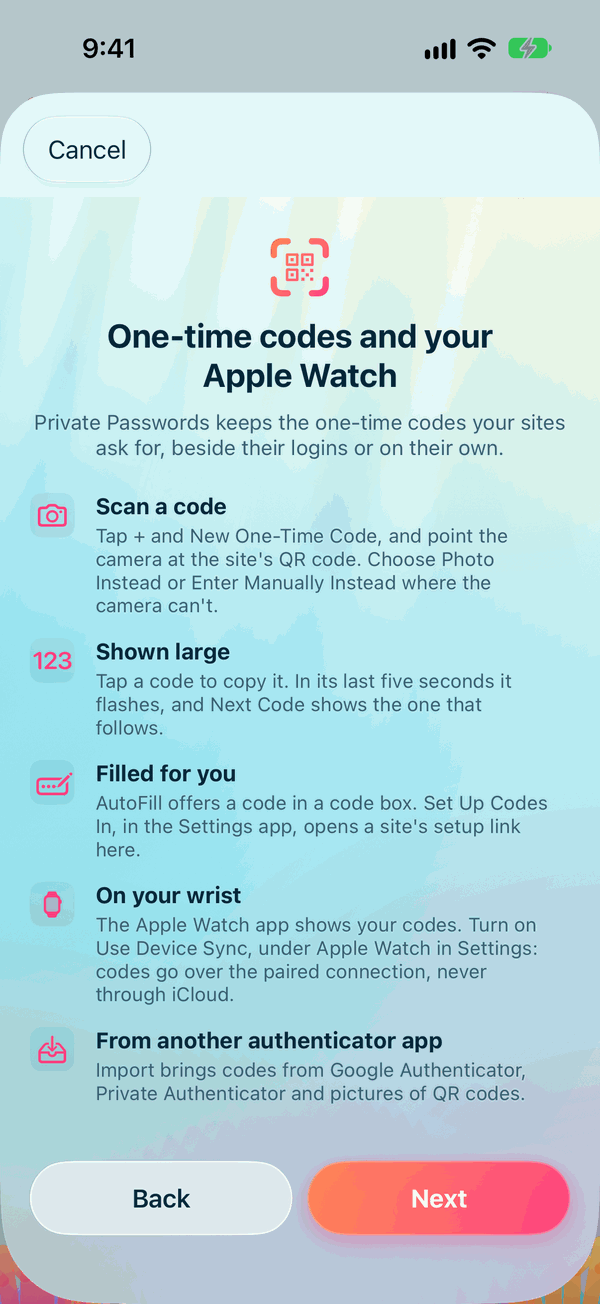
- Install the Apple Watch app. On your iPhone, open the Watch app, scroll to Available Apps, and tap Install beside Private Passwords.
- In Private Passwords on your iPhone, open Info, then Settings.
- Under Apple Watch, turn on Use Device Sync, and confirm with Face ID or Touch ID.
- Open Private Passwords on your Watch. Settings shows when it has your items: "Synced: 12 items and 3 tags on the Watch", for example.
Your Apple Watch needs a passcode set. Private Passwords on the Watch asks for it each time it opens.
Which codes reach your Watch
- Every item that holds a one-time code, with its tags.
- Never an archived item, or one in the Bin.
- Your Watch is kept up to date as you add and change items on your iPhone.
The codes go straight from your iPhone to your Watch over their own paired connection, never through iCloud.
Using it
- Your codes are listed by Recent, by name A–Z or Z–A, or under your Tags.
- Tap an item to see its code, counting down.
- With Tap to copy on Apple Watch on in your iPhone's Settings, tapping the code copies it to your iPhone's clipboard, ready to paste.
- The code page closes by itself after a while, as an item does on your iPhone, and the Watch app locks again when the screen dims or you leave it for a while.
Turning it off
Turn off Use Device Sync in your iPhone's Settings and choose Turn off and remove from Watch. Every item is removed from your Watch. The setting stays locked until the Watch confirms, so open Private Passwords on the Watch if it seems to wait.
In your devices
Your Apple Watch is listed under its iPhone on the Devices page. See Your Devices.