Opening an Item
Tap an item in Recent or Tags to open it. Private Passwords asks for Face ID or Touch ID first. Face ID asks each time; with Touch ID or your passcode, it won't ask again for a while: see Face ID, Touch ID and the unlock period.
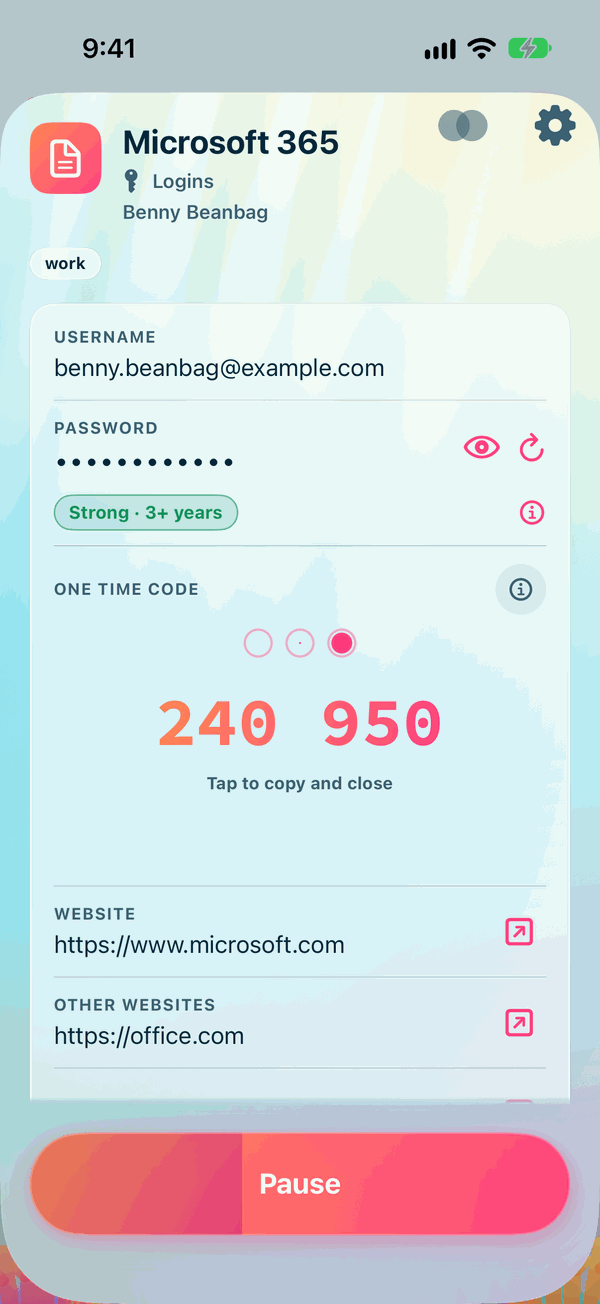
Copying a value
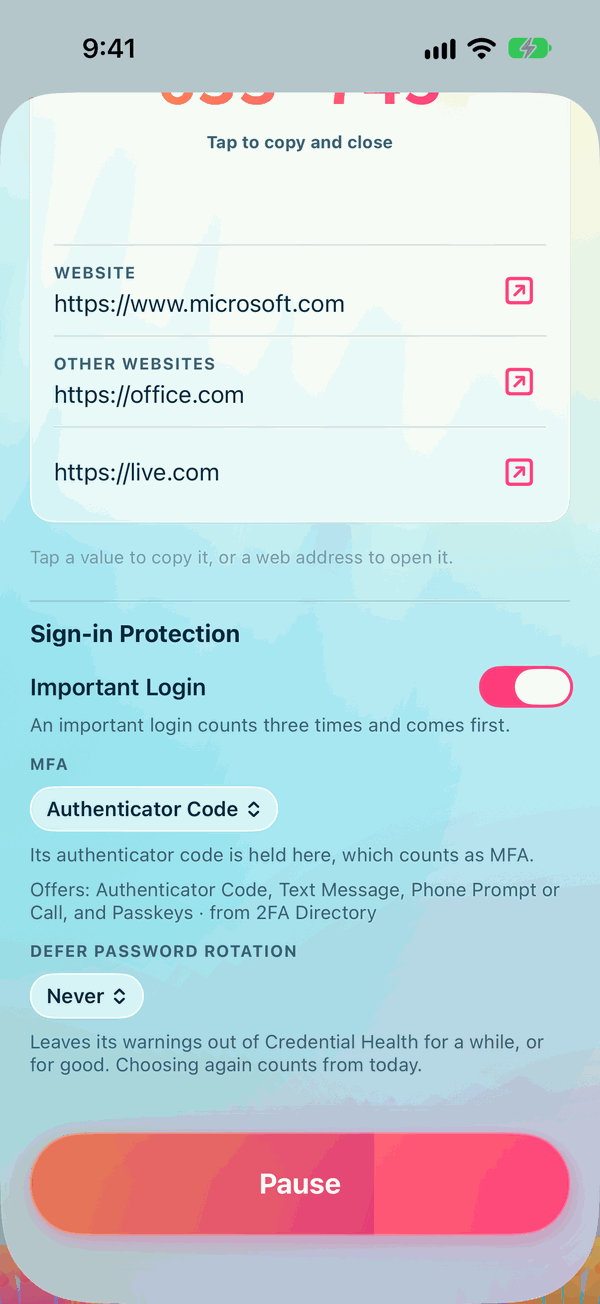
Tap any value, such as the username or the password, to copy it. Then switch to the site or app and paste it. The item says so under its values: Tap a value to copy it, or a web address to open it.
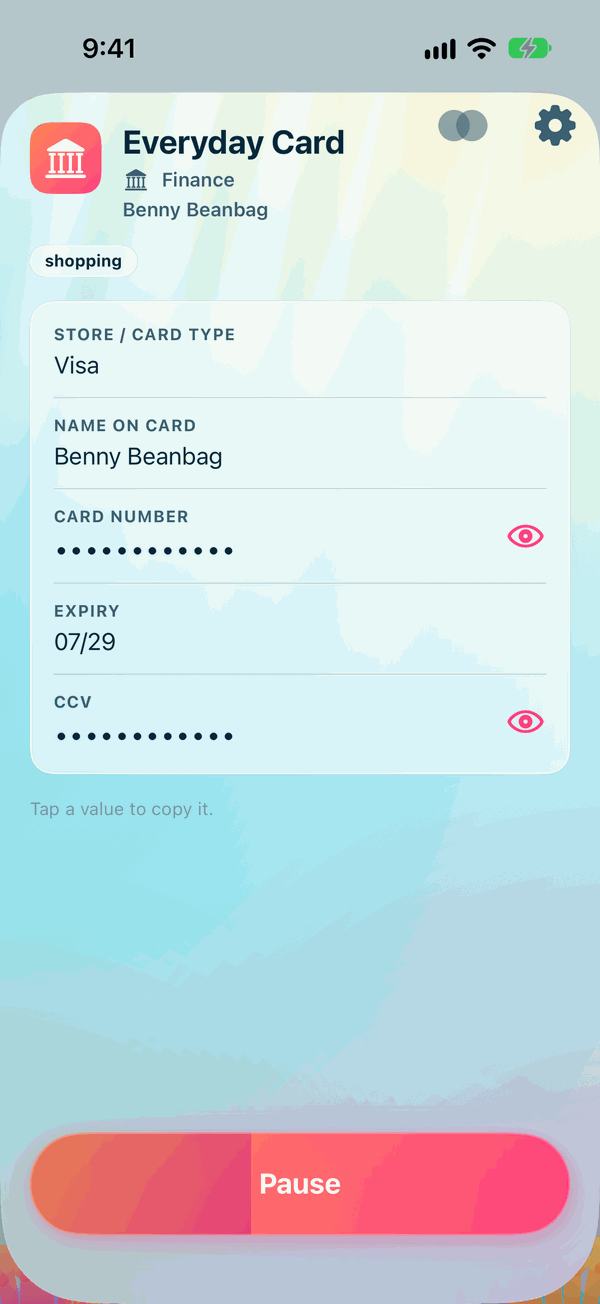
Beside a password are its buttons, the eye always first:
- The eye shows the password, and hides it again.
- The magnifier, there while the password is shown, shows it big, easy to read or to type into another device.
- The round arrow changes it. See Changing a password.
A web address, such as a login's Website, opens the site in your browser when you tap it, rather than copying it. The arrow beside it opens the site too. A long address is shown whole, on up to two lines.
If an item's password is empty, it makes a fresh strong password each time you open it, marked new each time, not kept. Copy it to use it once. To keep one, edit the login and tap Generate.
A copied password doesn't stay on the clipboard for long. After a few seconds Private Passwords clears it, so it isn't left lying around. You choose how long in Copying and the Clipboard.
One-time codes
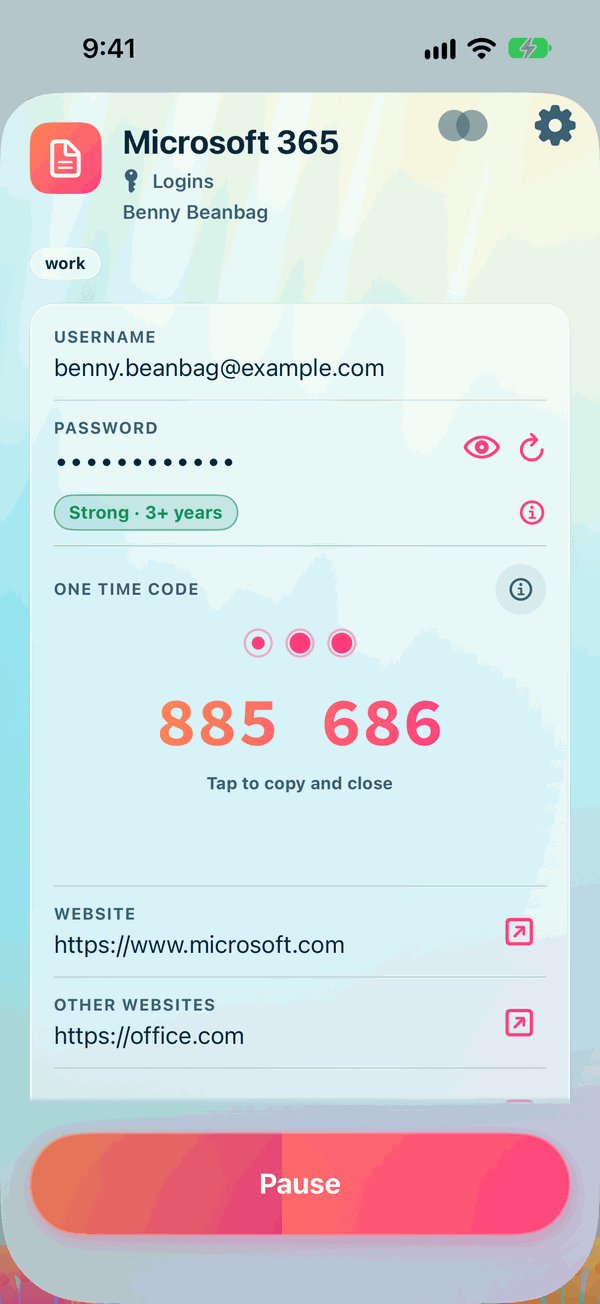
If the item holds a one-time code, it's shown large under its title, with three circles above it that empty as its time runs out.
- Tap the code to copy it. The item then closes, ready for you to paste the code into the site.
- In its last five seconds the code flashes, and Next Code shows the one that comes after, so you're never caught out.
See One-Time Codes.
Closing the item
An open item closes by itself after a short while, so a password isn't left on show. While the time runs, the button at the top reads Pause and fills up as the time runs out:
- Tap Pause to stop the countdown and keep the item open.
- The button then reads Done: tap it when you've finished.
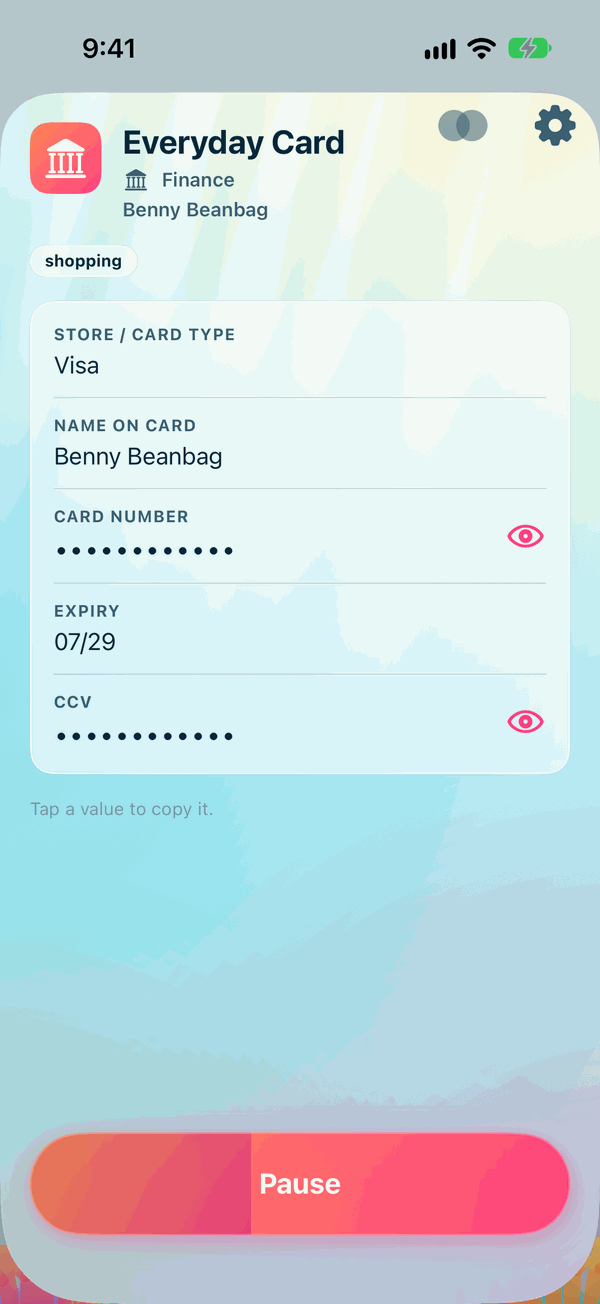
You can change the time, or turn it off, with Close after in Settings.
Previous passwords
A login whose password has been changed shows its previous passwords, up to two, at the foot of the item, under Previous passwords, each with the day it was replaced, written the way you chose under Shown as in Settings. They're hidden until you tap their eye, and they can't be copied from here, so neither is ever taken for the password the login has now.
The icon
Tap the item's icon, beside its name, to change it there and then: Bring from Site, where the item has a website and Icons from sites is on in Settings; Choose a Picture… from Photos; Choose from Files…; or Remove Icon, where it has an icon of its own.
From the item
At the top right of the item are the gear and the two circles. They scroll up with the item, out of your way.
- The gear opens Edit, to change the item. See Adding and Editing Items.
- The two circles, Merge, there on an item that isn't archived, bring two items for the same login together. See Merging Duplicates. If you tap Cancel in Merge, you're back at the item, its countdown carrying on where it was.