Where to Go Next
You've got Private Passwords set up and your first login in. Here's what's worth doing next.
Turn on AutoFill
Let Safari and your apps offer your logins above the keyboard, so you rarely open Private Passwords to sign in. See AutoFill in Safari and Apps.
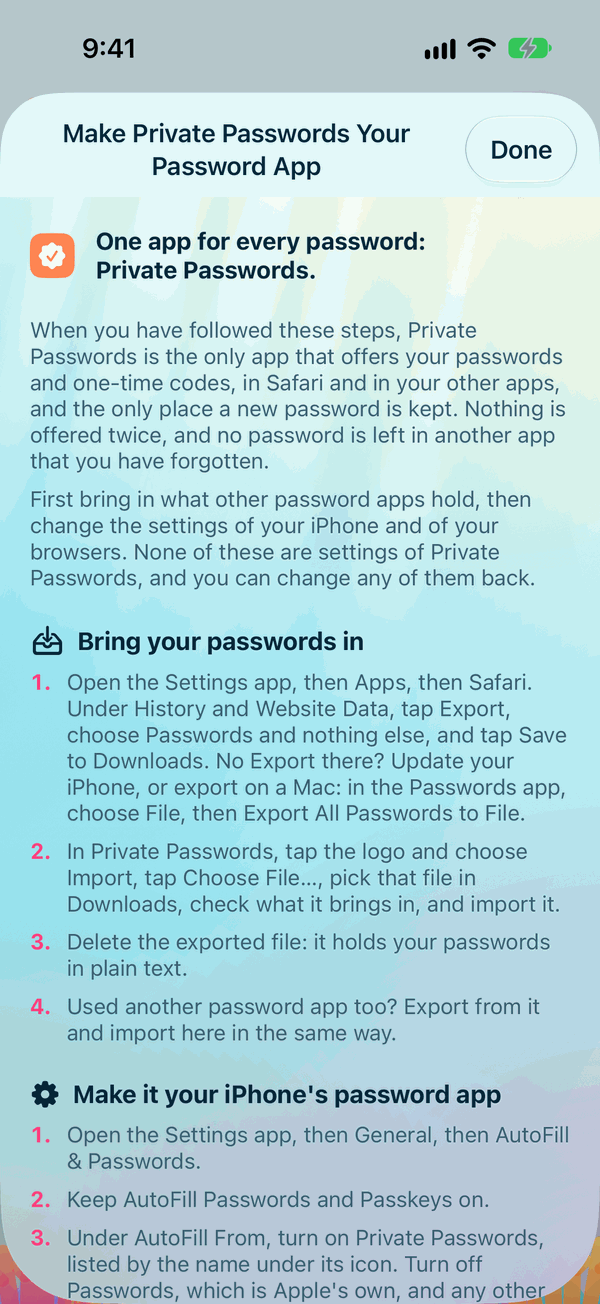
To have Private Passwords offer and save every password, and no other app, open Info and tap Make Private Passwords Your Password App. It walks you through each step.
Bring in your other passwords
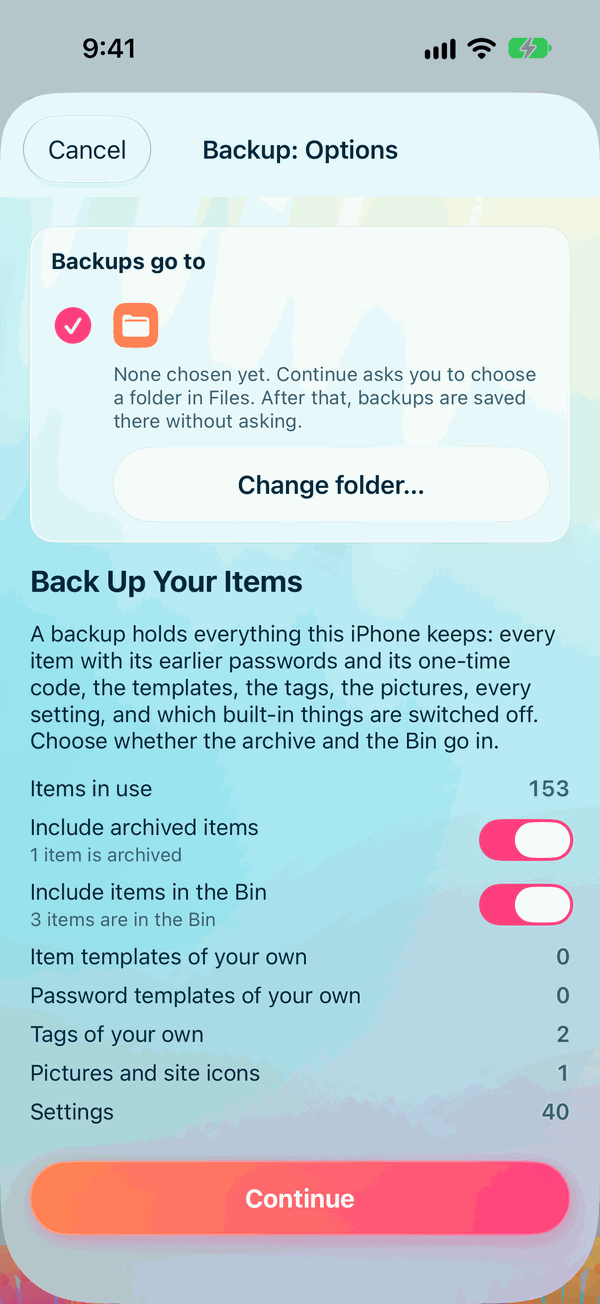
Moving from Apple Passwords, Chrome, 1Password, Bitwarden, LastPass, Dashlane or KeePass? Bring everything across in one go. See Exporting from Your Old App and Importing from Another App.
Make a backup
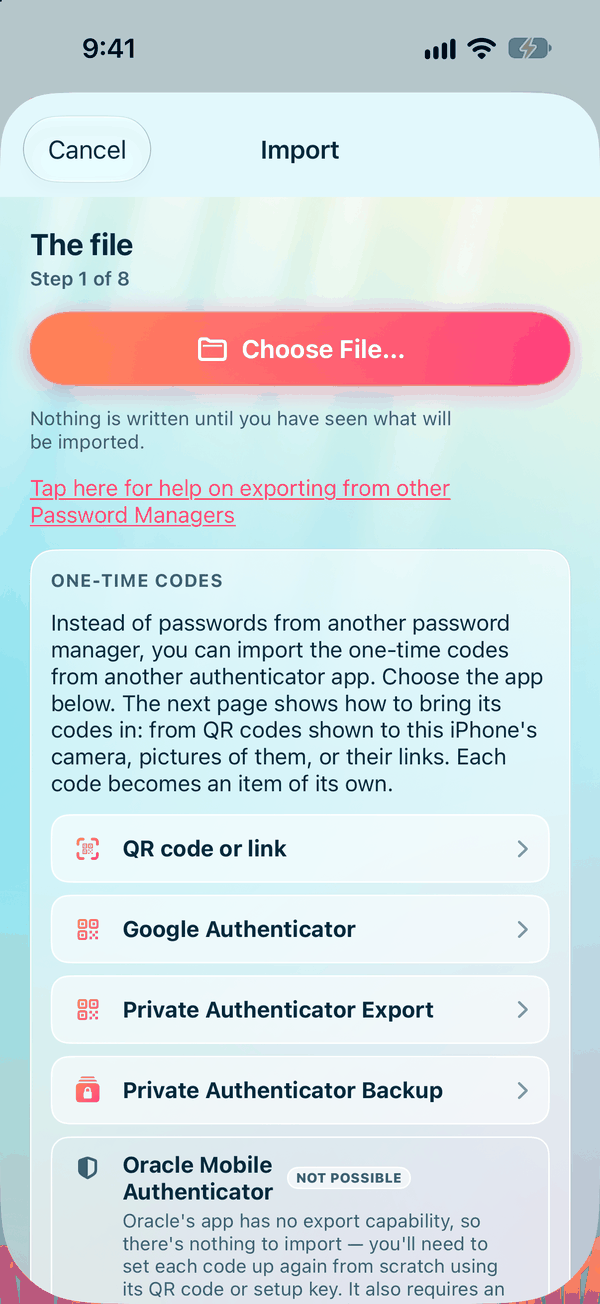
Even with iCloud Keychain, a backup is your safety net if something goes wrong. Private Passwords reminds you when one is due. See Why Back Up?.
Set up your one-time codes
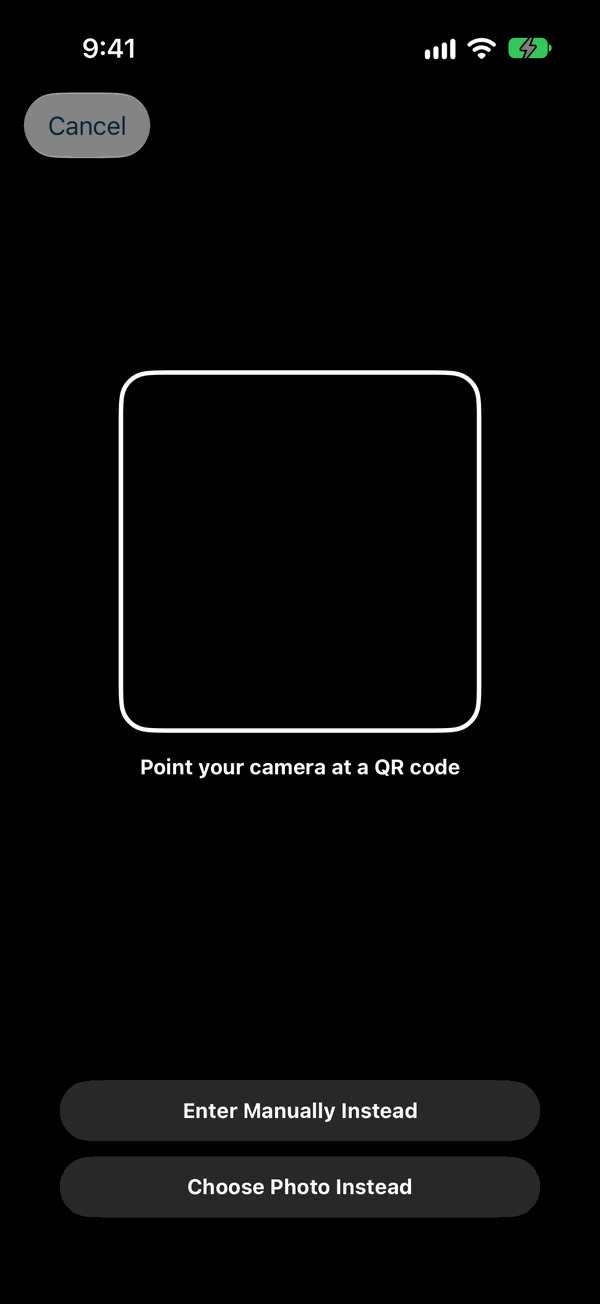
If your sites send you a six-digit code when you sign in, keep those codes in Private Passwords too, and see them on your Apple Watch. See Setting Up One-Time Codes.
Fill in your identity
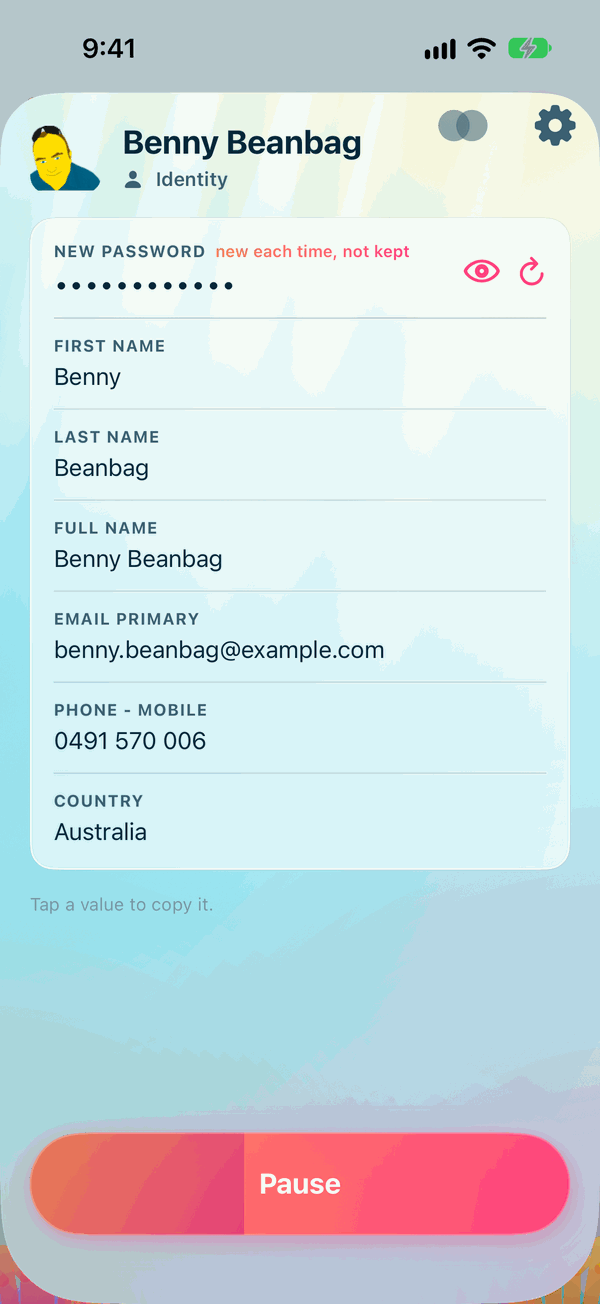
Your Default Identity holds what sign-up forms ask for. With it filled in, Insert Text puts your details into a form in a tap. See Identities and Insert Text.
Make it yours
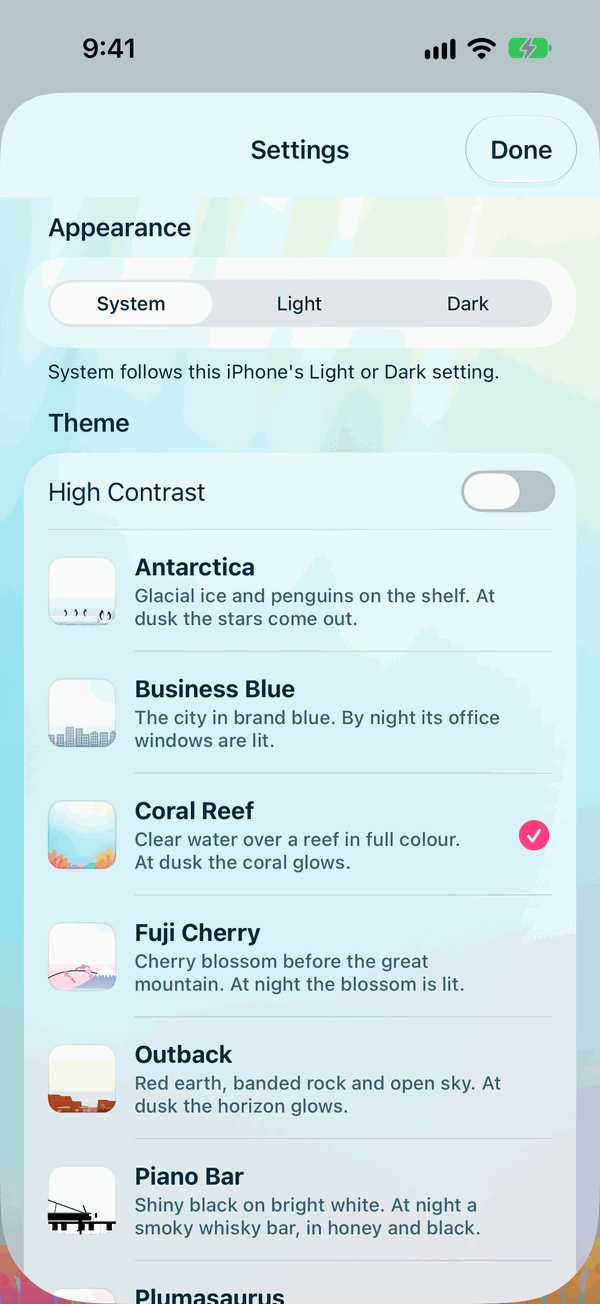
Choose a theme, set your unlock period, turn AutoFill on or off, and more. See The Settings Page.