Types and Search
The type pills
Under the panel's search row is a row of pills, one for each type of item: Logins, Codes, Finance, Notes and so on.
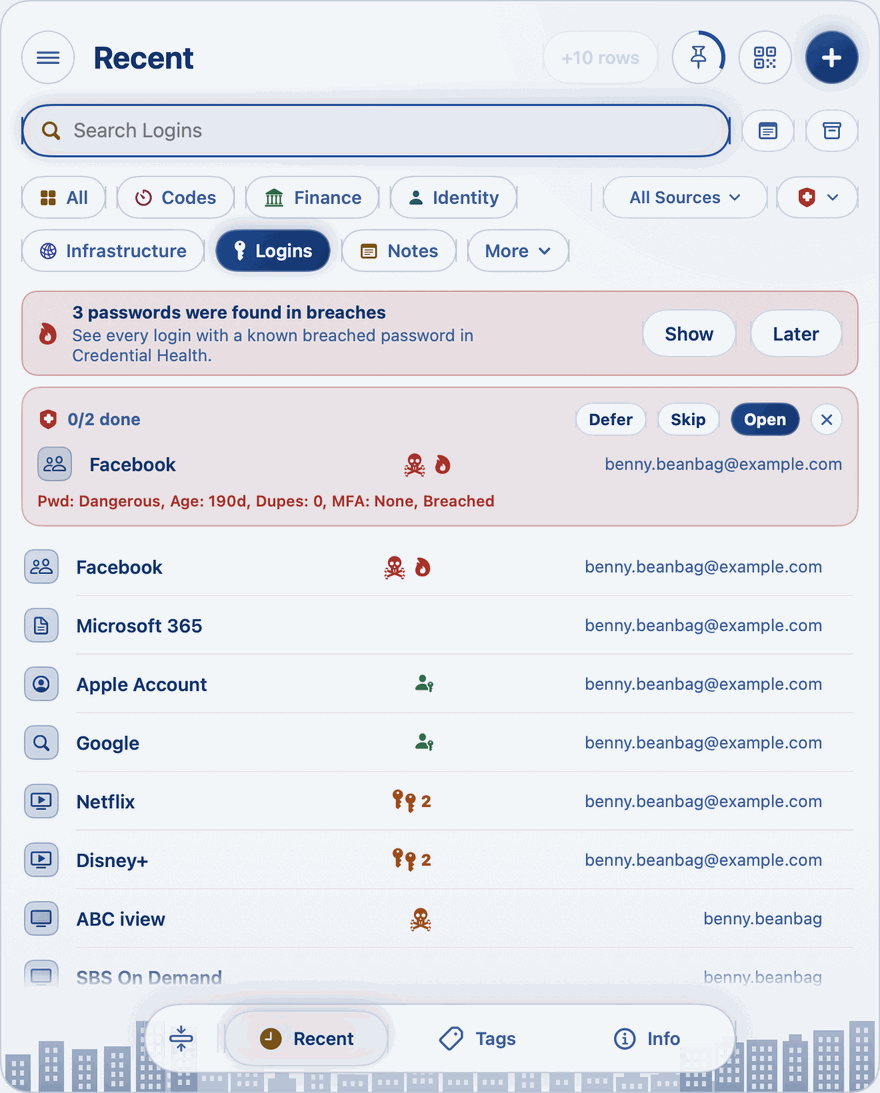
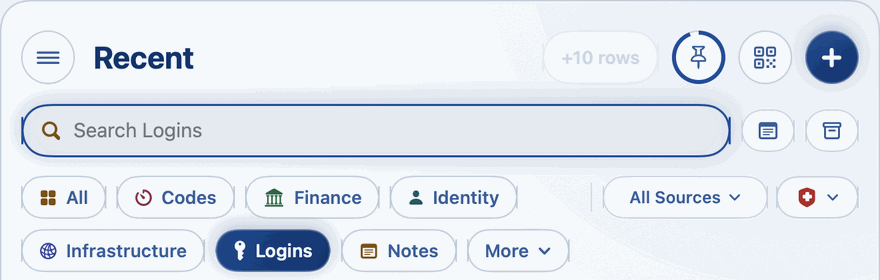
- Click a pill to show only that type.
- Click All to show everything again.
- Where there are more types than fit, the last pill is More: click it to choose from the rest.
You choose the pill the panel opens on in Settings, under Opens on.
Searching
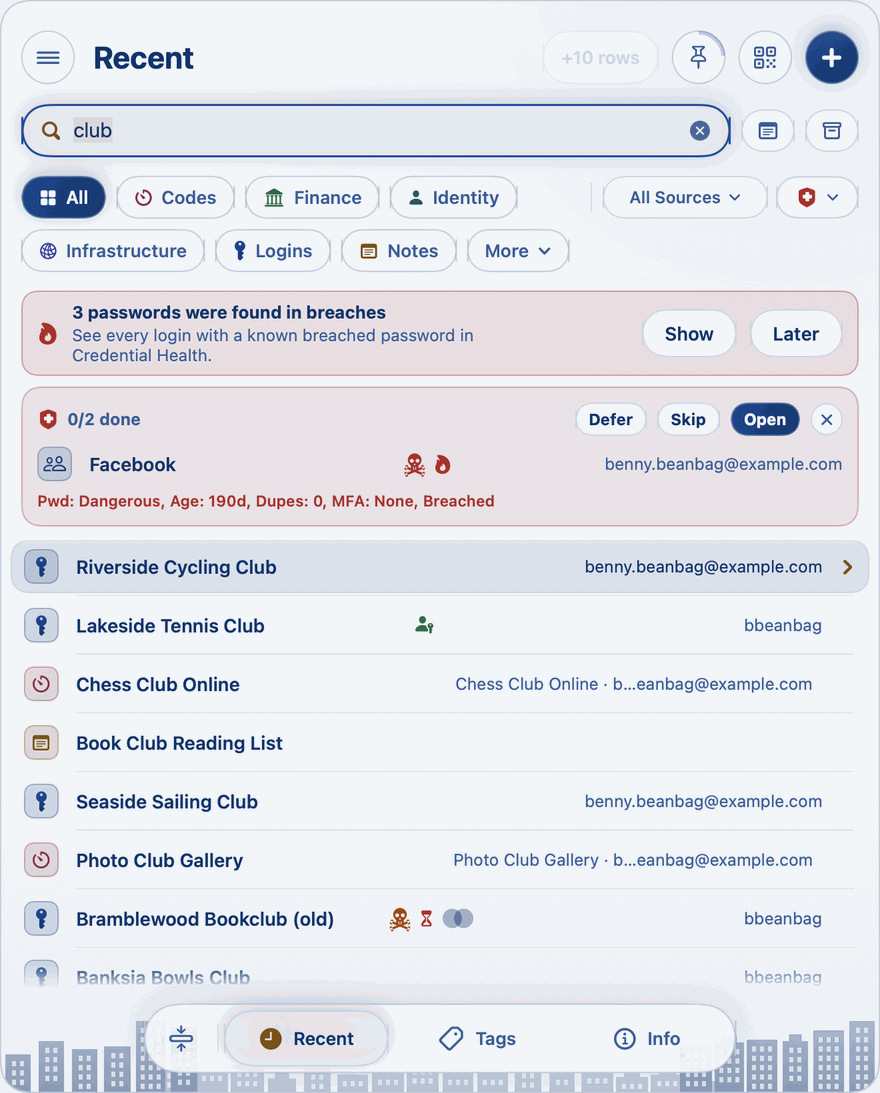
Just start typing when the panel is open. Once you pause, the list narrows to the items whose names match; press Return to search straight away and open the highlighted item. Search looks at names only, never at usernames or passwords. Click the × in the search box to clear it.
The search box stays at the top of the panel while the list scrolls, so you can type at any time.
The search box says what it searches: Search everything, or the type you've chosen, such as Search Logins.
Search Notes and Archived
Beside the search box are two buttons:
- Search Notes, on Recent and Tags, also searches the notes inside your items. Click it again to stop.
- Archived decides whether archived items are listed. Each click moves it on: Include archived lists them with the rest, each marked ARCHIVED; Archived only lists the archive alone; one more click goes back to the items in use. The search box says which, such as Search everything, archived included or Search the archive. See The Archive and the Bin.
Filters
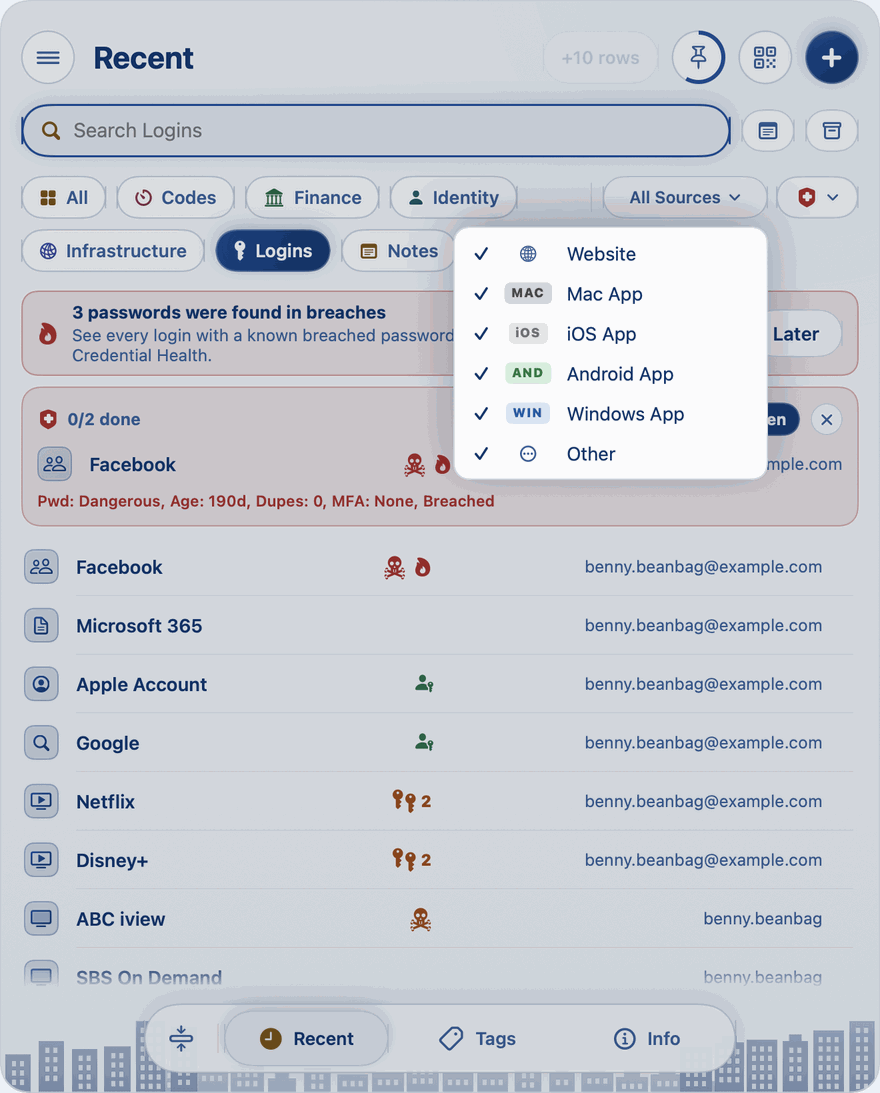
At the end of the type pills, on Recent and Tags, are two filters for a closer look. On Tags they narrow the items within each tag, and A–Z and Z–A stand under them:
- Source shows items by where they're used: websites, Mac apps, iOS apps, Android apps, Windows apps, and Other for everything that belongs to no website or app. Every source is ticked to begin with. Untick any to hide those items. At least one always stays ticked.
- Credential Health, under the red shield, shows the logins with a problem: dangerous, weak or repeated passwords, or passwords past their age. Choose one kind of problem, or all of them. See Credential Health.
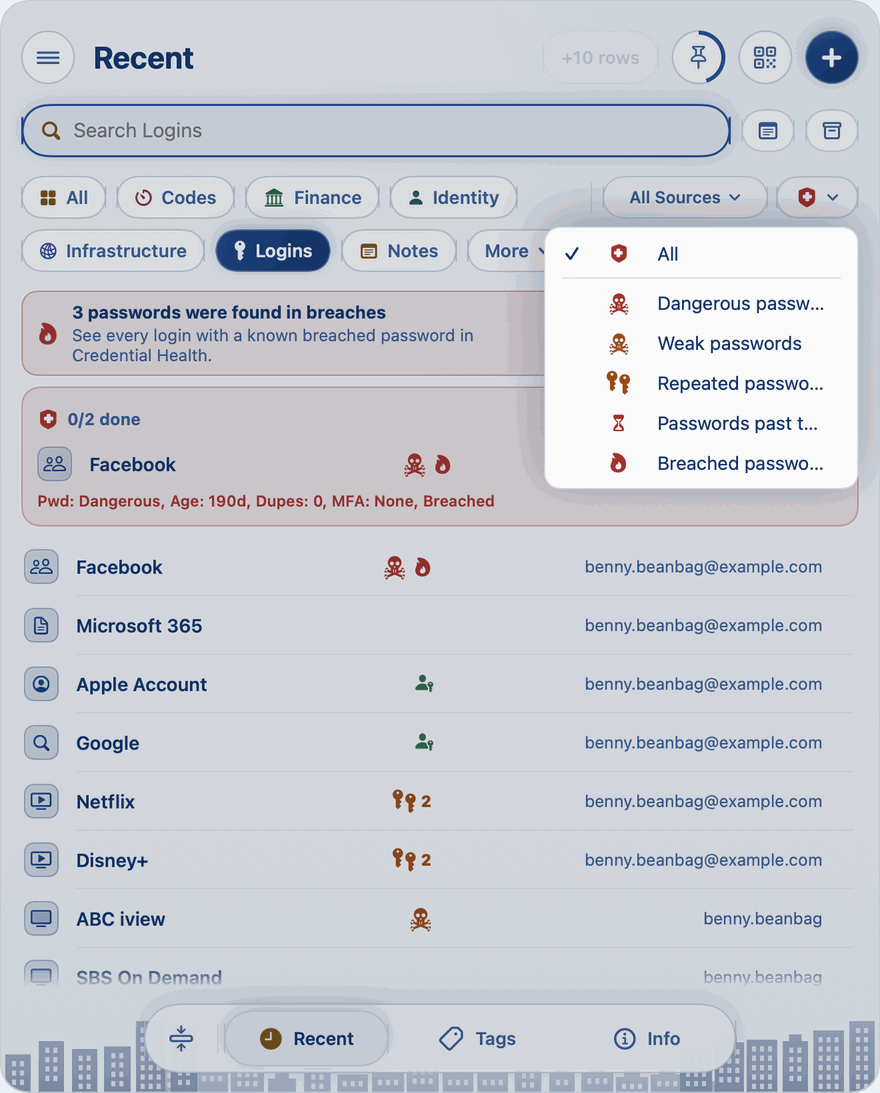
One to fix
When Credential Health finds logins that need attention, a box on Recent offers them one at a time: open it to fix it, skip to the next, or defer it to be reminded later. See Credential Health.