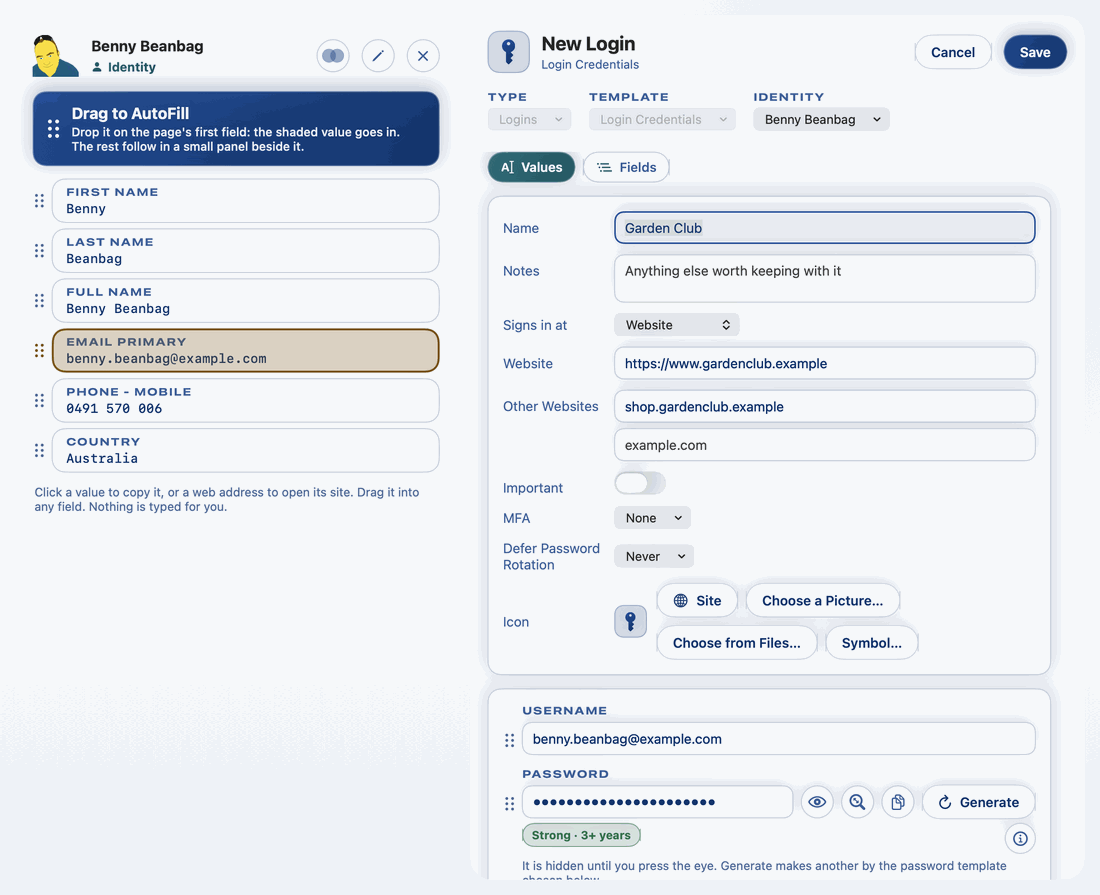
An Identity's Drag Panel
An identity holds the details sign-up forms ask for: your names, emails, phones and address. On the Mac, an identity opens as a panel you drag those details from. See Identities.
Opening your Default Identity
Double-click the key in the menu bar. Your Default Identity's panel opens, ready to fill in a form. It also opens beside every New Login.
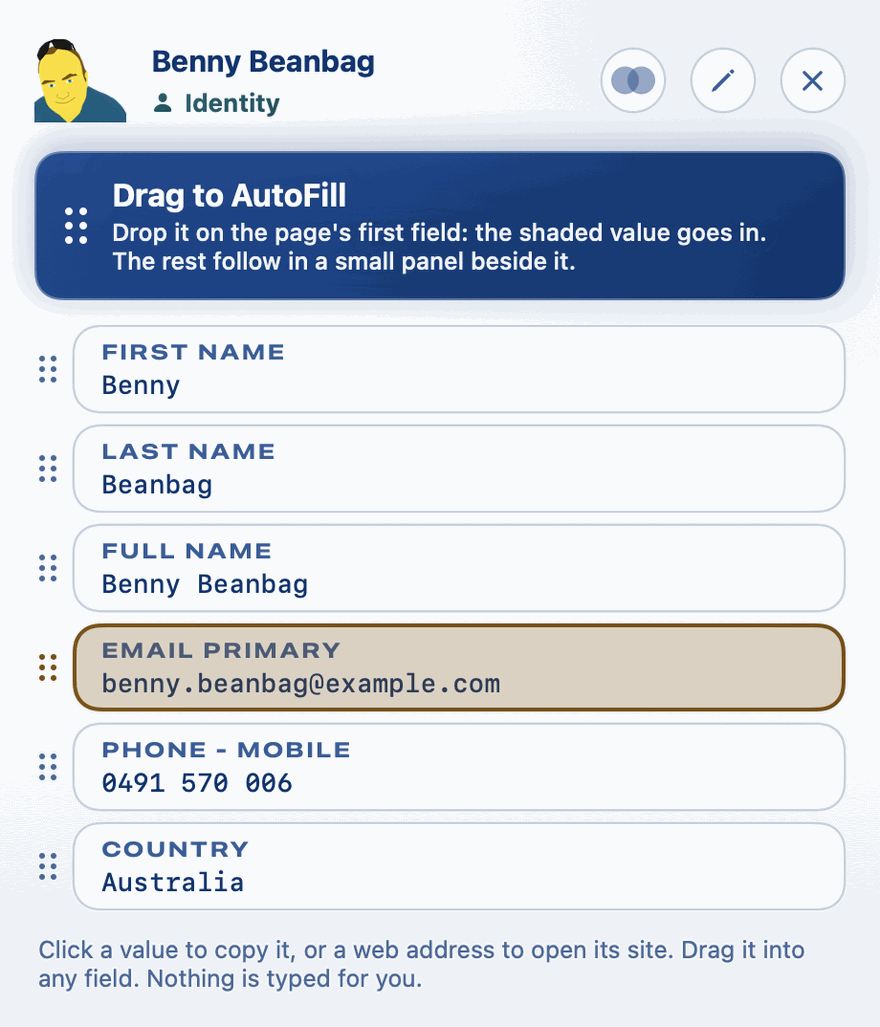
Dragging one value
Grab the dots beside a value, such as your email, and drag it onto the matching box on the page. See Dragging a Value into a Form.
Drag to AutoFill: several boxes in a row
At the top of the panel is the Drag to AutoFill handle. It carries the shaded value, usually your first name.
- Drag the Drag to AutoFill handle onto the form's first box, such as First name.
- The shaded value goes in, and a small panel of the rest of your details opens beside the page.
- Drag each of those into the boxes that follow: Last name, Email and so on.
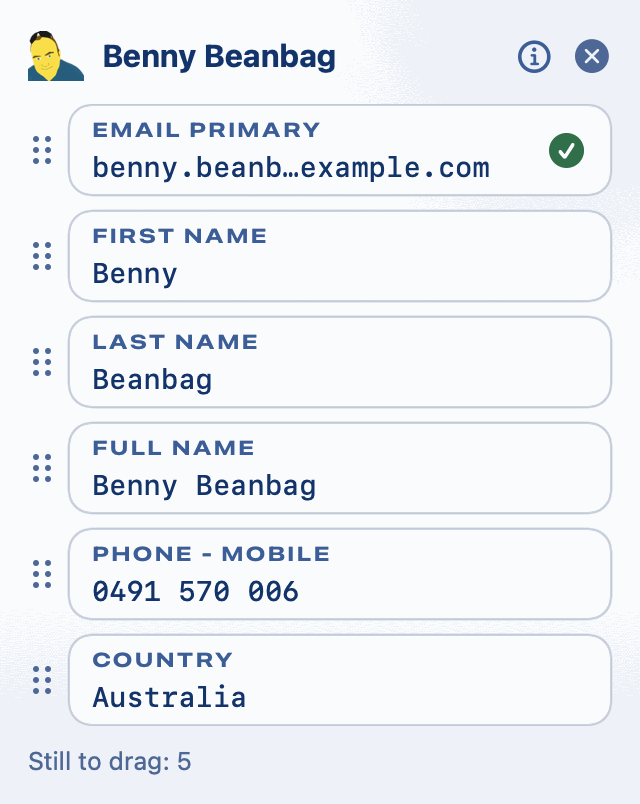
The order Drag to AutoFill offers your details in is set in the identity's template. See Item Templates and Default Templates. If you'd rather drag each value by itself, turn off Use Drag to AutoFill in Settings.
Create Login
Where a login template is set up for an identity, its panel offers Create Login. Click it, and a new login of that template opens beside the identity, ready for the site you're signing up to.
Making the login as you sign up
With New Login open beside your identity:
- Drag your details from the identity into the sign-up form.
- Drag the new login's password into the page's password box.
- The login is kept as soon as the password leaves Private Passwords. Fill in its name and website and click Save.