The Menu, the Info Page and Landscape
The menu
Tap the logo at the top left to open the menu.
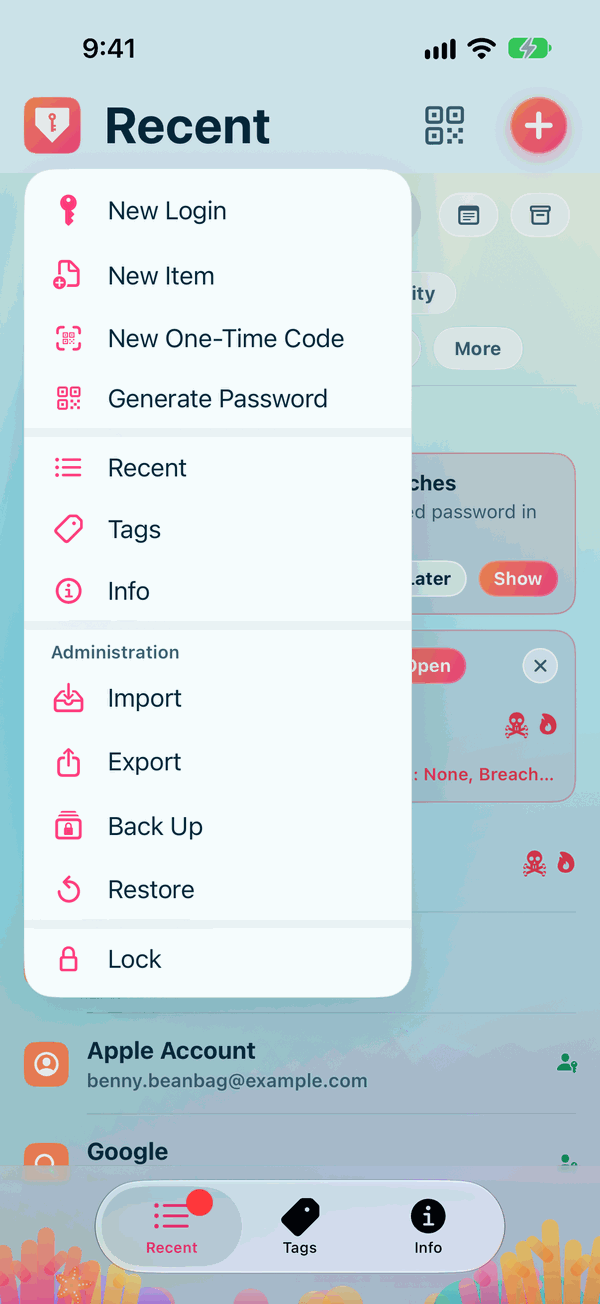
- New Login, New Item, New One-Time Code and Generate Password.
- Recent, Tags and Info, to move between the tabs.
- Administration: Import, Export, Back Up and Restore. See the Backups & Moving pages.
- Lock: closes everything at once. Private Passwords asks for Face ID or Touch ID again next time.
The Info page
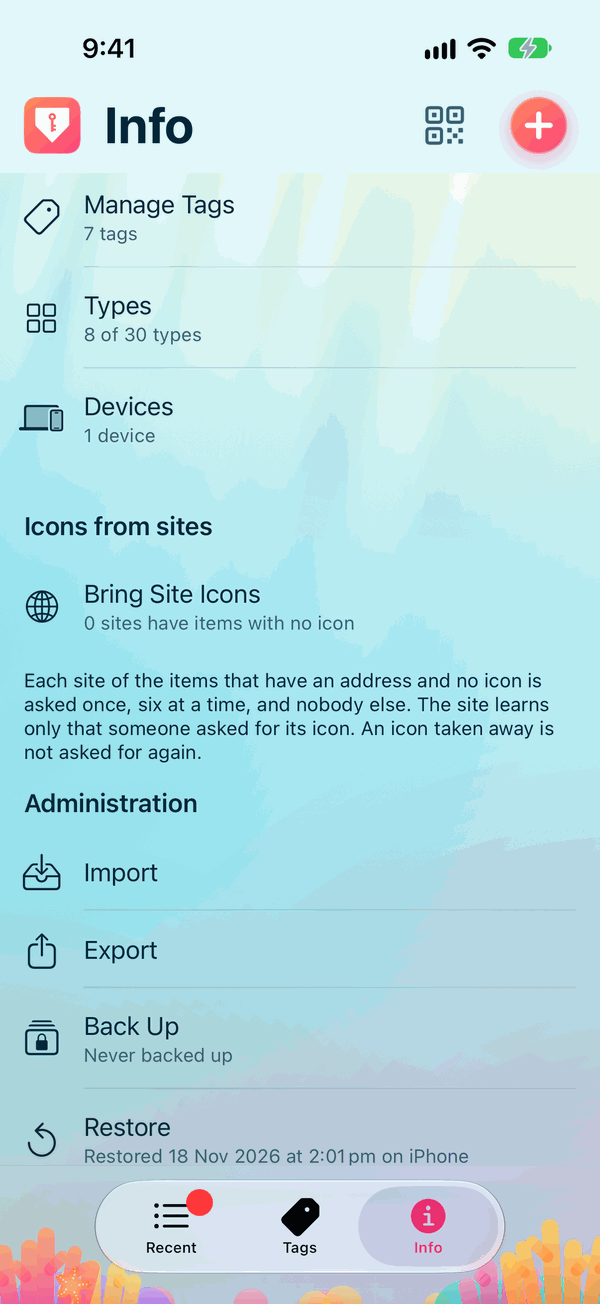
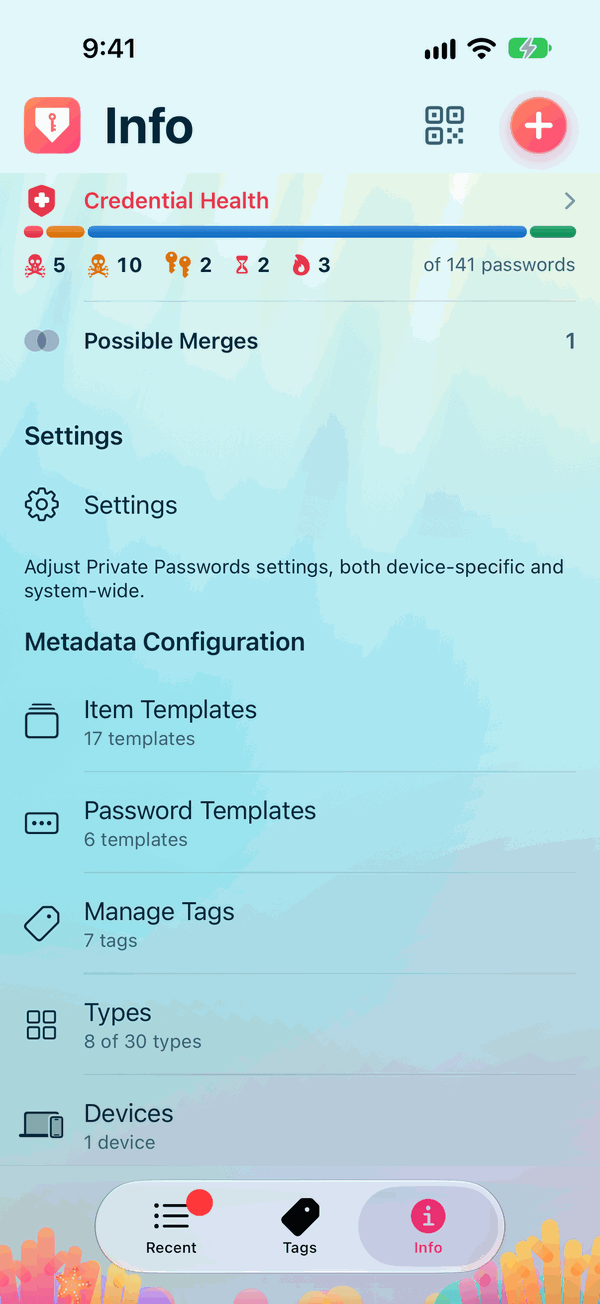
Tap Info at the foot of the screen. It holds everything that isn't about one item:
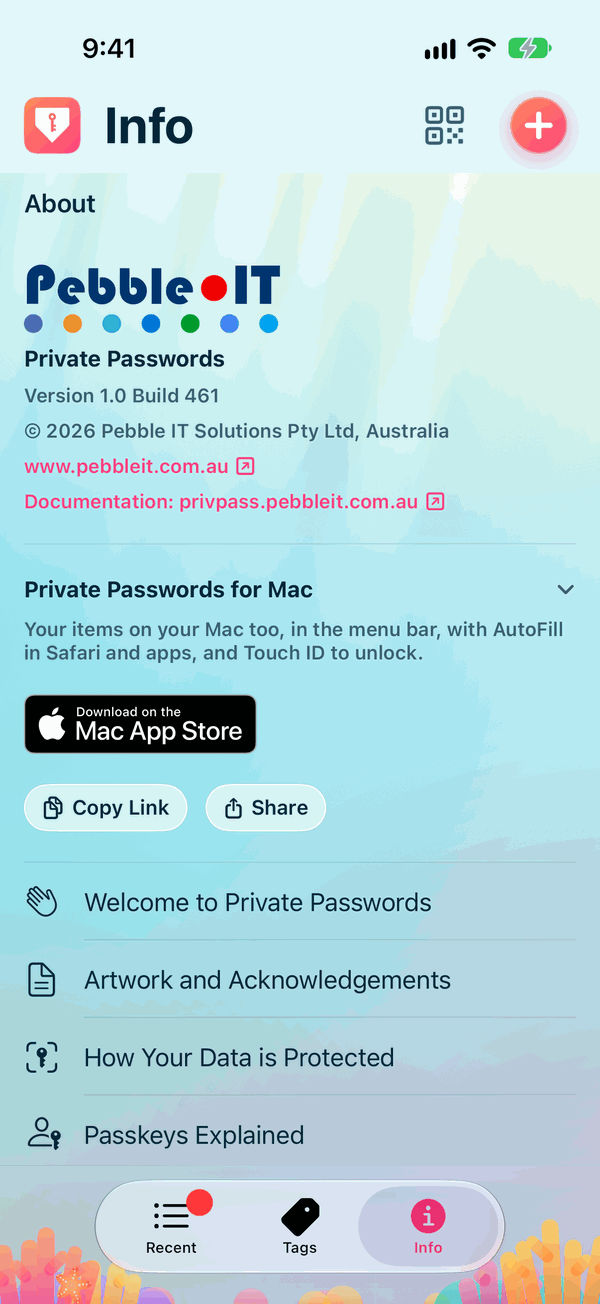
- About: Pebble IT's logo, which opens its website, with Private Passwords under it; the version; the documentation; Welcome to Private Passwords, to see the tour again; Artwork and Acknowledgements, How Your Data is Protected, Passkeys Explained and Make Private Passwords Your Password App. See How Your Data is Protected.
- Private Passwords for Mac: the app for your Mac, which sits in its menu bar, with its Mac App Store badge, Copy Link and Share, to send the link to your Mac. Tap the arrow to fold it away.
- Contents: how many items you have, your passwords' health, and any items that look like the same login twice. If another of your devices has a newer Private Passwords that wrote records this one can't read yet, Records this version cannot read says how many.
- Settings: Adjust Private Passwords settings, both device-specific and system-wide. See The Settings Page.
- Metadata Configuration: Item Templates, Password Templates, Tags, Types and Devices. See the Your Items pages and Your Devices.
- Icons from sites: brings each site's icon for your items.
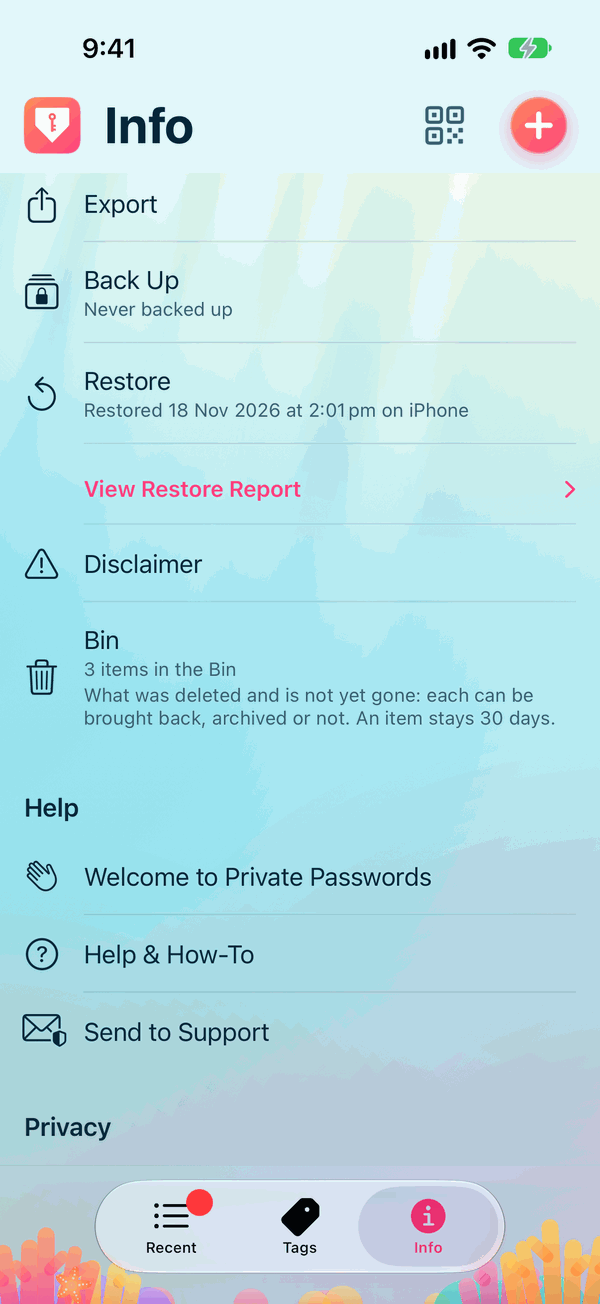
- Administration: Import, Undo Last Import, Export, Back Up, Restore, the Disclaimer and the Bin. The Bin says how many items it holds and how long each stays, and is dimmed while it's empty. Under Restore, when you last restored a backup and on which device, with View Restore Report: every item the restore brought, by Type. It asks for Face ID or Touch ID first. See Backups & Restoring.
- Last import: after an import, a full report of what it did.
- One-time codes: shown only when some of your items hold a one-time code as a hidden field, from an import made before Private Passwords kept codes, that can be made a live code. Find Them counts them, and Make Live Codes turns them into codes, in place. Nothing changes until you tap it.
- Help: Welcome to Private Passwords, Help & How-To and Send to Support. See Getting More Help.
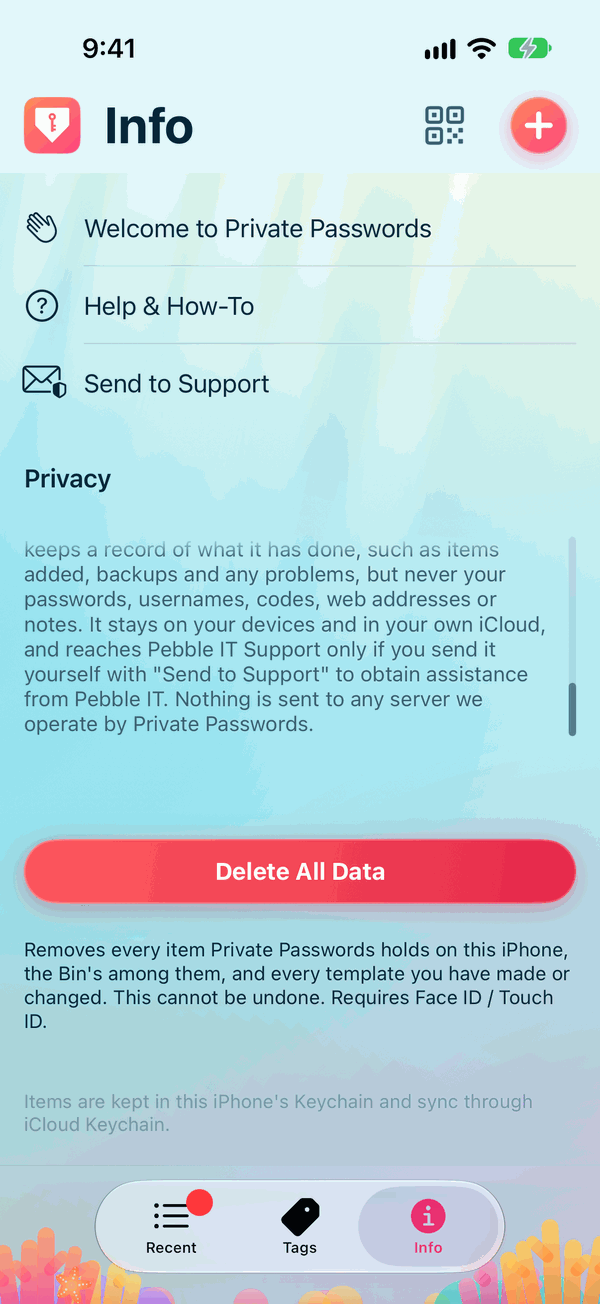
- Privacy: a short box, scrolling, that says what Private Passwords does and doesn't do with your data.
- Copy iCloud Backup Key: shown when your items are kept on this iPhone alone and you back up to iCloud. It copies the key your iCloud backups are locked with, after Face ID or Touch ID, for you to keep somewhere safe: you'll need it to open those backups on a new device. It leaves the clipboard after a few seconds.
-
Delete All Data: asks whether to delete:
- Delete Data on This Device: everything Private Passwords holds on this iPhone;
- Delete Everything, Including iCloud: all that, and every iCloud backup, and the support records of every device signed in to your Apple Account. It asks once more before anything is deleted.
Either way it can't be undone, and asks for Face ID or Touch ID. Make a backup first.
At the very foot, a line says where your items are kept: in this iPhone's Keychain, and whether they sync through iCloud Keychain or stay on this iPhone.
Landscape
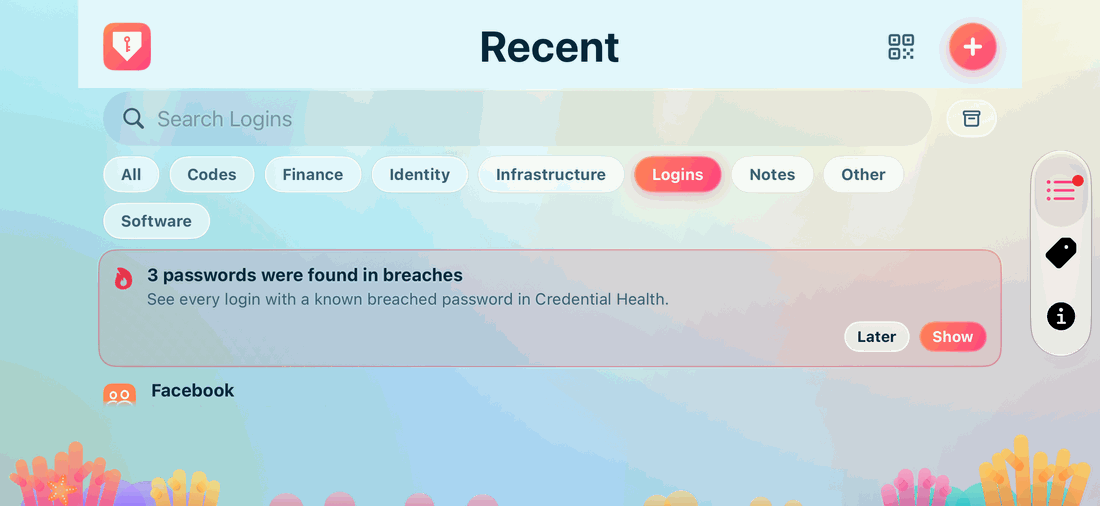
Turn your iPhone on its side and Recent, Tags and Info are each a page of their own across the screen. At the top, the logo opens the menu, the page's name stands in the middle, and Generate Password and + are at the right. Change page with the tabs in the pill at the side of the screen, which stands at the side away from the notch or Dynamic Island. On Recent and Tags the search field scrolls away with the list. An item, or anything else you open, opens as a card over the page; turn your iPhone upright and it fills the screen, as it does when you open it upright. The menu opens beside the logo rather than below it, in two columns, so that everything in it is in sight. Credential Health and Recent's Search Notes and Source filters are hidden from view, not turned off, until you turn it upright: see Filters.