Opening an Item
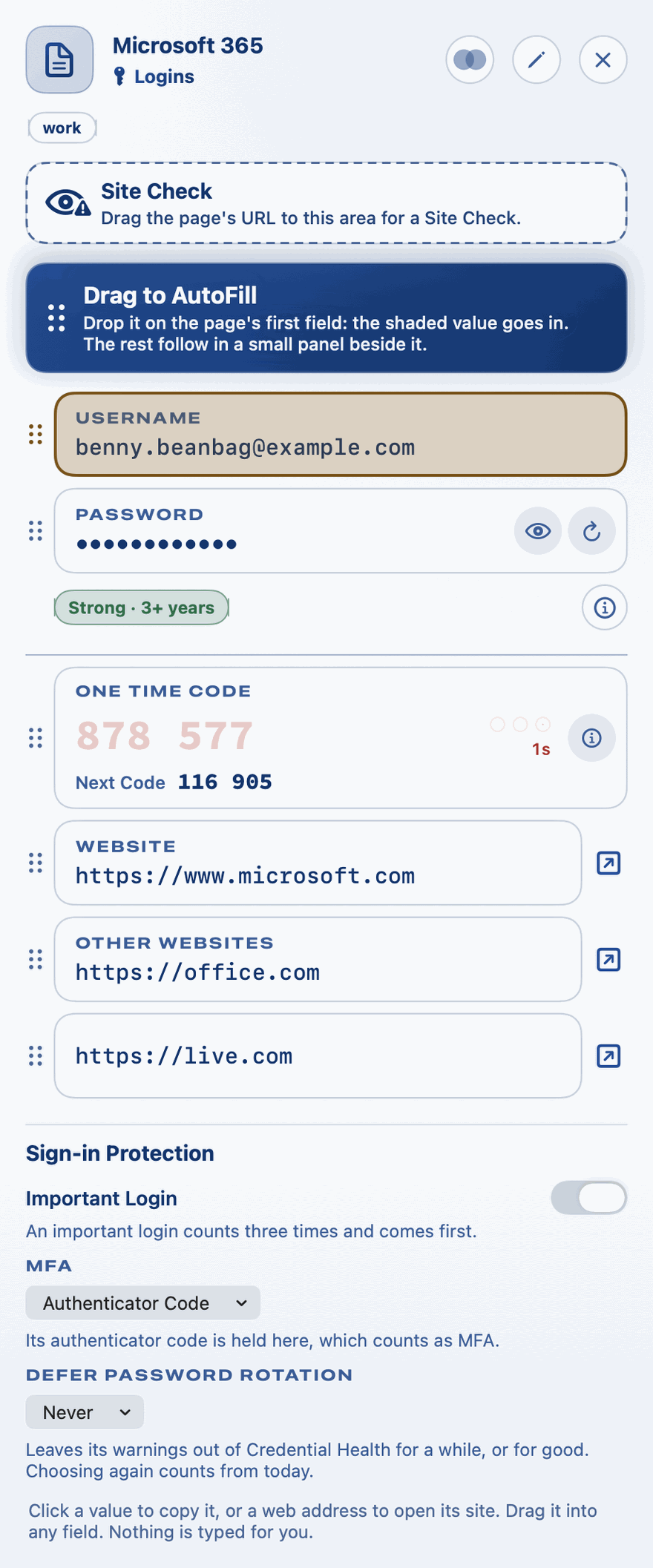
Click an item in the panel to open it. Private Passwords asks for Touch ID, or your Mac's password, first. Once you've confirmed, it won't ask again for a while: see Touch ID, Your Password and the unlock period.
The item opens in a pane of its own, beside the panel.
Copying a value
Click any value, such as the username or the password, to copy it. Then click into the site or app and paste it.
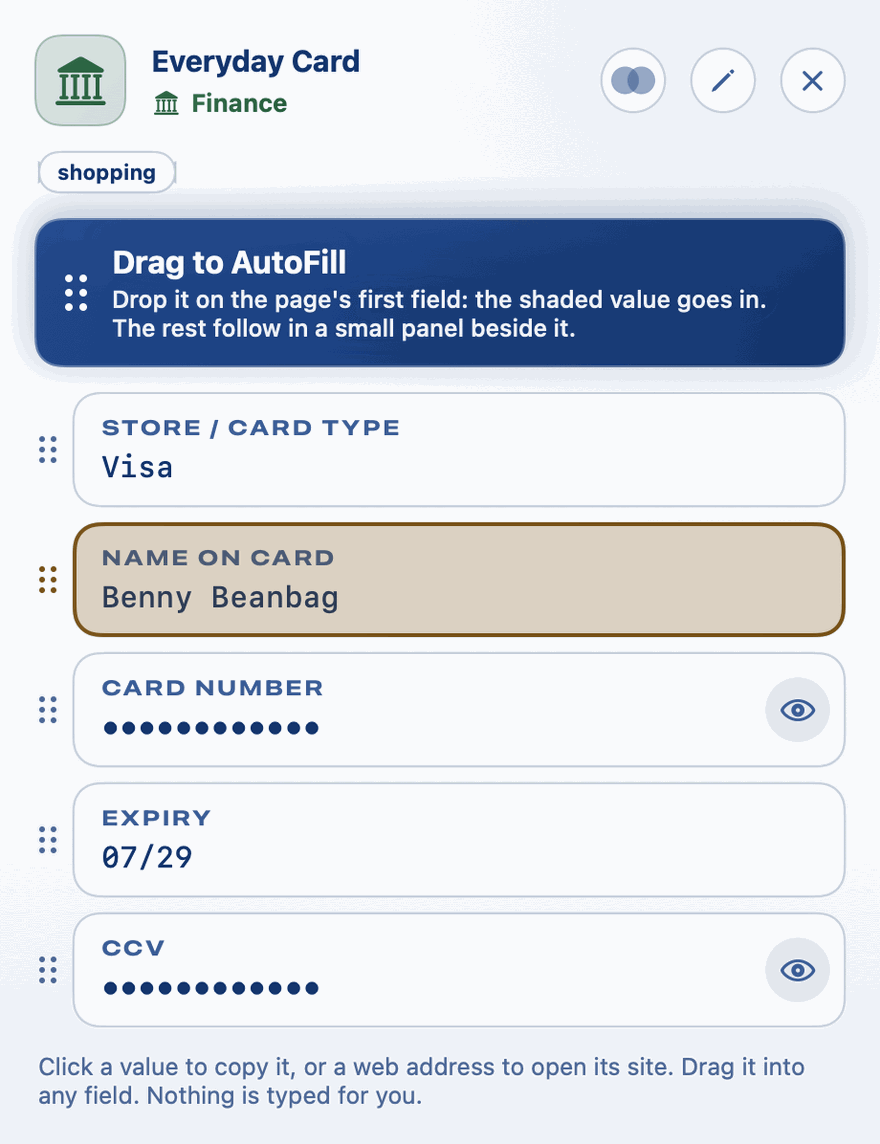
A copied password doesn't stay on the clipboard for long. After a few seconds Private Passwords clears it, so it isn't left lying around. You choose how long in Copying and the Clipboard.
Dragging a value
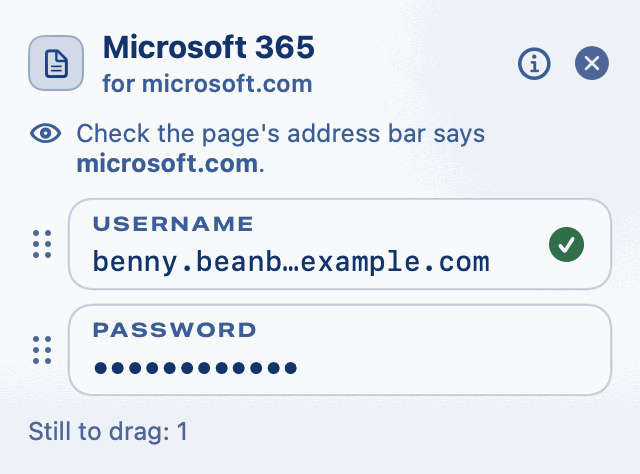
Every value has a row of dots beside it. Grab the dots and drag the value straight into a box on a web page or in an app. See Dragging a Value into a Form.
Opening the site or app
- A web address, such as the Website or one of the Other Websites, is shown whole, on up to two lines. Click it, or the arrow beside it, to open the site in your browser. You can still drag it into a page.
- Beside a Mac App, click the arrow to open the app.
Seeing a password large
Click the magnifying glass beside a password to show it large: set out in fours, with letters, digits and symbols each in a colour of their own, so it's easy to read aloud or to type where pasting isn't possible.
Tags and previous passwords
The item's tags are shown under its notes. At the foot of the pane, a login keeps its Previous passwords: the two it had before its password was last changed, each marked with the day it was replaced, so they're never taken for the one in use. You can still drag one into a page.
Where a login signs in
In your lists, a login for an app rather than a website carries a small mark before its name: MAC for a Mac app, iOS for an iPhone or iPad app, AND for an Android app and WIN for a Windows app. Hover over the mark to see the app's name. A website's login has no mark.
At the top of the pane
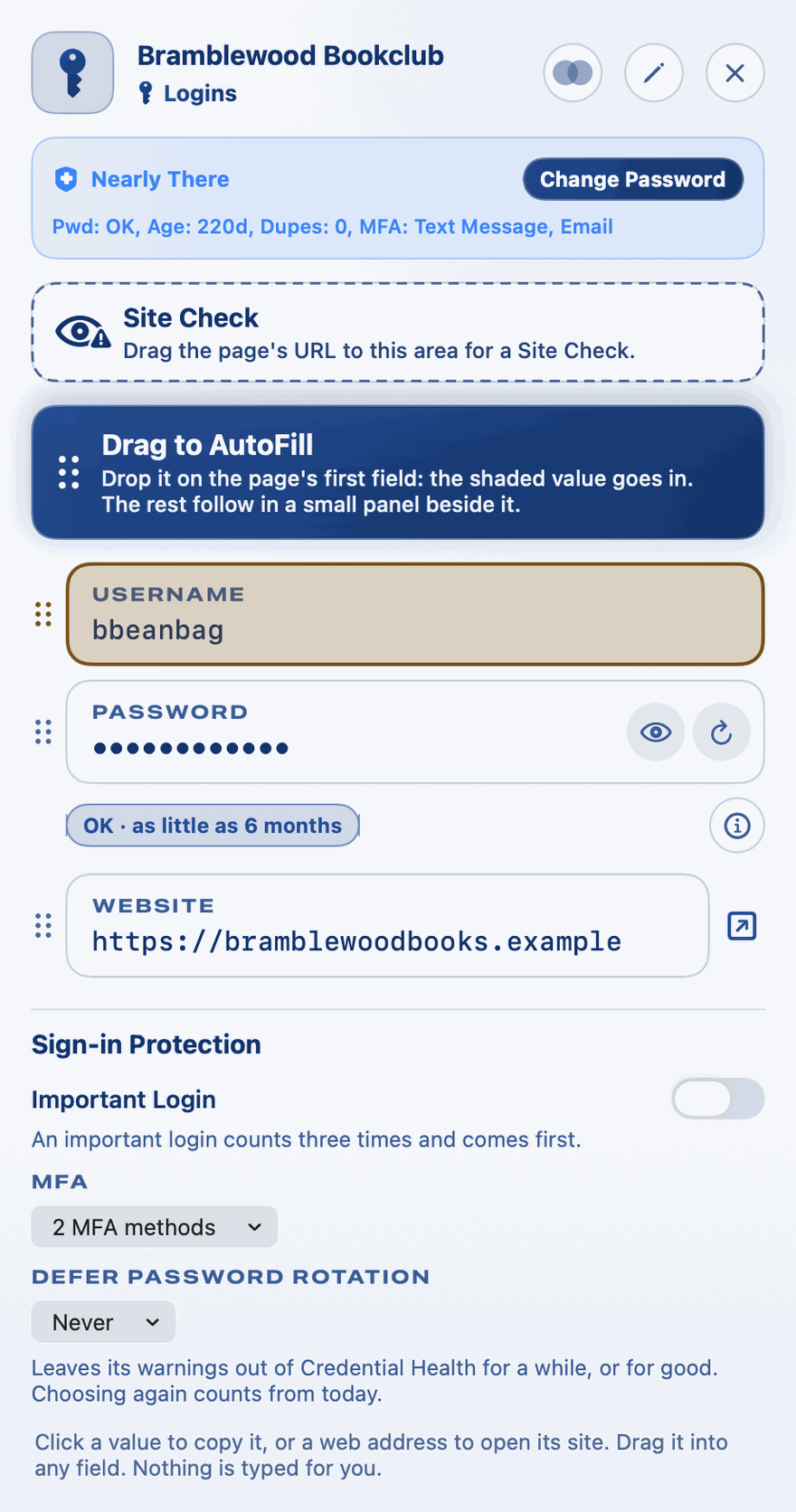
- Merge brings two items for the same login together. See Merging Duplicates.
- Edit changes the item. See Adding and Editing Items.
- Close closes the pane.
An open item also closes by itself when your Mac locks, sleeps, starts its screensaver or switches to another user.
To move the pane, drag it by any empty space.