Importing from Another App
Import brings your items in from another password manager's export file, or the one-time codes from another authenticator app. It walks you through eight steps, and nothing is written until you choose Import at the end. Cancel before then and nothing changes, except a merge you save on the way, which is saved when you save it.
Back up first
If Private Passwords already holds items, make a backup before you import. An import can be undone, but a backup is the surest way back.
Your old app's export comes first: Exporting from Your Old App says how to make it, app by app.
Opening Import
Tap the logo to open the menu and choose Import, or tap Import on the Info page. The first time you open the app, Bring passwords from another app on the welcome screen opens it too.
Click the menu (☰) and choose Import…, or click Import on the Info page. The first time you open the app, Bring passwords from another app on the welcome window opens it too.
The eight steps
Each page names its step at the top, for example Step 3 of 8. Next moves on and Back goes back. The first page has no Next until a file is read, and a page of codes has none until a code is read.
| Step | On screen | What you do |
|---|---|---|
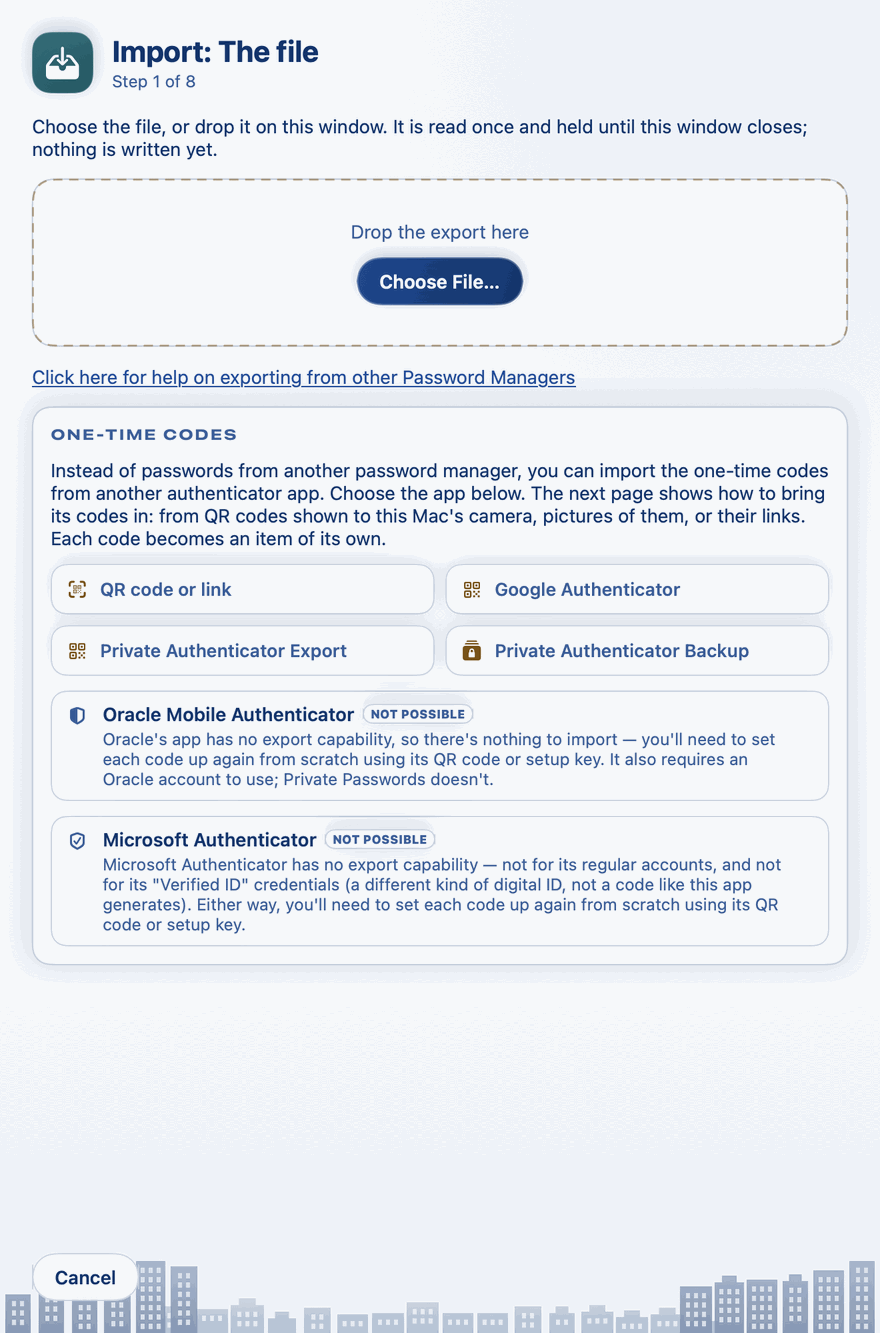
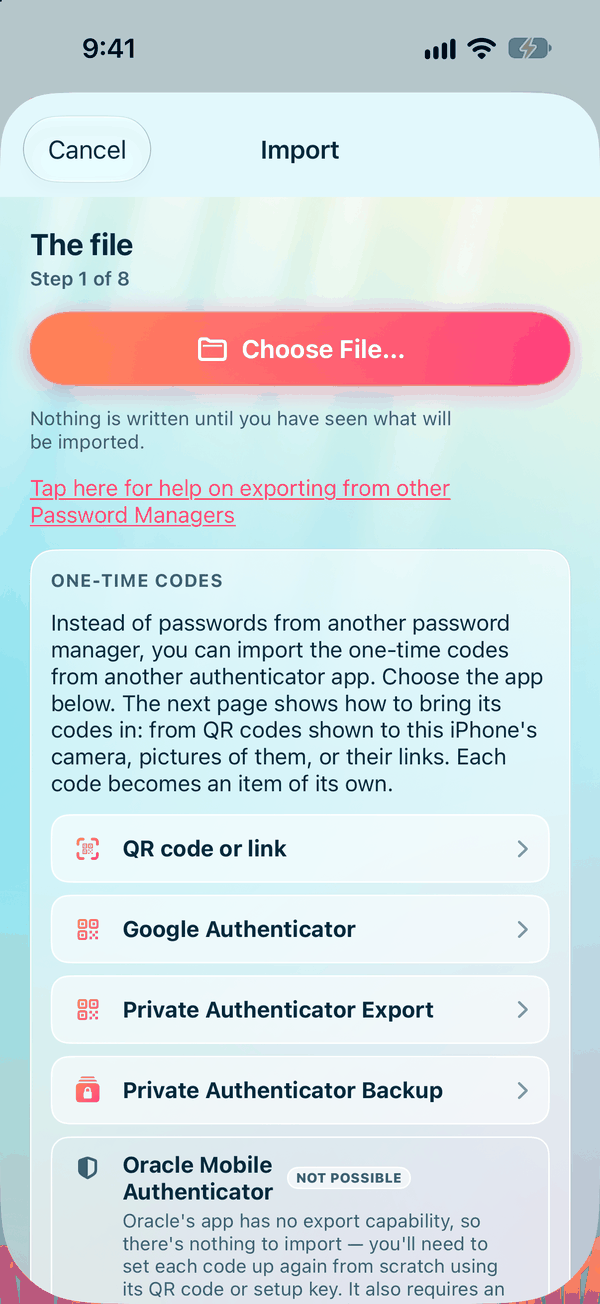
| 1 | The file | Choose the export file, or the authenticator app whose codes you're bringing in |
| 2 | Keep or Delete | Keep what you have, or delete it first |
| 3 | Types to templates | Choose which of your templates each type in the file becomes |
| 4 | Fields to fields | Choose where each field in the file goes |
| 5 | Tags | Keep, rename or leave out the file's tags, folders and groups |
| 6 | Records | Leave out any records you don't want |
| 7 | Possible Duplicates | Merge, or bring in beside, records that look like logins you already have |
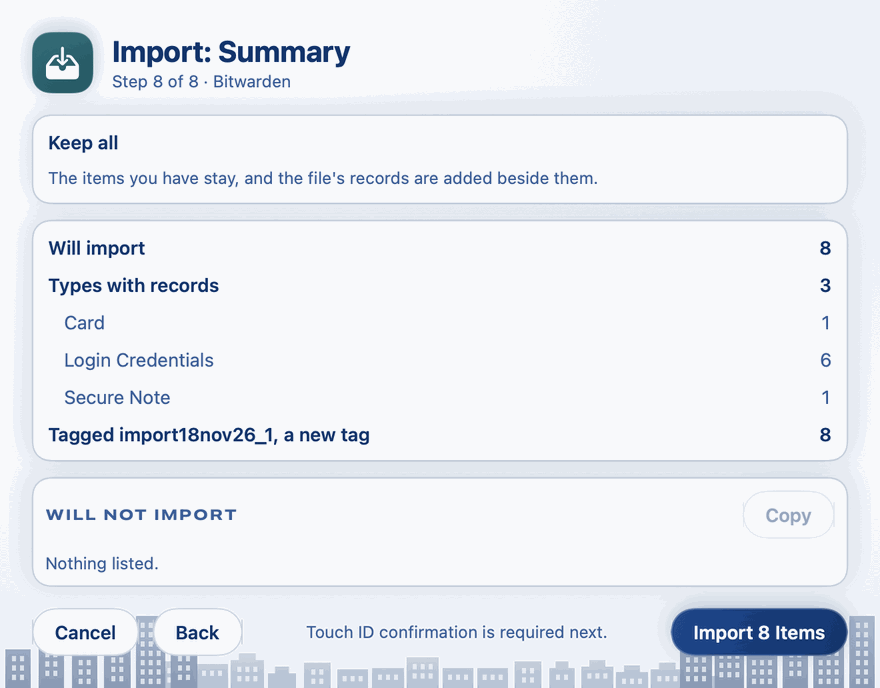
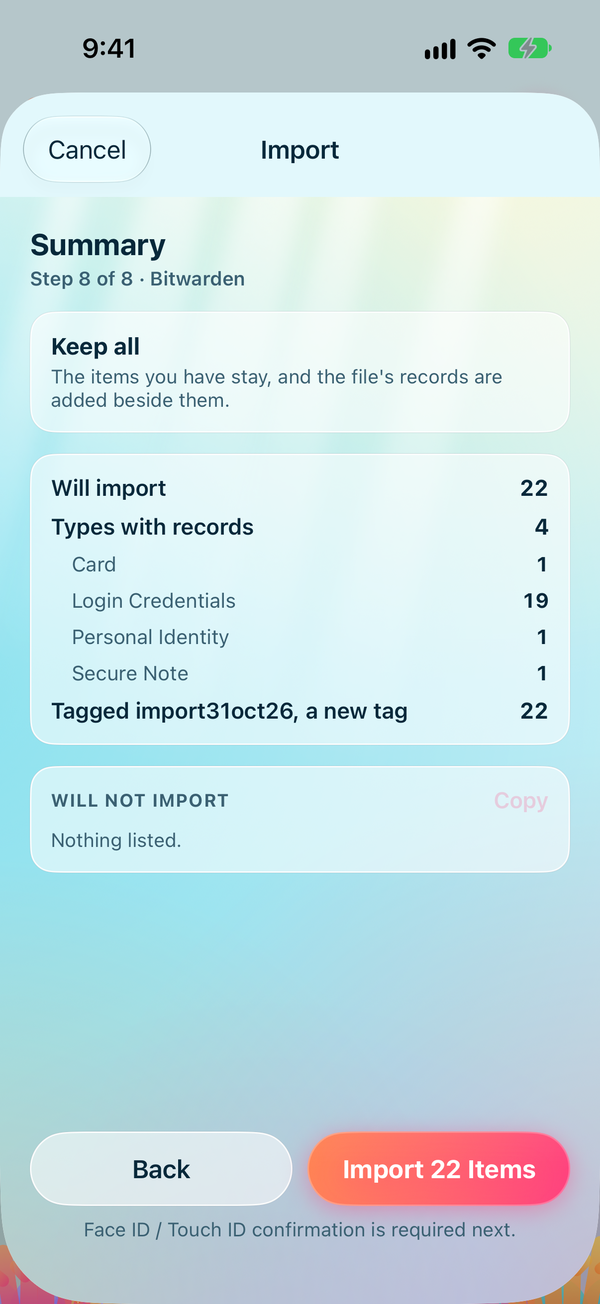
| 8 | Summary | Check what will and won't come in, then import |
After the write, a ninth page, Credential Health, shows how strong the passwords that came in are.
1. The file
Choose the export file:
Tap Choose File… and pick the file in Files. To get it there, AirDrop it to the iPhone or save it in iCloud Drive.
Click Choose File… and pick the file, or drop it on the window.
Once it is read, the page shows that file alone: Next goes on with it, and Cancel closes Import, to begin again with another.
You don't say which app it came from: Import works that out from the file itself, and says so, for example Read as Bitwarden, JSON. Under that it counts what the file holds: the records, how many of them can be imported and why any can't, the types, the tags, folders and groups, any one-time codes, and whether the file carries dates. Items archived in your old app come in archived.
- A Bitwarden export protected with a password asks for that password. It is used once and kept nowhere.
- An encrypted export from any other app is refused. Export it again without encryption, and delete that file once it is imported.
- A Private Passwords backup is not an import. Import says so and offers Open Restore.
- Choosing a file accepts your previous import: from then on it can't be undone, on any device.
If you have no export yet, the link Tap here for help on exporting from other Password Managers (on the Mac, Click here…) shows, one app at a time, how to make one.
One-time codes. Below the file, a panel lists the ways in for the codes of another authenticator app: QR code or link, Google Authenticator, Private Authenticator Export and Private Authenticator Backup. Choose one and its page opens at once, headed One-Time Codes, saying how to bring its codes in and what they carry. It gathers them from the camera, from pictures of the QR codes in Photos or in your files, or from a link you paste. Each code it reads is listed, with a button beside it to leave that one out before you go on. Chose the wrong one? Choose Back. Each code becomes an item of its own. Under the four, Oracle Mobile Authenticator and Microsoft Authenticator are marked Not Possible: neither app can export its codes. Aegis and otpauth list files are chosen with Choose File… like any other export. Once a file is read, the panel is gone.
2. Keep or Delete
| Choice | What happens to the items you have |
|---|---|
| Keep all (chosen to start) | They stay, and the file's records are added beside them. |
| Delete all existing | They go to the Bin first. Tags and templates stay. If Days in the Bin is 0, they are deleted for good instead, and the import can't be undone. |
3. Types to templates
Each type in the file, such as Login, Credit Card or Secure Note, goes to one of your item templates. For each, choose a template of yours, New template from this type, or Don't import. A new template is named after the type and takes its fields; it is yours to change afterwards. A built-in template you have switched off is not offered.
4. Fields to fields
For each template, choose where each field in the file goes: a field of the template, Website, Notes, Tags, New field on the item, New hidden field on the item, or Don't import. A field that holds a code can also go to One-time code, and in a plain CSV file a column can be the item's Name. Beside each field it says in how many records it appears, and what would be lost or changed, for example a value hidden in your old app that would now show in clear, or a label longer than 30 characters that is cut.
5. Tags
The file's tags and folders, and the groups your old app kept items in, become tags. For each, choose Keep (and change its name if you like), Into one of your existing tags, or Don't import. Such a group is left out unless you keep it, and a built-in tag you have switched off is left out. A tag begins with a letter, a digit or an underscore and has fifteen characters at most; one that breaks that rule is shown with the name it will come in as.
This step also sets the import's own tag.
6. Records
Every record in the file is listed under the Type it will become, in alphabetical order. Tap or click a Type to show or hide its records. Tap or click a record to leave it out; it is struck through. Tap or click it again to bring it back.
To leave out several at once, tap Select, drag a finger down the circles beside them, then tap Leave Out.
To leave out several in a row, click the first, then hold Shift and click the last: every record between them in that Type is left out too.
7. Possible Duplicates
A possible duplicate is the same username at the same site, ignoring capital letters and spaces at either end. A one-time code is also a possible duplicate of another with the same setup key, digits and interval, whatever either is called: its group is headed with the code's name alone. Each group shows the one marked Keep: one of your items where there is one (Here before), or else the file's oldest record. Under it are the file's records that may be the same login (From this import). For each record:
- Merge… makes the two one, choosing what to keep of each. Where the Keep is one of your items, saving the merge updates it at once: the file's record is then not imported, and the merge can't be undone, even by Undo Last Import.
- Not Duplicates brings the record in beside the other.
- Turning off its Import switch leaves it out. It stays on the page; turn the switch on again and it comes back.
- Don't Import the Duplicates turns off Import on every record under a Keep.
Records that hold the same one-time code are grouped the same way. A record you leave as it is comes in as it is. Under Delete all existing, the file's records are compared only with each other, since your items are going. Archived items, yours or the file's, and items in the Bin are never compared. See Merging Duplicates for how a merge works.
8. Summary
The summary repeats your answer to step 2, then counts what Will import, by Type, with how many are archived, any New templates made, and the tag every item will carry. Below, Will not import lists each record left out, with its Type and why: Left out by you, Type left out, Duplicates left out, Merged into…, or the file's own reasons. Passkeys that can't come in are counted there too, as Left out: a kind of passkey Private Passwords can't use. Copy copies the list, to keep or check later.
Writing the import
Choose Import 412 Items (the number is yours) at the foot of the summary.
Under Delete all existing the app asks once more, Put every item here in the Bin first? (or, with Days in the Bin at 0, Delete every item here first?). Tap Delete All and Import to go ahead. Then confirm with Face ID or Touch ID.
Once it's done, the Info page shows the import's full report under Last import.
Under Delete all existing the app asks once more, at the foot of the window, Put every item here in the Bin first? (or, with Days in the Bin at 0, Delete every item here first?). Click Delete All and Import to go ahead, or Cancel to go back to the summary with nothing changed. Then confirm with Touch ID, or your Mac's password where Touch ID can't be used.
Every item the import writes that isn't an identity itself gets your Default Identity as its Identity, one-time codes included. Nothing is given where your Default Identity is None or archived, or under Delete all existing, which puts it in the Bin with everything else.
A bar counts the items as they are written, Writing 120 of 412 items. Under Delete all existing, your items move to the Bin only once every new item is in, so a problem part of the way never leaves you with less than you had. Keep Private Passwords open until it finishes.
If the app is closed part of the way, the next time it opens it says An Import Stopped Part of the Way, and offers Finish the Import or Undo What It Did.
Credential Health afterwards
Once the items are in, the Credential Health page shows what came in, then the logins that came with a password, grouped by how hard each password would be to guess. Tap or click a rating to show or hide its logins, and the eye to show or hide the passwords. Change the Dangerous and Weak ones first, at their own sites. For a password you can't change yet, choose under Defer Password Rotation how long it stays out of Credential Health. See Credential Health and Password Age and Rotation.
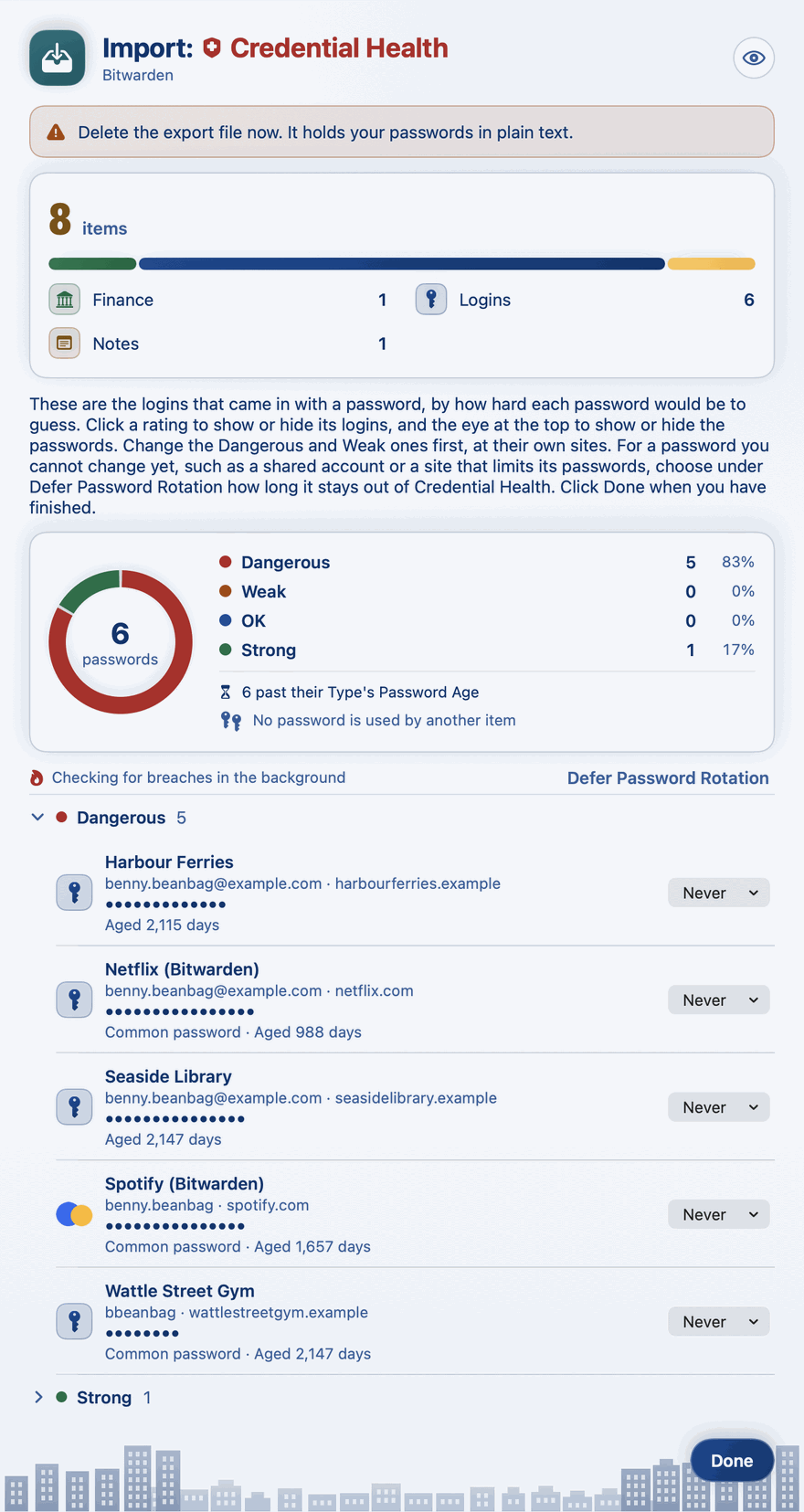
Where Check Breached Passwords is on in Settings, the new passwords are checked against known breaches in the background, and the page says so while it does.
At the top it reminds you: Delete the export file now. It holds your passwords in plain text. (After an import of QR codes, it reminds you to delete any screenshots of them.)
Choose Done when you have finished. Until you do, opening Import brings you back to this page: one import at a time.
The import's own tag
On the Tags step, Tag every imported item is on to start, so every item the import writes carries one tag, and you find them all together on Tags. The tag is named by the day, for example import17oct26; a second import the same day gets import17oct26_1, and so on. Change the name if you like, or turn the switch off so the items carry only the tags the file gives them. If you choose a tag you already have, the imported items join it.
Undo Last Import takes the tag away again, with any other tag the import made that nothing else uses.
Names, addresses and dates
- A name you already have gets the old app's name after it, for example Phoenix Dev Server (1Password), under Keep all. Two records with the same name in one file become Name and Name (2).
- Extra web addresses: a login's first address becomes its Website, and every other web address goes to its Other Websites. Anything that isn't a web address, such as an app's link, is kept as a URL field, as is every extra address of an item whose template has no Website. Nothing is lost.
- Dates are kept where the file carries them: when each item was made and last changed. Where it doesn't, each item is dated by the import.
- Earlier passwords come across where the file keeps them.
- One username and one password. A login keeps one Username and one Password. Any other password in the record goes to the login's earlier passwords, or past two of them, to hidden fields named password1, password2 and so on. Any other username becomes username1, username2 and so on.
- Spaces trimmed. Spaces and line breaks at either end of a value are taken off, from names, usernames, notes, web addresses and everything else, except passwords, which come across exactly as written.
- Files attached to items in your old app don't come across.
- Your choices are remembered. The next time you import from the same app on this device, steps 3 to 5 start from the choices you made last time.
Continue to Exporting from Your Old App.