The Panel: Recent, Tags and Info
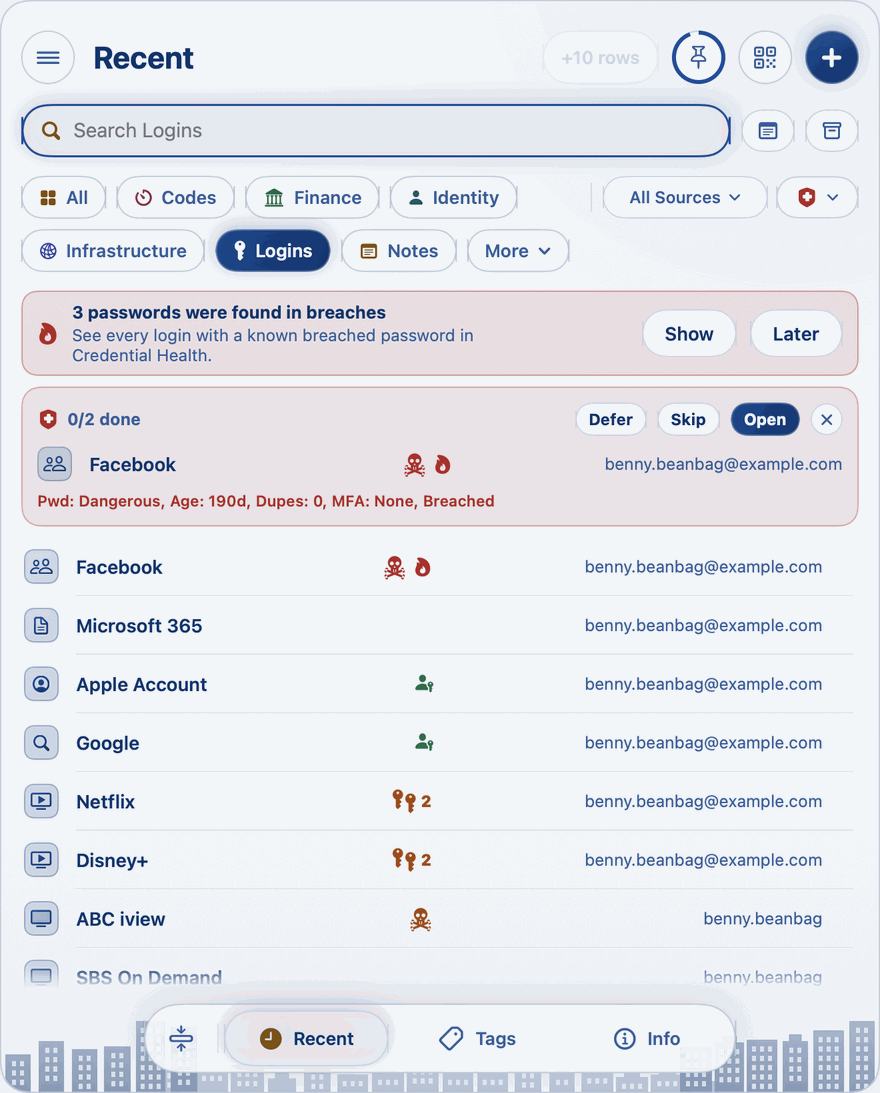
Click the key in the menu bar to open the panel. It drops down from the key, opens on Recent, and closes by itself when you're done.
The three tabs
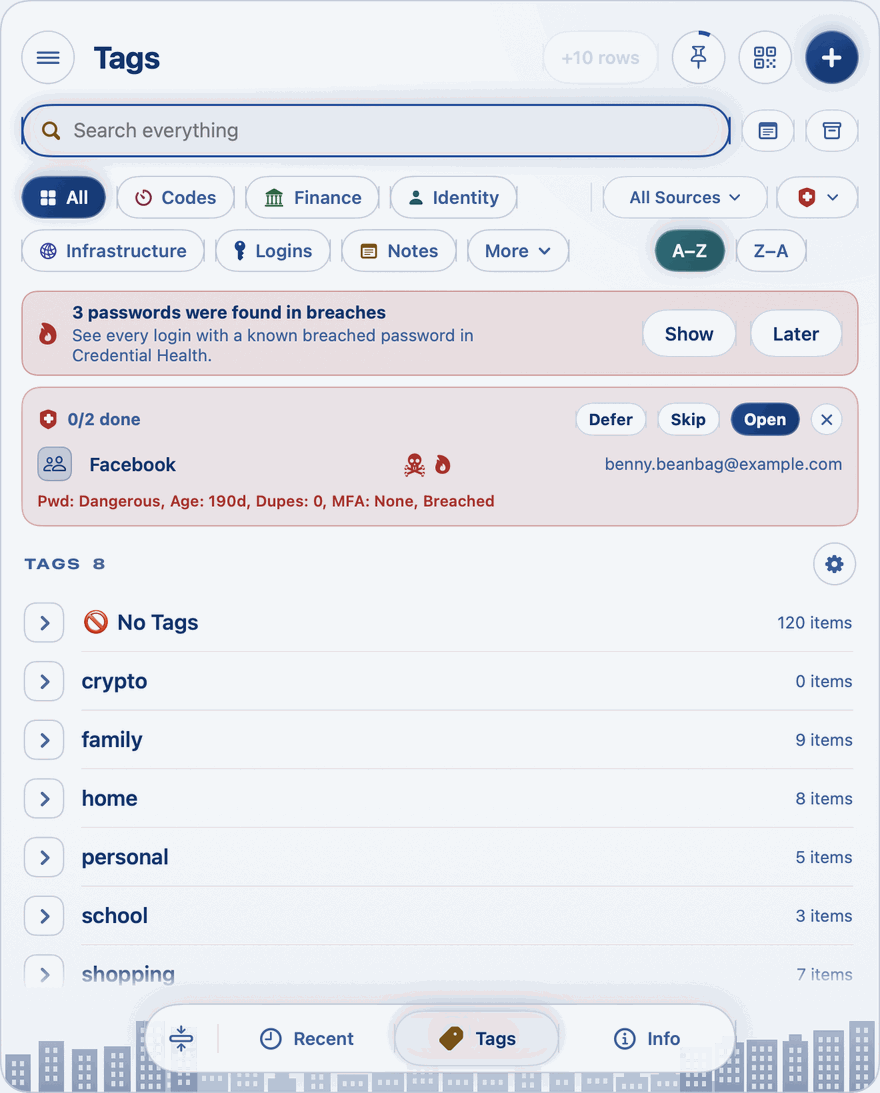
At the foot of the panel are three tabs:
- Recent: your items, the ones you used last at the top. See Types and Search.
- Tags: your items under the tags you give them. See Tags.
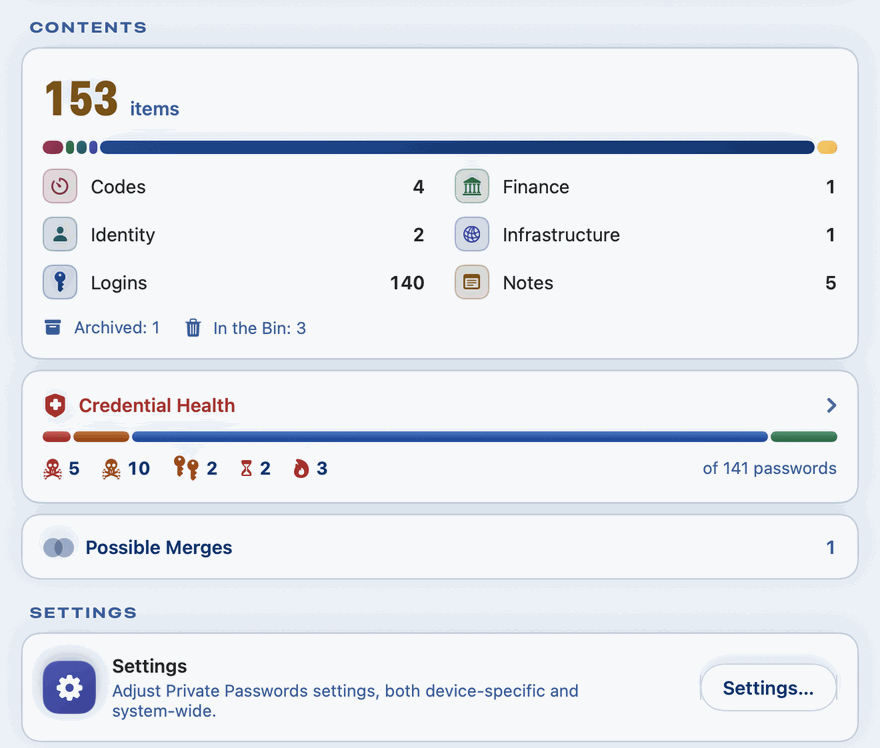
- Info: everything that isn't about one item, from Settings to backups. See The Menu and the Info Page.
The buttons along the top
- Menu, at the top left: every action in one list. See The Menu and the Info Page.
- +10 rows: makes the panel taller while it's open. The next time it opens, it's back to its usual size.
- Pin: keeps the panel open, even when you click elsewhere. Click it again to let the panel close by itself.
- Password generator: makes a strong password when you just need one. See Password Templates and the Generator.
- New item (the +): makes a new item. See Adding and Editing Items.
Under them is the search row: the search box, then Search Notes, then the Archived button. See Types and Search.
A button that shows only an icon says what it does when you rest the pointer on it.
Closing by itself
The panel closes a few seconds after you stop using it, unless it's pinned. A ring around the pin shows the time running out. You choose how long, and how many rows the panel opens with, in Settings, under Auto-close and Rows.
Moving the panel
The panel always opens under the key. To move it while it's open, drag it by its top bar.
The mini player
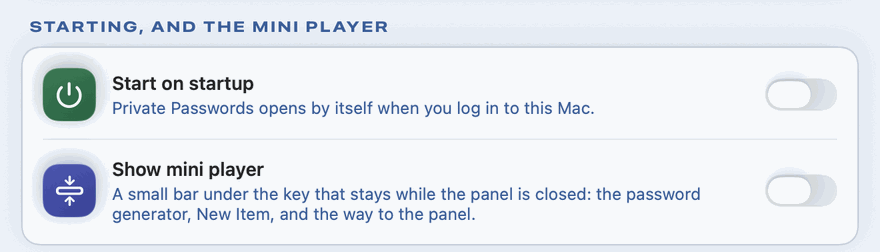
The button at the bottom left, Close to Mini, closes the panel and leaves a small bar under the key with four buttons: the password generator, + for something new, one to open the panel again, and one to close the bar. Turn the mini player on or off in Settings, under Show mini player.
Other ways in
- Double-click the key to open your Default Identity, ready to fill in a sign-up form.
- Right-click the key for New Item, New Login, Generate Password, Settings, About Passkeys, Help, Close Windows and Quit Private Passwords. Close Windows closes everything that's open and ends the unlock period, so Touch ID is asked for again.
- Drag a page's address onto the key to see that site's logins. See Dropping a Page on the Key.