Adding and Editing Items
Making something new
Tap the + button at the top of the screen and choose:
- New Login: a username and password for a website or app. See Adding Your First Login.
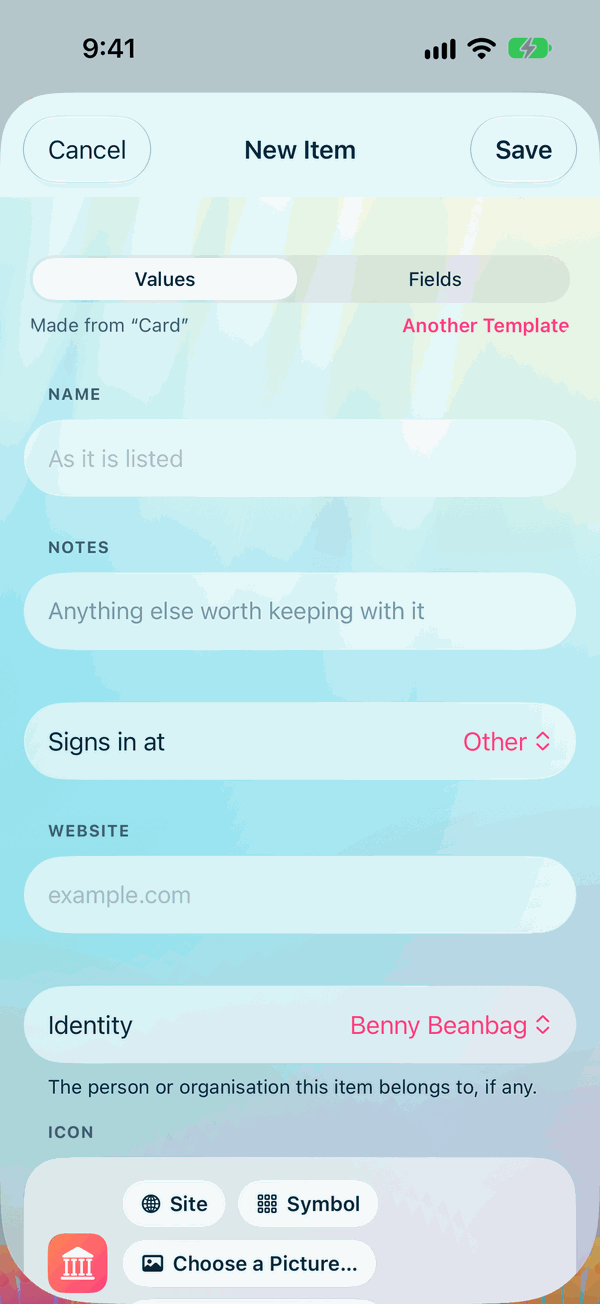
- New Item: anything else, from a template: a card, a note, a Wi-Fi network, a passport and so on.
- New One-Time Code: scan a site's QR code for its six-digit codes. See Setting Up One-Time Codes.
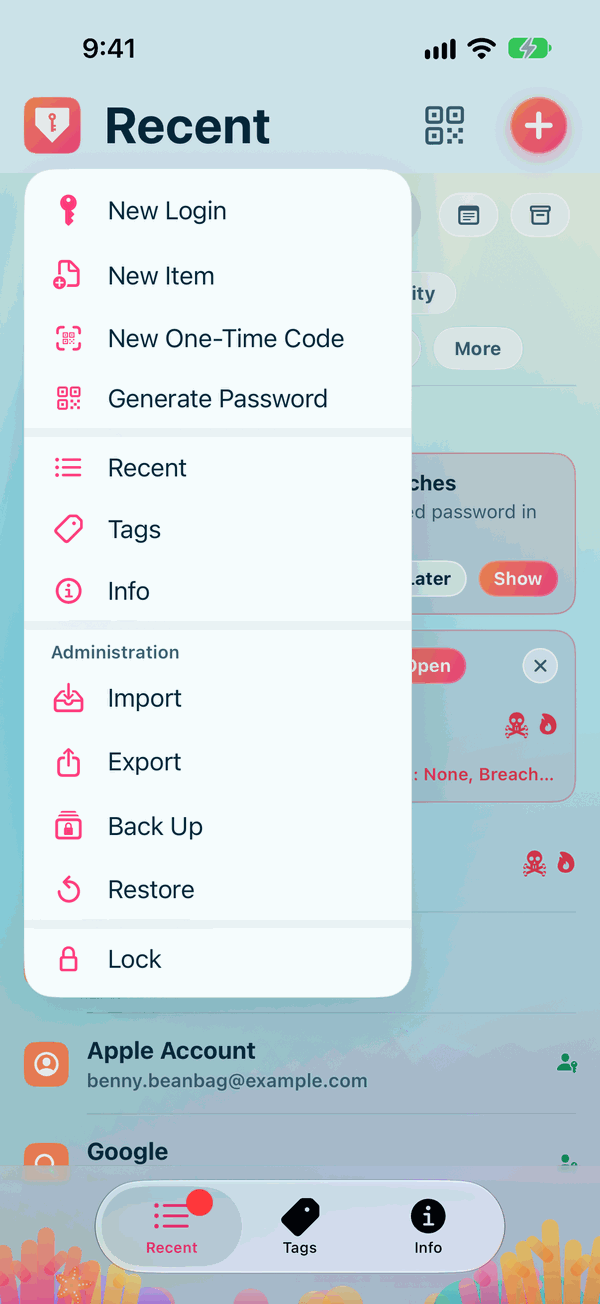
The button beside + opens the password generator on its own, when you just need a strong password.
Type and Template
Every item has a Type, such as Logins or Finance, which decides the pill it's listed under. It's made from a Template, which decides the boxes it has: a card has a number and an expiry date, a Wi-Fi network has a network name and a password.
When you tap New Item, choose the template you need. New Login starts on your usual login type and template for you: they stand at the top of New Login with its Identity, and you can tap any of them to choose another. See Types and the Default Type and Item Templates and Default Templates.
Filling in the boxes
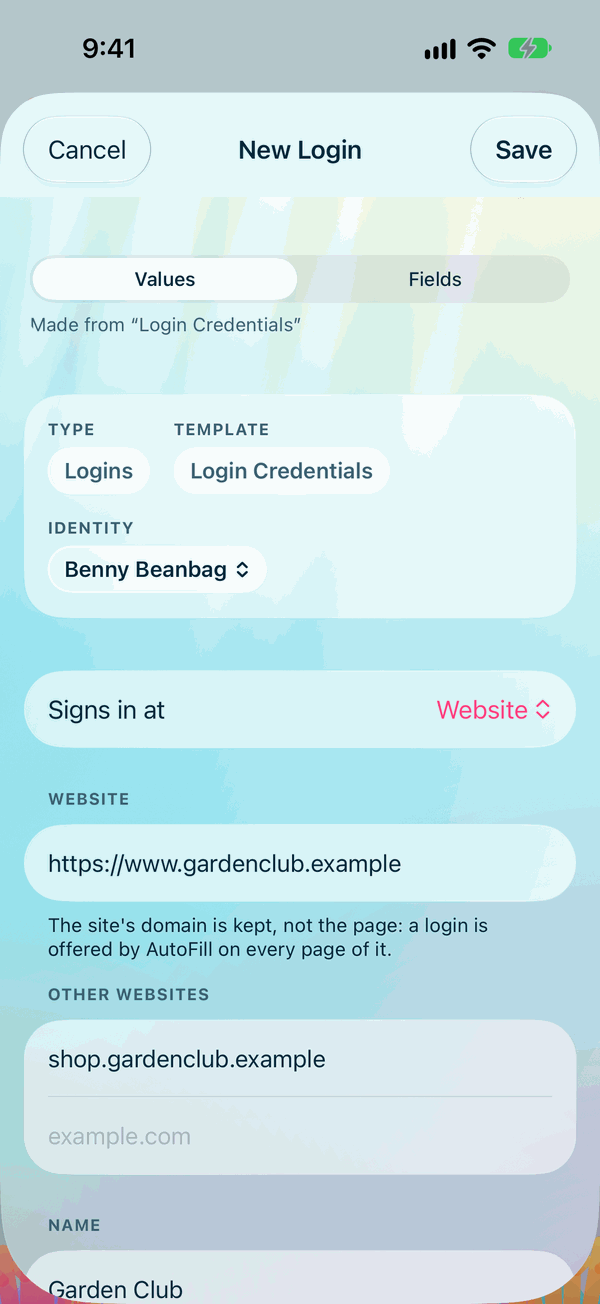
- Name is how the item appears in your lists. Every item needs one. If you leave it empty, nothing is saved and the editor tells you why.
- Type into each box the template gives you. Boxes that hold secrets, such as passwords and card numbers, are hidden until you choose to show them.
- Notes is for anything else worth keeping.
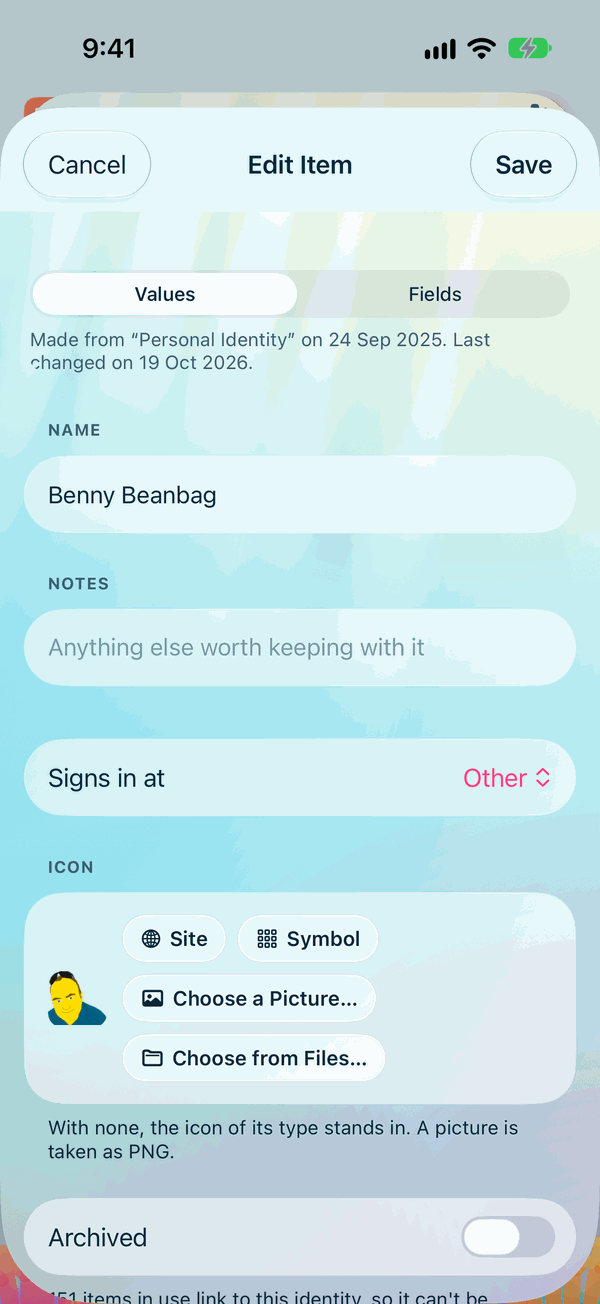
- Signs in at says where an item is used: a Website, an iOS App, Mac App, Android App or Windows App, or Other for things like a Wi-Fi network. A login starts on Website and every other item on Other; change it whenever you like.
- Other Websites lists any other addresses the same login works on. See Other Websites.
- Identity is the person or organisation the item belongs to. A new item starts on your Default Identity. See Identities.
- Icon: Site brings the website's own icon, Symbol chooses one of the app's symbols, Choose a Picture… takes a picture from Photos, and Choose from Files… takes one from Files. With none, the icon of its Type stands in.
- Tags: every tag you have is offered, in a list you can scroll. Tap one to give it to the item, or type a new one and tap Add. Tap a tag the item has to take it off.
Tap Save when you're done, or Cancel to leave without saving. If you've changed something, Cancel asks Let your changes go?, with Discard and Keep Editing. Save can always be tapped: with nothing changed, it simply closes the item, and if something needs fixing, the editor says what and stays open.
A new password is kept the moment you copy it
When you make a new password, for a new login or a new item, and tap Copy beside it to take it to a site, Private Passwords keeps it straight away. The same goes for Copy in Magnify Password. A site never ends up with a password you don't have.
The item stays open, so you can carry on: Save keeps whatever else you change, and Cancel closes it, with the item and its password already kept.
Editing an item
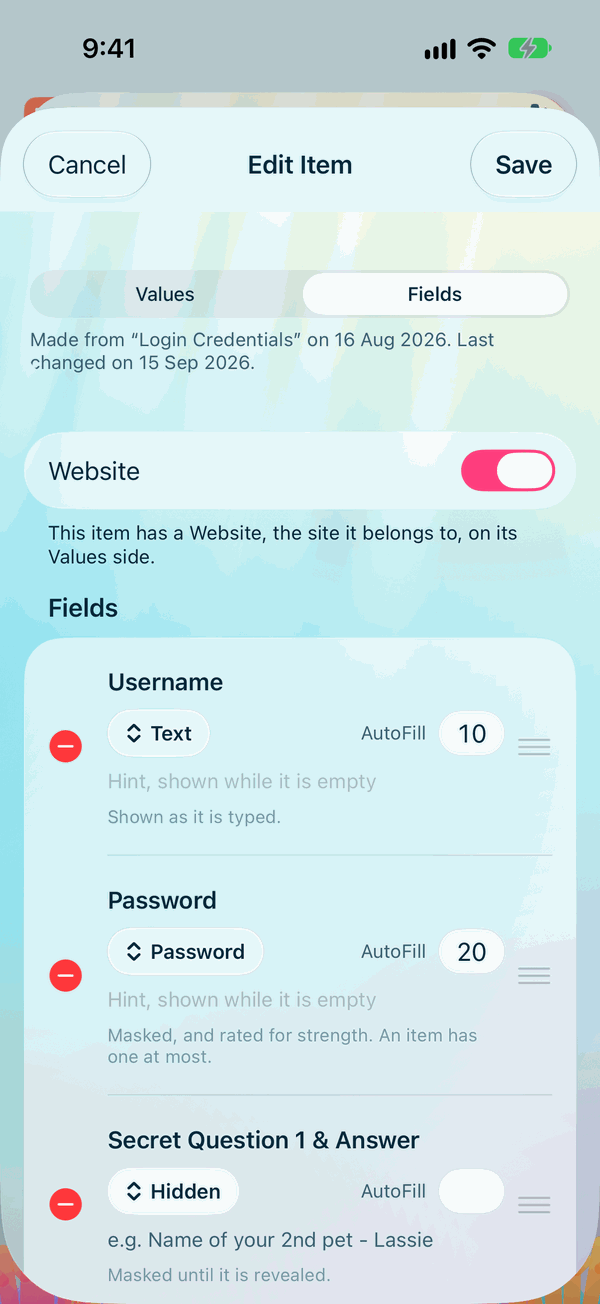
Open the item and tap Edit, or swipe the item's row and tap Edit. Change what you need, then tap Save.
Deleting an item
Tap Delete… at the foot of Edit. Private Passwords asks Delete “name”?, and says the item goes to the Bin for the number of days you've chosen, where Info's Bin can bring it back, and is then deleted for good. Anything you changed in Edit isn't saved. Tap Delete, or Keep It to change your mind. Where Face ID or Touch ID will be asked next, the question says so.
With Days in the Bin at 0, the button is Delete for Good…, and the item is gone at once.
Changing a password
To change the password of a site you already use:
- Open the login and tap the round arrow beside its password. Change Password opens.
- The password it has now comes first, hidden until you tap its eye. Tap Copy beside it for a site that asks for your present password.
- Under New Password, Private Passwords has made a new strong password, laid out just as in the generator. Tap Regenerate for another, Magnify Password to read it large, or choose a different Password Template below it.
- Tap Copy and paste the new password into the site's change-password form. The moment you copy it, the new password is kept, and the old one is kept among the login's previous passwords.
- If the site turns the new password down, tap Put Back Previous Password, and the login goes back to the password it had.
Previous passwords, at the foot, shows the two before the present one, each with the day it was replaced.
From the site's own form
Many sites' change-password forms have a box for the new password and another to type it again. You can fill both from the keyboard, without leaving the site:
- Sign in to the site with Private Passwords as usual, then go to its change-password form.
- Tap the new password box, then AutoFill, then Passwords. New Password heads Private Passwords' list: choose it, and the login you just signed in with gets a new strong password, kept at once, and copied.
- Paste it into the new password box, and again into the box that asks for it a second time.
Or open the login in Private Passwords and use Change Password, as above, and paste the new password into both boxes.