The Menu and the Info Page
The panel's menu
Click Menu at the top left of the panel.
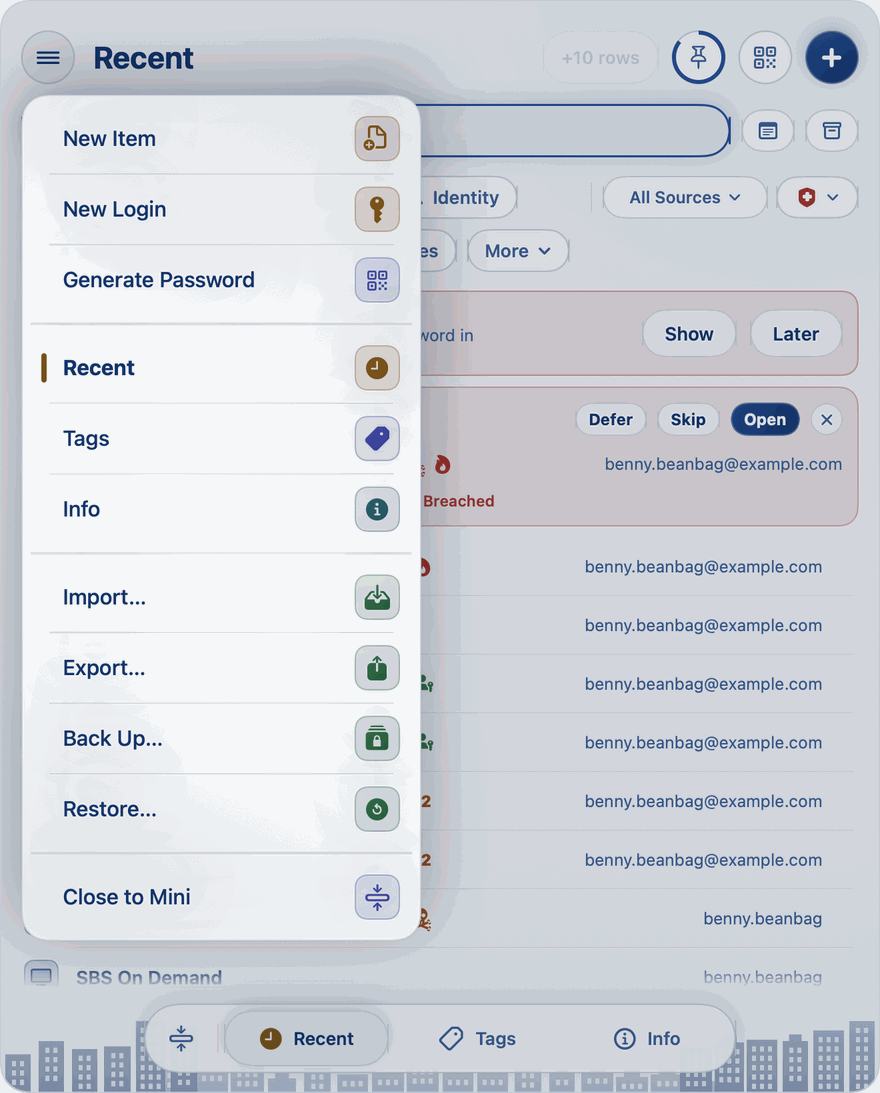
- New Item, New Login and Generate Password.
- Recent, Tags and Info, to move between the tabs.
- Import…, Export…, Back Up… and Restore…. See the Backups & Moving pages.
- Close to Mini: closes the panel and leaves the mini player under the key. See The Panel.
The key's own menu
Right-click the key in the menu bar, or hold down ++control++ and click it, for:
- New Item, New Login and Generate Password;
- Settings;
- About Passkeys;
- Help, which opens Help & How-To: short topics on everything Private Passwords does, each with a link to its page in this help;
- Close Windows, which closes everything that's open, the panel, items, Import, Export, Back Up and Restore among them, and ends the unlock period, so Touch ID is asked for again, in AutoFill too;
- Quit Private Passwords.
The Info page
Click Info at the foot of the panel. It holds everything that isn't about one item:
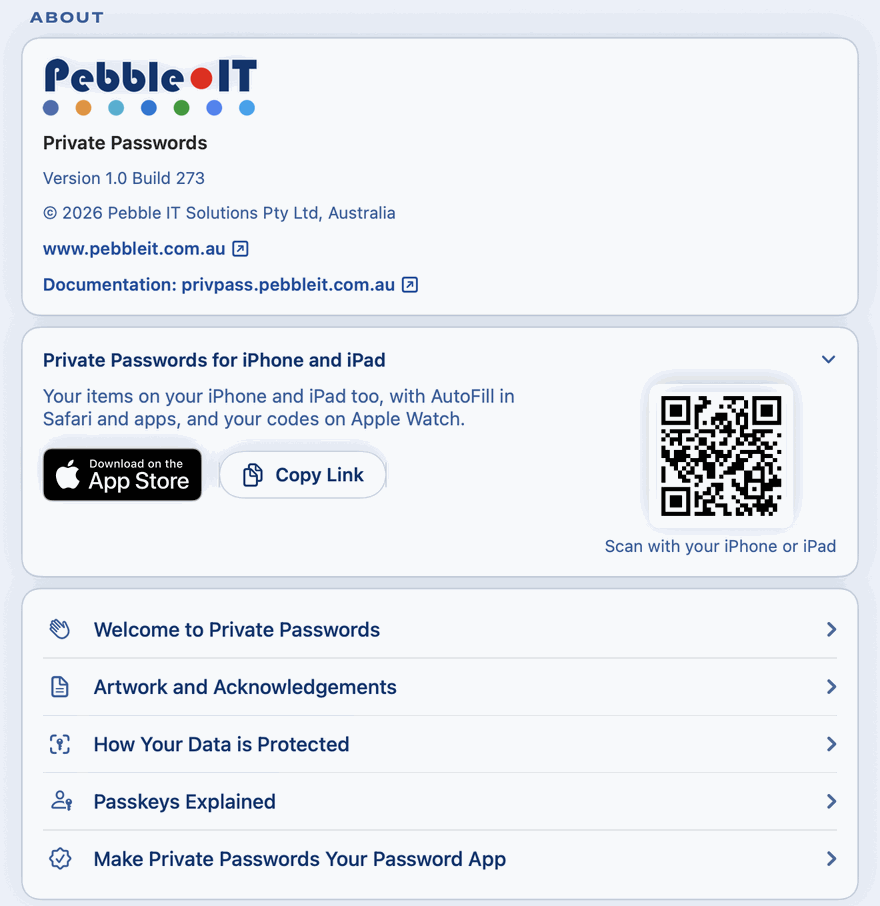
- About: the version, the documentation, Welcome to Private Passwords, Artwork and Acknowledgements, How Your Data is Protected, Passkeys Explained and Make Private Passwords Your Password App. Click the Pebble IT logo to open its website. See How Your Data is Protected.
- Private Passwords for iPhone and iPad: the app for your iPhone, with its App Store badge, Copy Link, and a QR code to scan with your iPhone's camera. Click the arrow to fold it away.
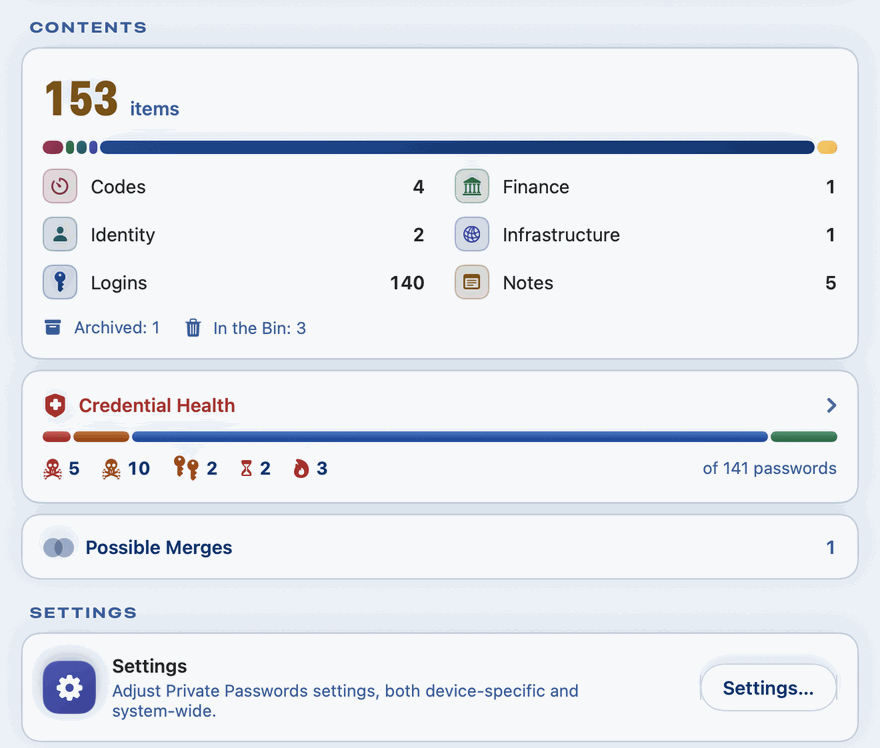
- Contents: how many items you have, your passwords' health, and any items that look like the same login twice. If any items were saved by a later version of Private Passwords than this one, a line counts them.
- Settings: "Adjust Private Passwords settings, both device-specific and system-wide." See The Settings Page.
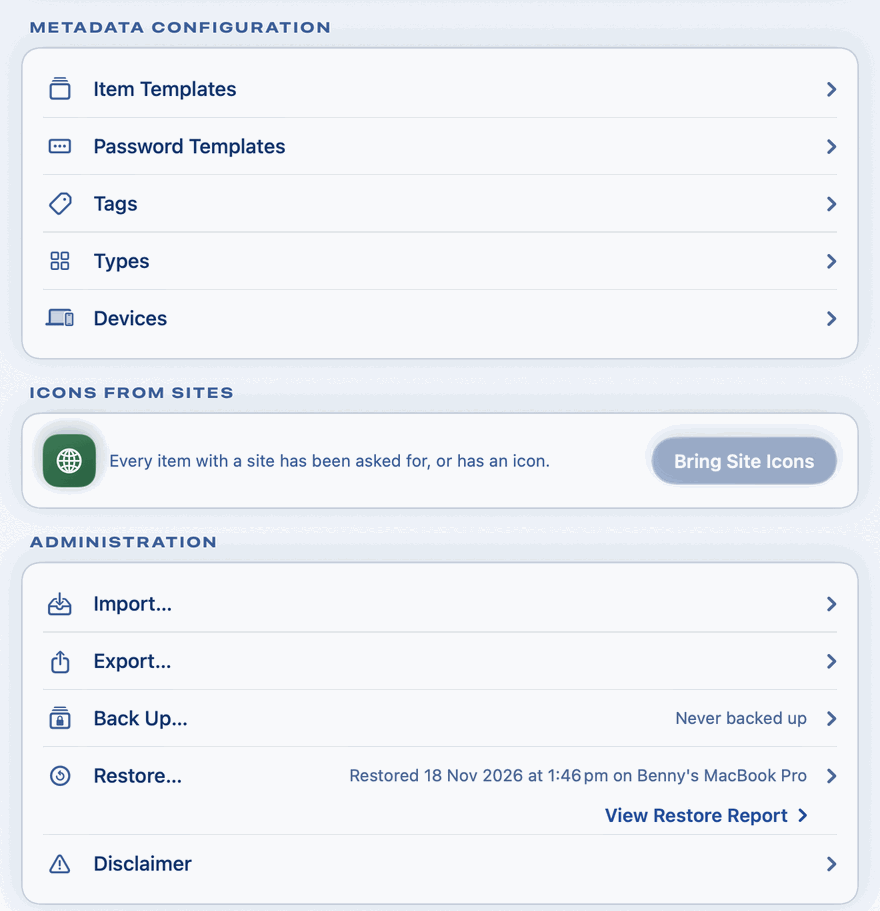
- Metadata Configuration: Item Templates, Password Templates, Tags, Types and Devices. See the Your Items pages and Your Devices.
- Icons from sites: brings each site's icon for your items, while it's turned on in Settings.
- Administration: Import…, Undo Last Import, Export…, Back Up…, Restore… and the Disclaimer. Beside Back Up…, when you last backed up. Beside Restore…, when you last restored a backup and on which device, with View Restore Report under it: every item the restore brought, by Type. It asks for Touch ID first. See Backups & Restoring.
- Bin: the items you've deleted, until they're gone for good.
- Last import: everything your last import brought in, and when.
- One-time codes: shown only when an import kept one-time codes as hidden fields that can be made live codes. Click Find Them, and Private Passwords counts them before changing anything.
- Help: Welcome to Private Passwords to see the tour again, Help & How-To, and Send to Support. See Getting Help.
- Privacy: in a few lines, what Private Passwords keeps and where. In short: everything stays in your Keychain, and nothing is ever sent to us unless you send it yourself.
- Copy iCloud Backup Key: shown when your items are kept on this Mac alone and you back up to iCloud. It copies the key your iCloud backups are locked with, after Touch ID, for you to keep somewhere safe: you'll need it to open those backups on a new device. It leaves the clipboard after a few seconds.
-
Delete All Data…: asks whether to delete:
- Delete Data on This Device: every item Private Passwords holds on this Mac, the Bin's among them, and every template you have made or changed;
- Delete Everything, Including iCloud: all that, and every iCloud backup, and the support records of every device signed in to your Apple Account. It asks once more before anything is deleted.
Either way it can't be undone, and asks for Touch ID. Make a backup first.
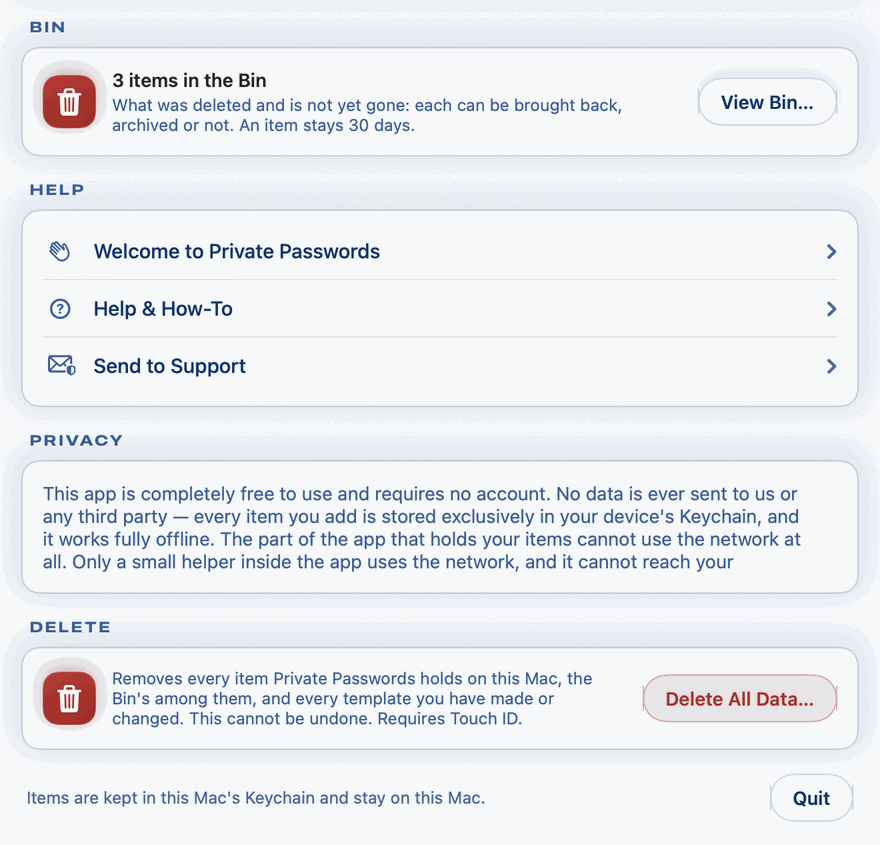
At the very foot is Quit.