Identities
An identity is an item about a person or an organisation: you, someone in your family, your business. It holds the details websites ask for when you sign up, such as names, emails, phone numbers and an address. Any other item can be linked to the identity it belongs to, so you can see at a glance whose it is.
What makes an item an identity
An item is an identity when its template makes identities. Two built-in templates do, both of the Identity type:
| Template | What it holds |
|---|---|
| Personal Identity | A person: a new password to give a new account; their title and names; date of birth; two emails and two phones; their address; their identity numbers, such as their passport number; and under Work, their work email, employer, position, address, website and phone. |
| Work Identity | A person at work: the employer and start date; their names; a preferred username and a new password; emails and phones; position and department; the work address; and under Identifiers, the numbers an employer keeps, such as a tax file number. |
A template makes identities when it has Is an Identity turned on and is listed under the Identity type, or under a type of your own whose Parent Type is Identity. Identity counts under whatever name you give it.
You can turn Is an Identity on for a template of your own, on its page in Item Templates. A template is a login or an identity, never both: turning Is an Identity on turns Contains Login Credentials off, and the other way round.
A template makes identities when it is listed under the Identity type, or under a type of your own whose Parent Type is Identity. Identity counts under whatever name you give it, and there is no switch for it.
To have a template of your own make identities, list it under one of those types on its page in Item Templates. A template is a login or an identity, never both: under those types, its Contains Login Credentials switch is off and greyed out.
In the list of templates, an identity's template carries an Identity mark. See Item Templates and Default Templates.
Your starter identity
Your items start with one identity to make your own: Change this to you, a Personal Identity. Edit it and put in your own details, or make a new identity and delete this one. Once deleted, it doesn't come back.
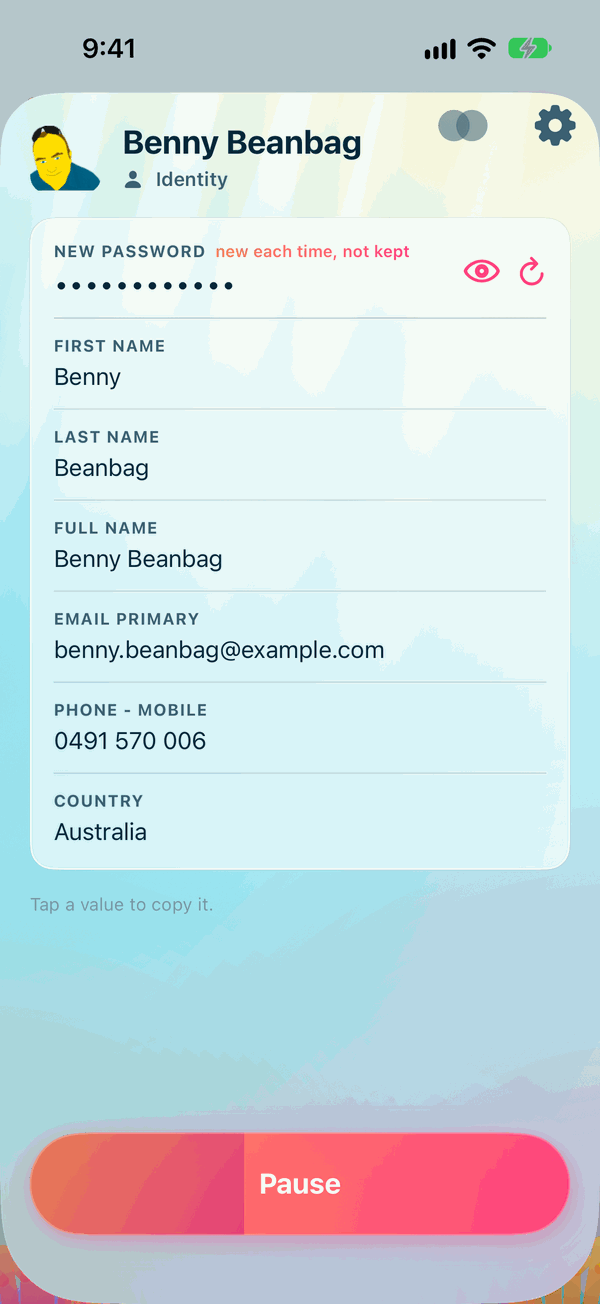
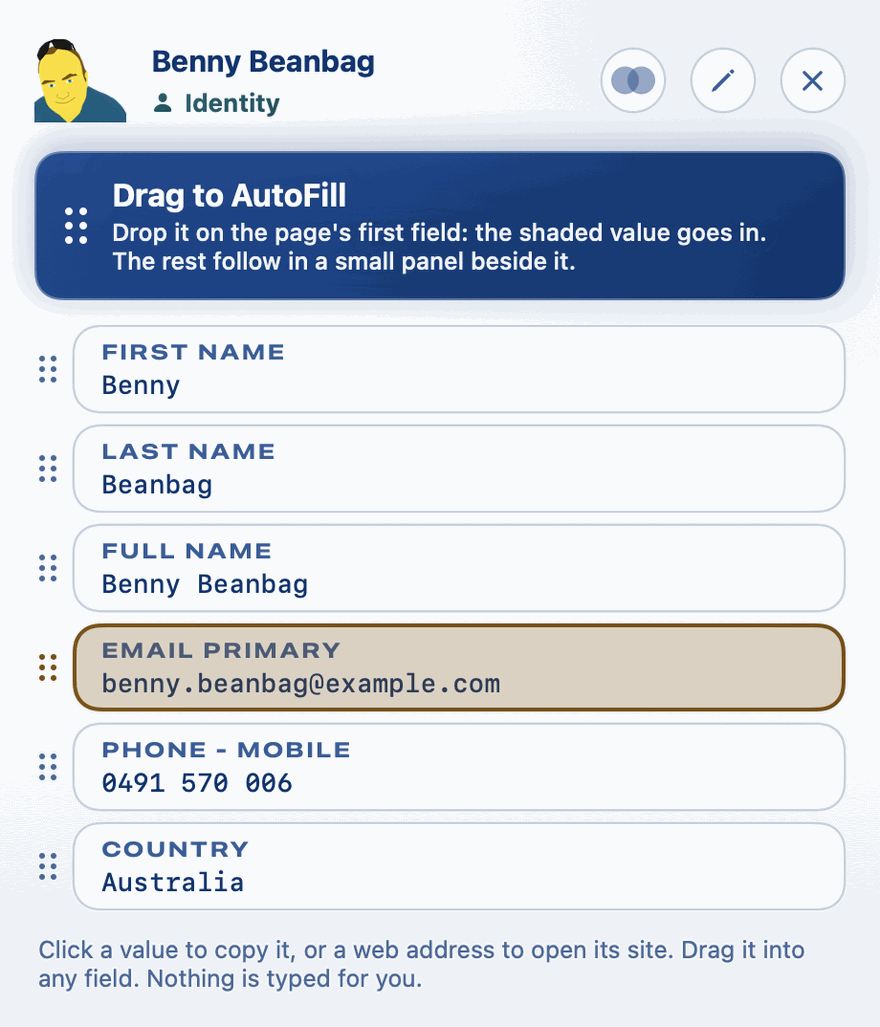
It is an item like any other: if your items sync, it shows on your other devices too, and it is made only once for all of them.
The Default Identity
Your Default Identity is the identity your Mac opens when you double-click the key in the menu bar, ready for you to drag its details into a form. It starts as your starter identity.
To choose another, open the Info page and, under Metadata Configuration, tap Types. Choose it from Default Identity at the top of the page, or choose None. A new item that isn't an identity starts with it as its Identity, which you can change, and an import gives it to the items it writes.
To choose another, open the Info page and, under Metadata Configuration, click Types. Choose it from the Default Identity menu at the top of the page. The menu lists your identities by name, archived ones included, and never those in the Bin. Choose None to have no Default Identity: a double-click on the key then only sounds the alert.
A new item that isn't an identity starts with it as its Identity, which you can change, and an import gives it to the items it writes.
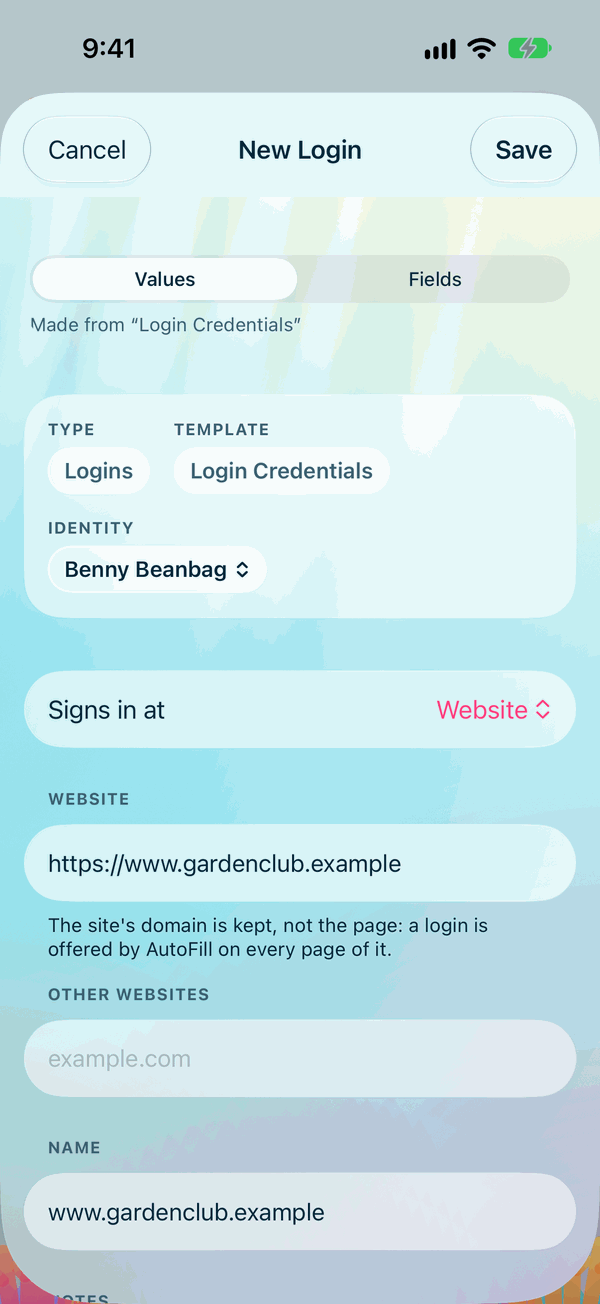
In a new item, click Show beside its Identity to open that identity's panel next to the new item: on its left where the screen has room, otherwise on its right. Drag its details into the new item, or click one to copy it. If you choose another identity, click Show again to see that one in its place. Save or Cancel closes both panels.
While your Default Identity is in the Bin, or is no longer an identity, it counts as None.
Linking an item to its identity
Every item that is not itself an identity has an Identity row in its editor. A new item starts at your Default Identity, or at None if you have none.
- Edit the item.
- Open the Identity menu and choose the person or organisation the item belongs to.
- Save the item.
The menu lists your identities by name, archived ones included, and never those in the Bin. If you have no identity yet, the row says so. Linking is optional: choose None to take a link away.
When you open a linked item, the identity's name shows near the top, under its type. An item with no link shows nothing there.
An identity itself has no Identity row: identities aren't linked to each other.
An identity in use
While an item in use links to an identity, the identity can't be archived or deleted. An item in use is one that isn't archived and isn't in the Bin. The identity's editor turns Archived and Delete… off and says how many items link to it, for example 2 items in use link to this identity, so it can't be archived or deleted. Change their Identity first. Change those items' Identity, or archive them, and the identity can go.
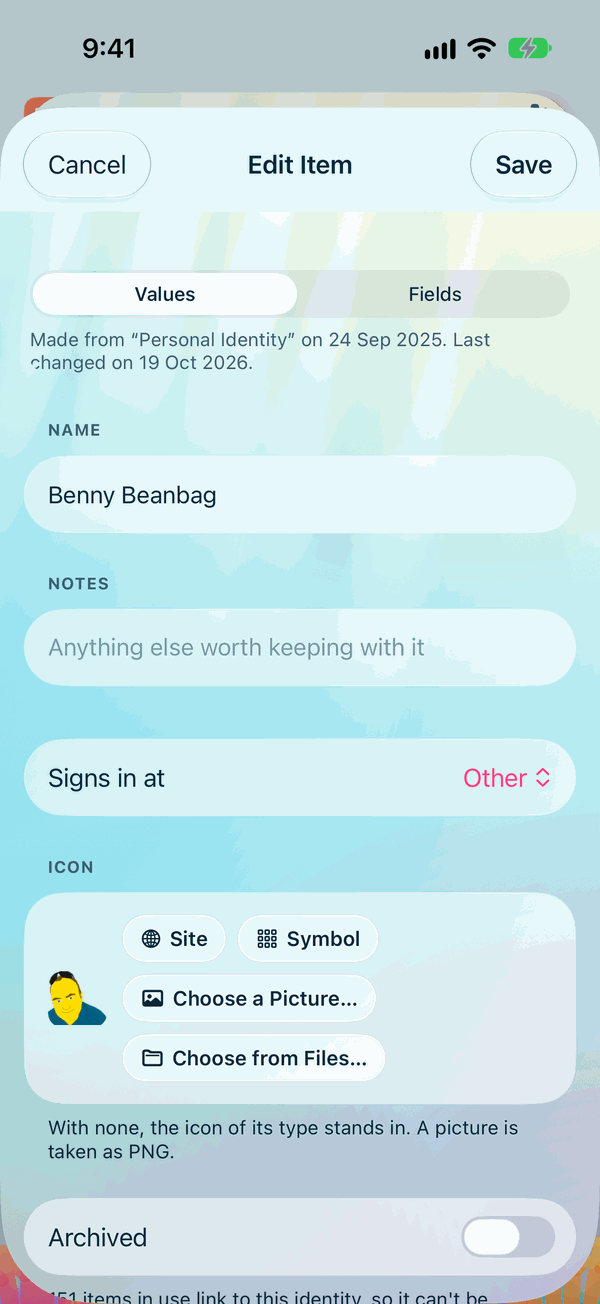
Your Default Identity is held the same way, and no other way. Restore, Delete all existing in Import, Merge and Delete All Data, which deal with many items at once, aren't held by it.
When the identity is in the Bin or gone
If the identity is in the Bin, or has been deleted for good, the link counts as none. The item no longer shows the identity's name, and its Identity row shows None, with the line "The identity it linked to is in the Bin or gone: None stands, and the save lets the link go."
The next time you save the item, the link is let go. If you restore the identity from the Bin before then, the link is back as it was. See The Archive and the Bin.
Filling in an identity's details
To put one of an identity's details into a form, tap the box, tap it again, choose AutoFill, then Insert Text, and pick the identity and the detail. See Insert Text.
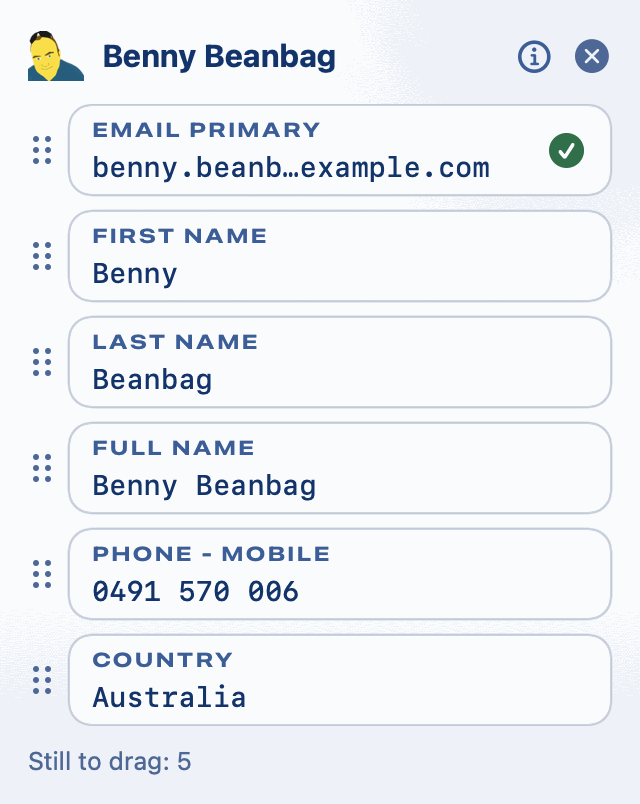
Double-click the key in the menu bar to open your Default Identity's panel straight away. Drag an identity's details from its panel into a form. Drop its Drag to AutoFill handle on the form's first box, and a panel of the rest of its details comes up beside it, to drag into the boxes that follow: the identity's drag panel. The drag panel can also offer Create Login: it opens a new login beside the panel, already linked to the identity, ready for you to drag the identity's details into it.
Create Login offers the login templates that name this identity under Its logins are for the identity, on the template's page in Item Templates.
Continue to The Archive and the Bin.