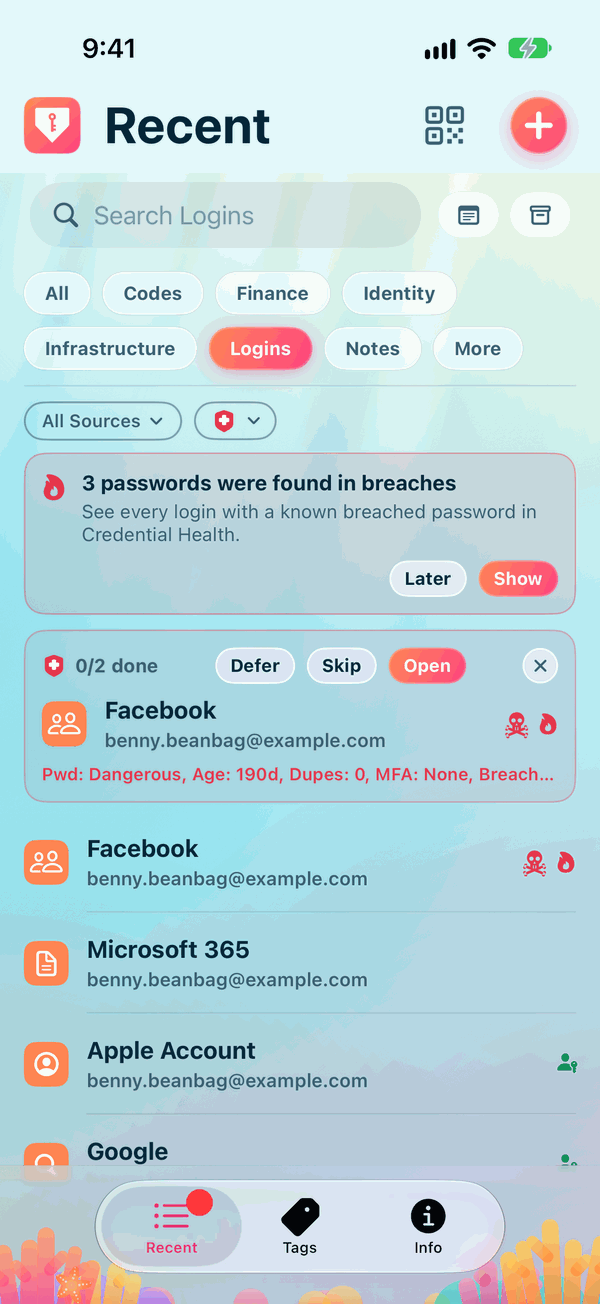
Recent, Types and Search
Recent is where Private Passwords opens. It lists your items with the ones you used last at the top, so what you need most is always near your thumb.
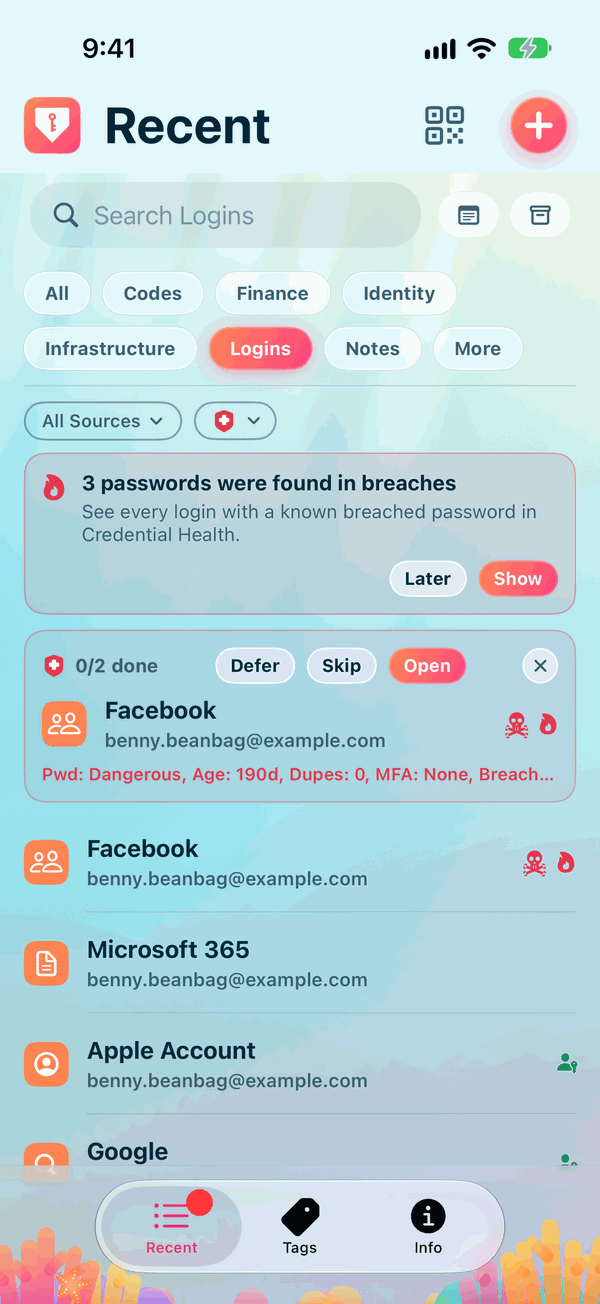
At the foot of the screen are three tabs: Recent, Tags and Info.
The type pills
Across the top of Recent is a row of pills, one for each type of item: Logins, Codes, Finance, Notes and so on.
- Tap a pill to show only that type.
- Tap All to show everything again.
- Where there are more types than fit, the last pill is More: tap it to choose from the rest.
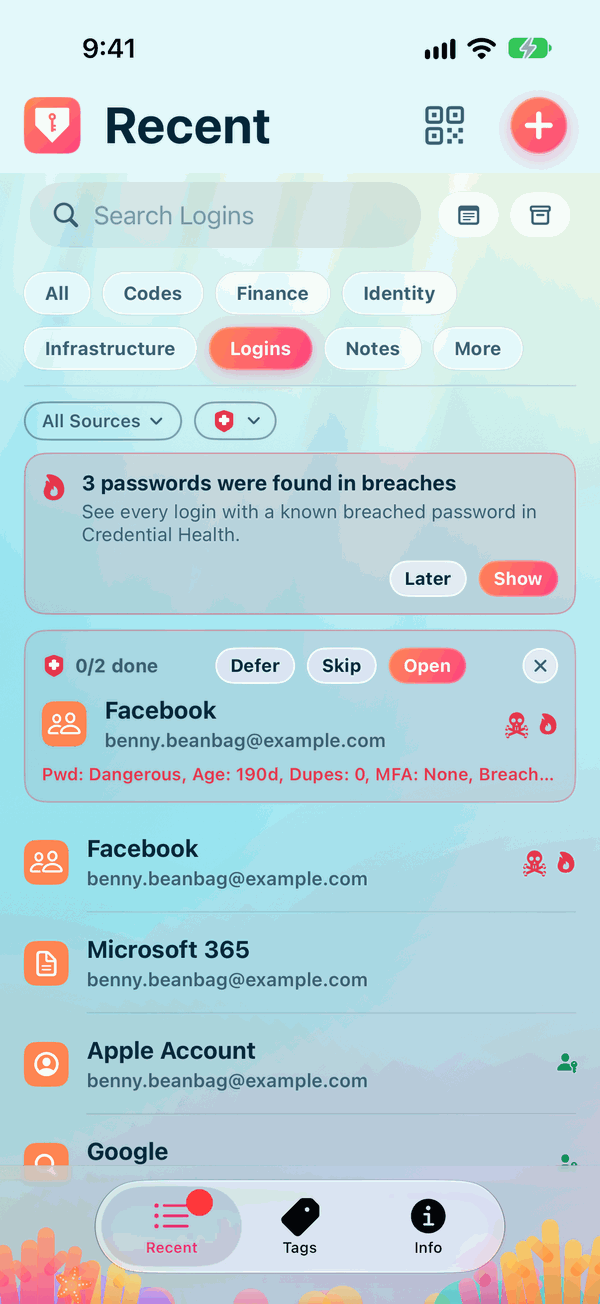
You choose the pill Recent opens on in Settings, under Opens on.
Searching
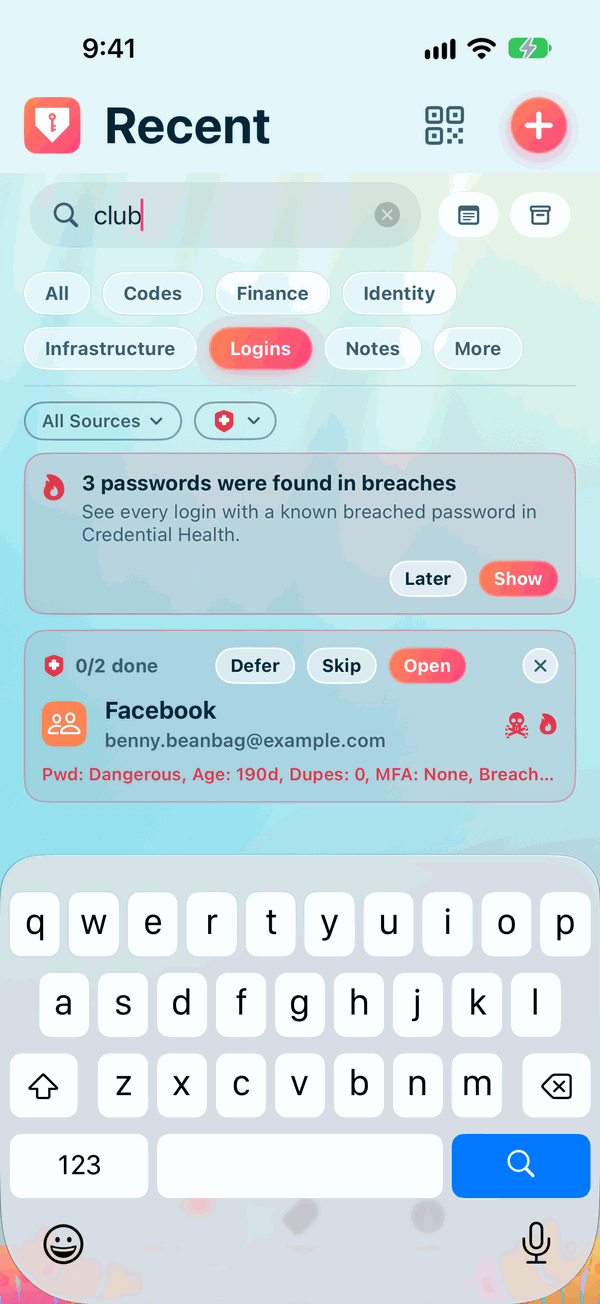
Tap the search box and type part of an item's name. The list narrows as you type. Search looks at names only, never at usernames or passwords. The words in the empty search box tell you what it searches, such as Search everything, or Search Logins with the Logins pill chosen.
An item with no name is listed as -.
Filters
A few filters help when you need a closer look: Search Notes and the Archived button beside the search box, and Source and Credential Health under the pills.
- Search Notes also searches the notes inside your items. Turn it off again when you're done.
-
The Archived button, there while something is archived, has three states. Tap it to move from one to the next:
- Archived, as it starts: only the items in use are listed.
- Include archived: your archived items are listed with the rest, and the search box says Search everything, archived included.
- Archived only: only your archived items are listed, and the search box says Search the archive, or Search archived Logins with the Logins pill chosen.
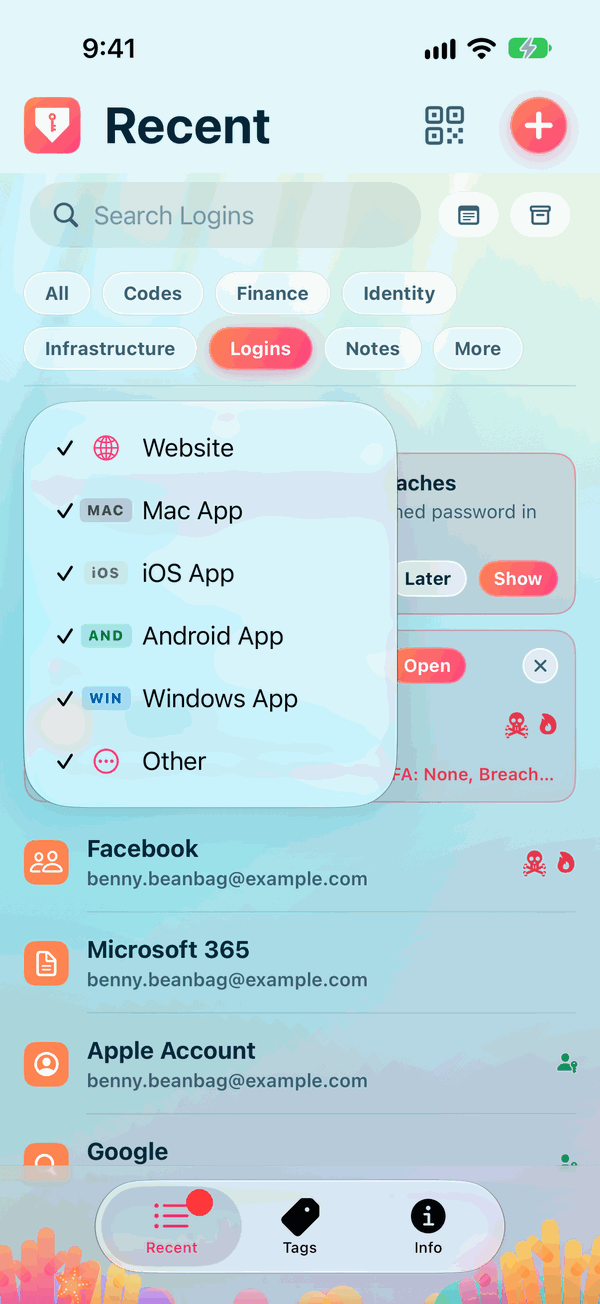
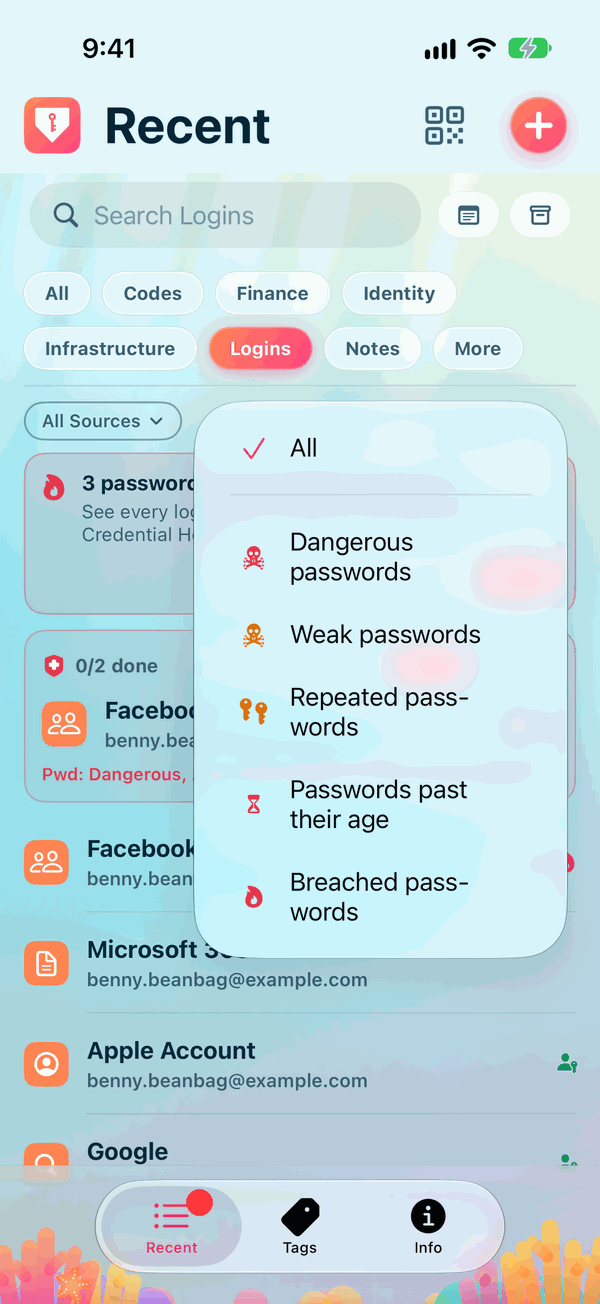
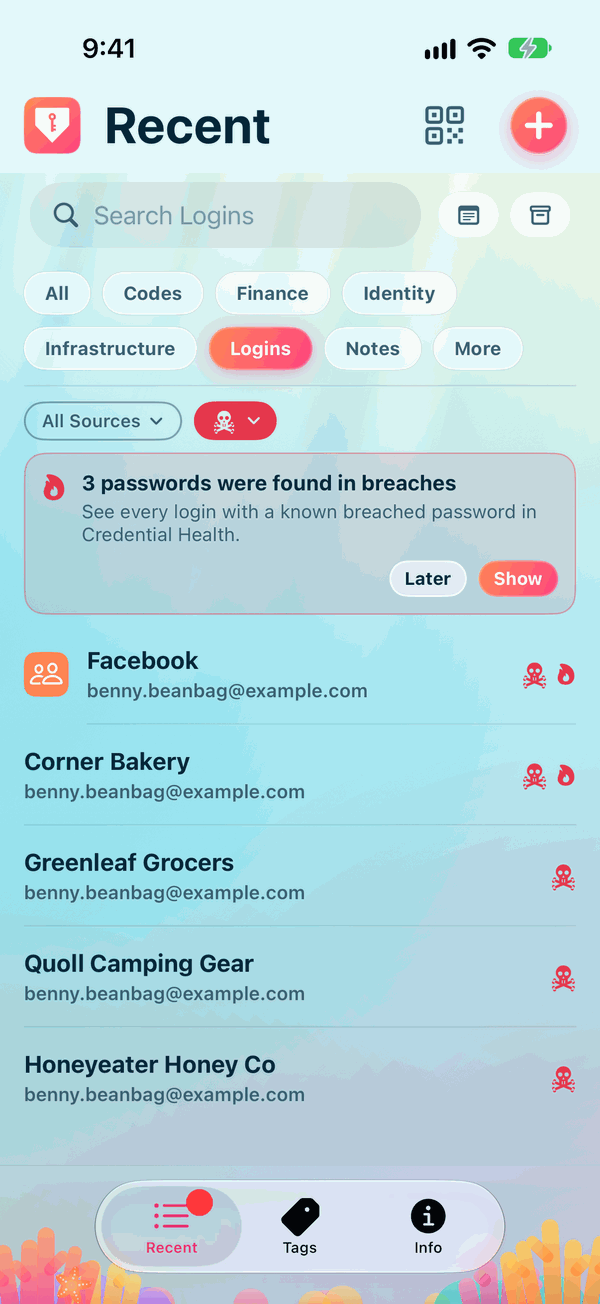
One more tap takes it back to Archived. See The Archive and the Bin. - Source shows items by where they're used: websites, iOS apps, Mac apps, the other apps, and Other for everything that belongs to no website or app. Every source is ticked to begin with. Untick one to hide those items. - Credential Health, under the red shield, shows the logins with a problem: Dangerous passwords, Weak passwords, Repeated passwords, Passwords past their age or Breached passwords. See Credential Health.
With your iPhone on its side, Search Notes, Source and Credential Health are hidden from view, not turned off, and Recent lists everything. Turn it upright and they're back as you left them. The Archived button stays.
When there's nothing to show
With no items at all yet, Recent and Tags say Nothing here yet, with Import to bring in your passwords from another app and Restore to bring back a Private Passwords backup. With Archived only and nothing archived, they say Nothing is archived. When a search finds nothing, they say No match.
One to fix
When Credential Health finds logins that need attention, a box at the top of Recent and Tags offers them one at a time. Tap Open to fix it now, Skip to see the next, or Defer to be reminded later. The box isn't shown while the Archived button is at Archived only. See Credential Health.