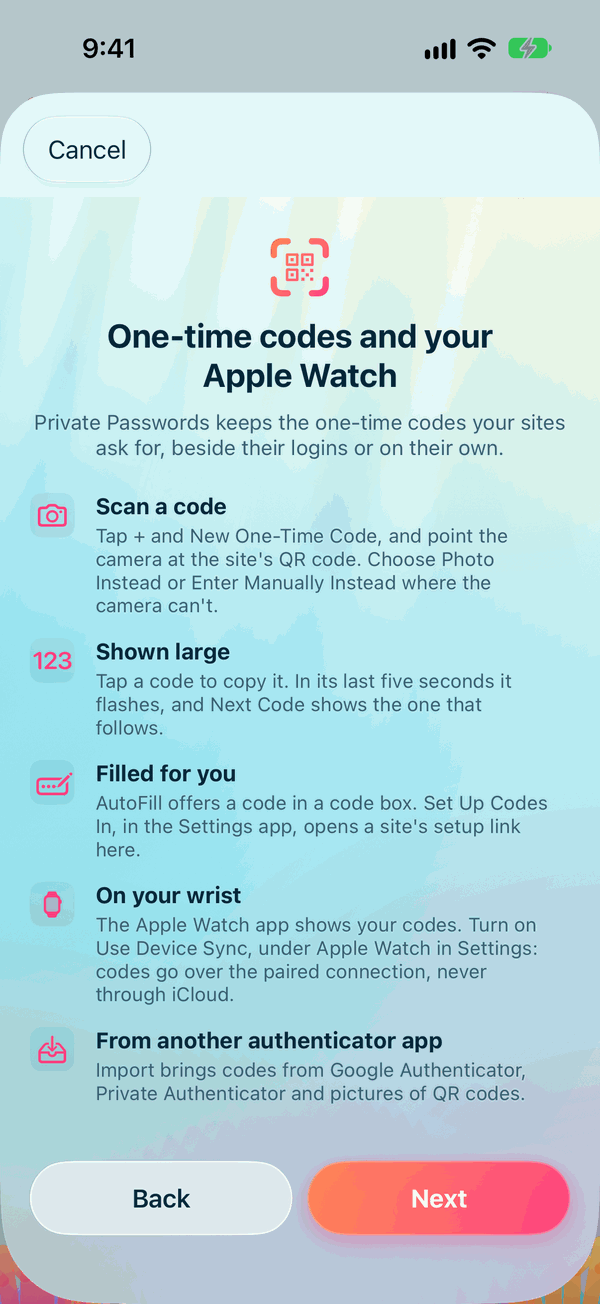
Setting Up One-Time Codes
Many sites can ask for a one-time code when you sign in: six digits that change every 30 seconds. It means someone who learns your password still can't sign in without your code. Private Passwords keeps those codes for you, and fills them in.
Scanning a site's QR code
When a site offers to set up "two-factor authentication" or an "authenticator app", it shows a QR code.
- In Private Passwords, tap +, then New One-Time Code.
- Point your iPhone's camera at the site's QR code.
- The code is read straight away. Give it a name if you'd like, and tap Save.
- Type the six digits Private Passwords shows into the site, to finish setting it up.
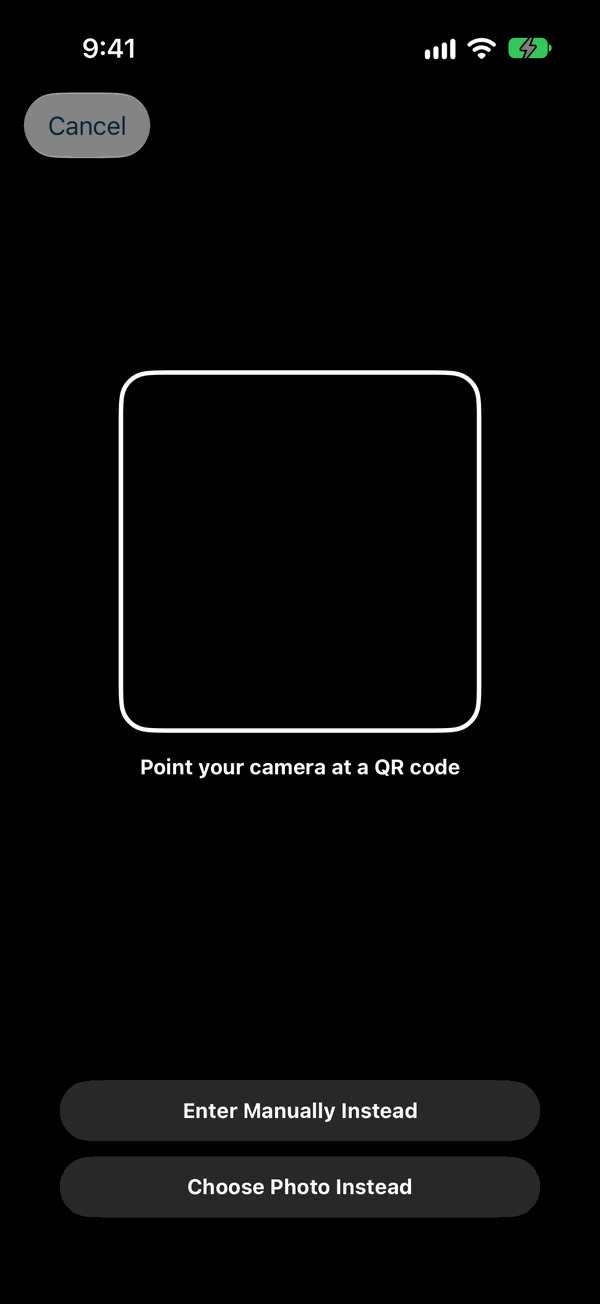
When the camera can't
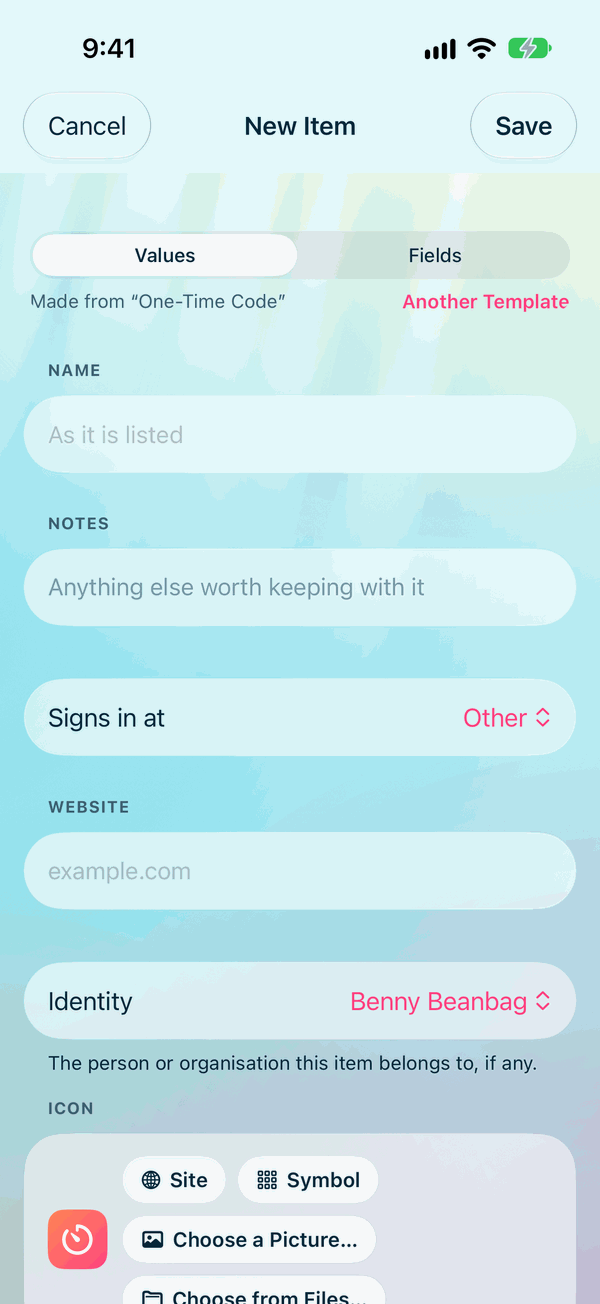
- The QR code is on this same iPhone? Take a screenshot of it, then tap Choose Photo Instead and pick the screenshot.
- The site gives you a text key instead, a long line of letters and numbers? Tap Enter Manually Instead and type or paste it.
In an item's editor, where its code goes, there are more ways in:
- Scan QR Code opens the camera.
- Choose a Picture takes a picture of the QR code from Photos.
- Choose from Files… takes a picture of the QR code from Files.
- Paste takes a setup link or key you've copied, or a picture of a QR code you've copied.
- Enter the Key lets you type the key. Choose TOTP or STEAM. For TOTP, use the Digits, Algorithm and Refresh Interval the site gives you; most use 6 digits, SHA-1 and 30 seconds, and the interval is in seconds. For a Steam code they're shown but locked, as Steam Guard always uses 5 characters, SHA-1 and 30 seconds.
Keeping the code with its login
A code can sit on its own, or inside the login it belongs to, so the login and its code are in one place. To add a code to a login, edit the login and add it there. A code on its own can later be moved into its login with Move into a Login…. See One-Time Codes.
Setup links
Some sites offer a button that opens an authenticator app directly. For those links to open in Private Passwords:
- Open the Settings app.
- Tap General, then AutoFill & Passwords.
- Under Set Up Codes In, choose Private Passwords.
Filling in a code
When a site asks for its code, tap the code box, and Private Passwords offers it above the keyboard. See AutoFill in Safari and Apps. Or open the item and tap the code to copy it.
On your Apple Watch
Your codes can also be on your wrist. See Codes on Your Apple Watch.