How Your Data is Protected
Private Passwords is free, but nothing about its protection is cut back. Your items are guarded by the same chip and the same encryption Apple uses for its own passwords, and Private Passwords adds its own guards on top. This page explains each layer in a little more technical detail than How Your Passwords Are Protected.
The app has the same explanation, with pictures: on the iPhone, Info, then How Your Data is Protected, or Help & How-To on the Info page; on the Mac, How Your Data is Protected on the Info page, or the topic of that name in Help & How-To, under Your Data.
Four layers between your items and anyone else
| Layer | What it does |
|---|---|
| Face ID or Touch ID | Asked before an item opens or changes, and before every backup, restore, import and export. |
| Your passcode (on the Mac, your Mac's password) | Unlocks the device, and with it the keys that open your items. |
| The Secure Enclave | A separate security chip that makes and keeps the keys, and never lets them out. |
| AES-256 encryption | Every item is encrypted in the Keychain under a key of its own. |
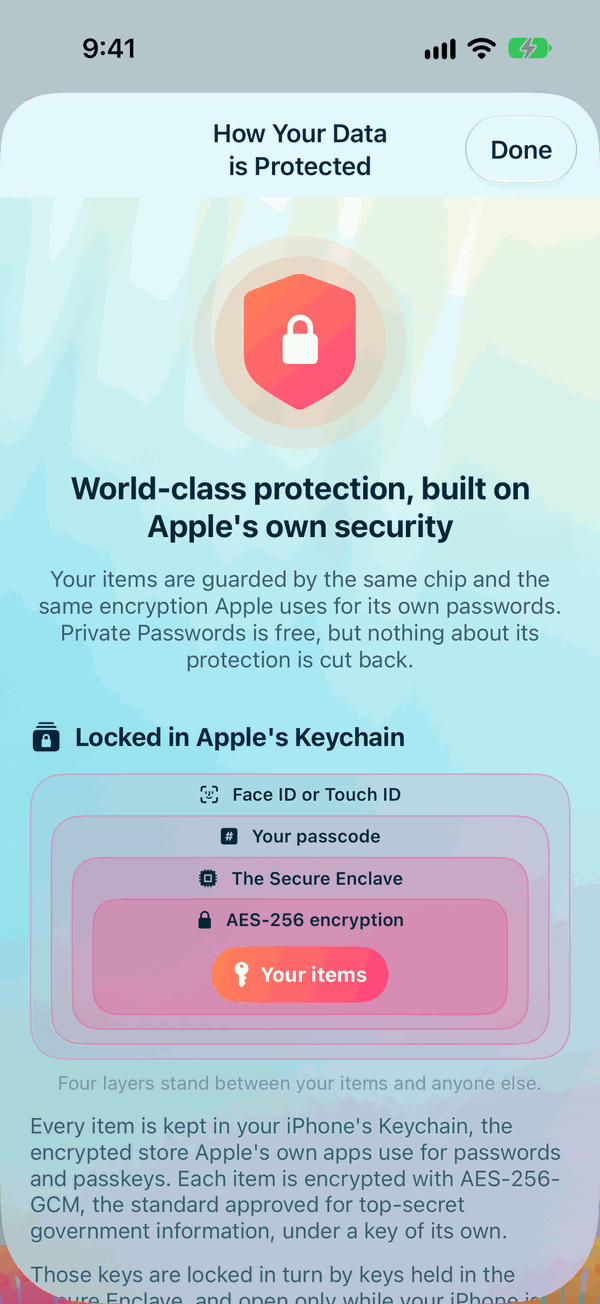
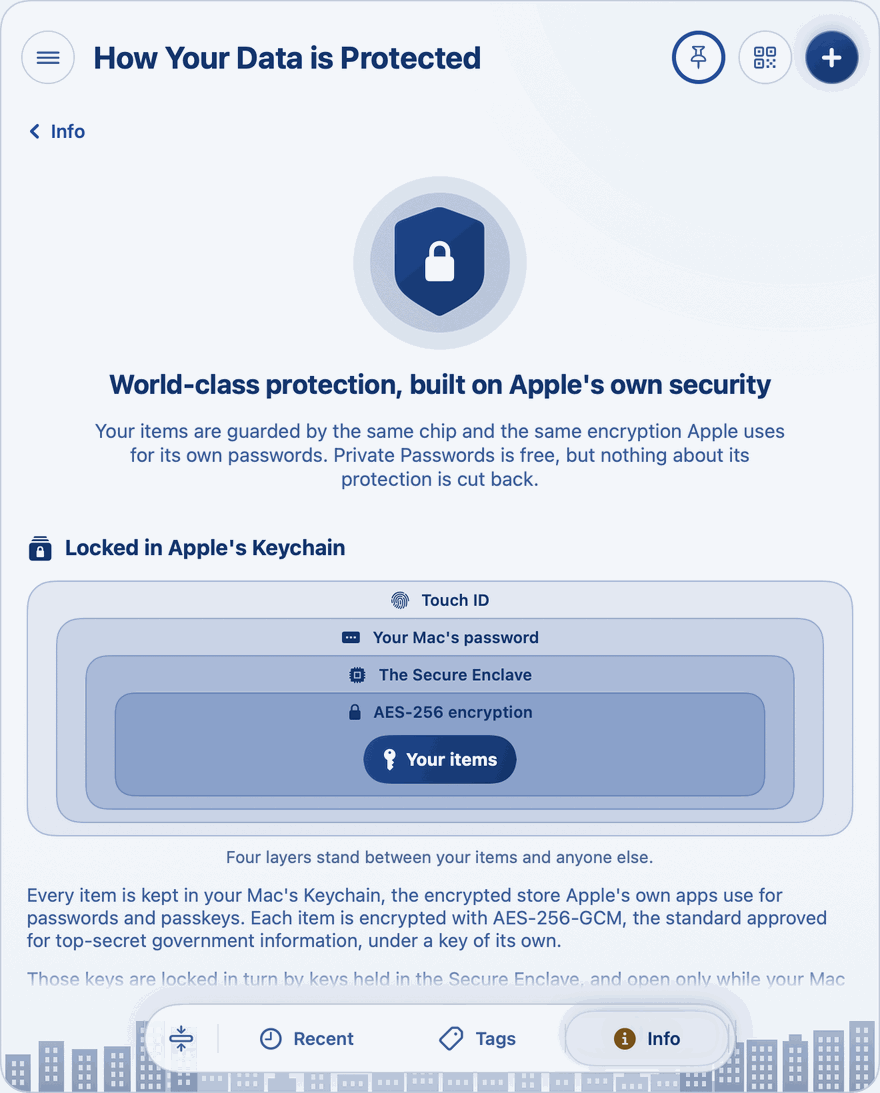
Locked in Apple's Keychain
Every item is kept in your device's Keychain, the encrypted store Apple's own apps use for passwords and passkeys. Each item is encrypted with AES-256-GCM, the standard approved for top-secret government information, under a key of its own.
Those keys are locked in turn by keys held in the Secure Enclave, and open only while your device is unlocked. While it is locked, nothing can read your items: not a thief, not another app, not even Private Passwords.
This is the same whether Sync via iCloud Keychain is on or off.
Keys that stay with your device
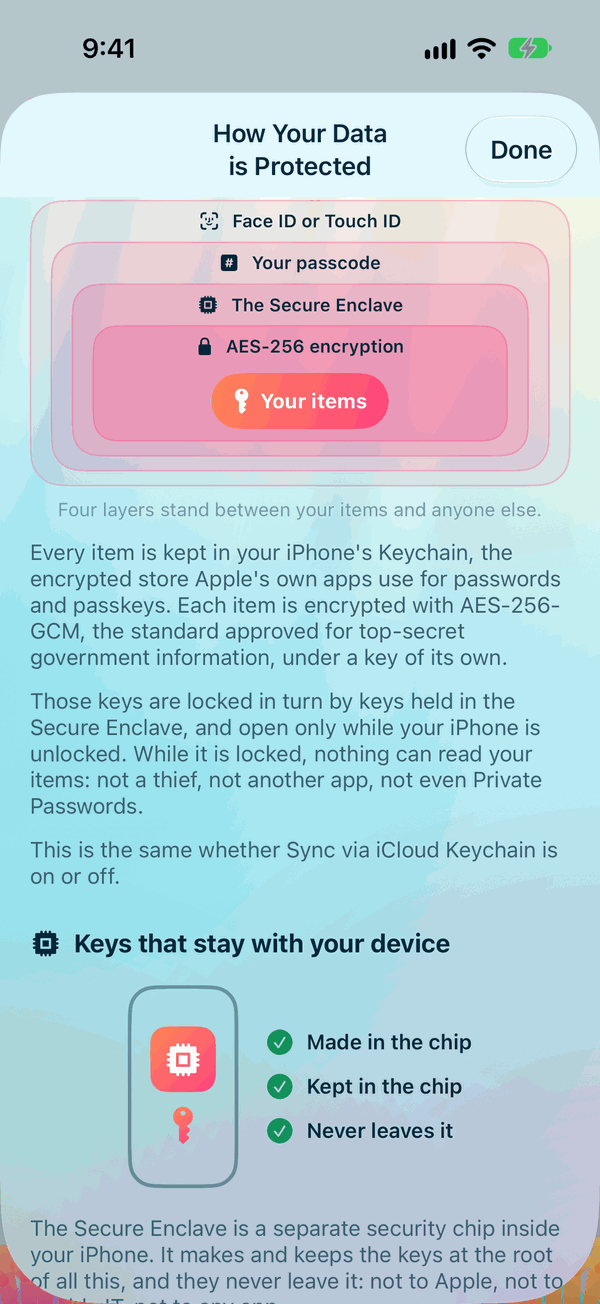
The Secure Enclave is a separate security chip inside your iPhone, and inside Macs with Apple silicon or the Apple T2 chip. It makes and keeps the keys at the root of all this, and they never leave it: not to Apple, not to Pebble IT, not to any app.
Its keys are bound to your passcode (on the Mac, your Mac's password), so your items can be opened only on your device, with your passcode. Copied off the device, the stored data is meaningless.
- Keep on This Device Only (on the Mac, Keep on This Mac Only): your items never leave the device, and nor do the keys that open them.
- Sync via iCloud Keychain: your items travel between your own Apple devices end-to-end encrypted. Only your devices can open them: Apple can't read them, and there is no server of ours in between.
A Mac without the T2 chip or Apple silicon, such as the 2019 iMac, has no Secure Enclave and no Touch ID. Its Keychain is still encrypted, and Private Passwords asks for your Mac's password instead.
Face ID and Touch ID
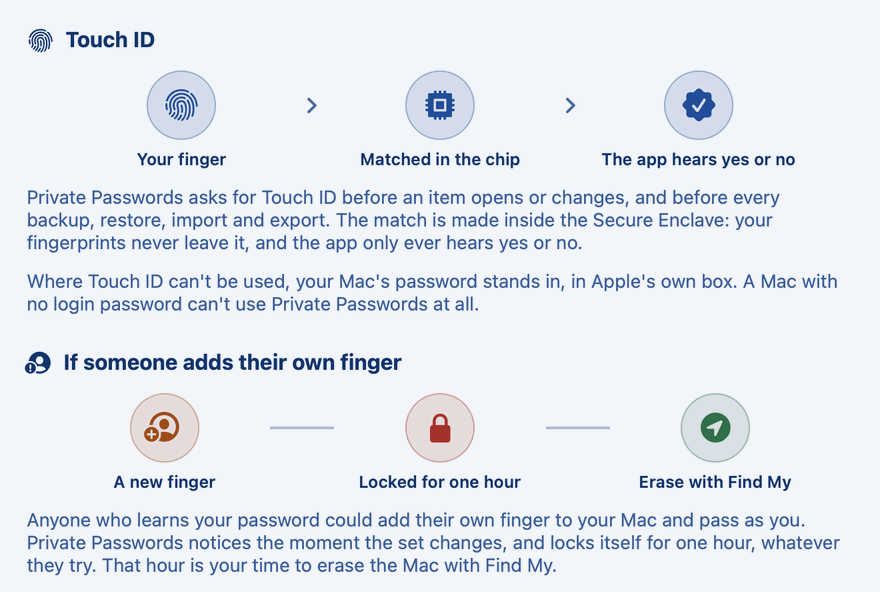
Private Passwords asks for Face ID or Touch ID before an item opens or changes, and before every backup, restore, import and export. The match is made inside the Secure Enclave: your face and fingerprints never leave it, and the app only ever hears yes or no.
Where Face ID or Touch ID can't be used, your passcode (on the Mac, your Mac's password) stands in, in Apple's own box. A device with no passcode, or a Mac with no login password, can't use Private Passwords at all.
How long an unlock lasts, and what always asks afresh, is on How Your Passwords Are Protected.
If someone adds their own face or finger
Anyone who learns your passcode could add their own face or finger to your device and pass as you. Private Passwords notices the moment the set of faces or fingers changes, and locks itself for one hour, whatever they try. That hour is your time to erase the device with Find My. See When the faces or fingers change.
If your device is stolen
Use Find My, on another of your devices or at icloud.com/find, to erase it. Erasing destroys the Secure Enclave's keys, and with them every item becomes unreadable at once, for good.
Until then, a thief faces your passcode. The Secure Enclave allows guesses only on the iPhone itself, one at a time, with growing delays. By Apple's own figures, trying every six-character passcode of letters and numbers would take more than five and a half years.
Until then, a thief faces your Mac's password, and with FileVault on, the disk itself is encrypted too.
With sync on, your items are waiting on your other devices. With sync off, your backup brings them back. What to do, step by step, is on If You Lose Your iPhone or Mac.
Your backup, sealed
A backup file is sealed with AES-256-GCM under a recovery key of 30 characters that only you hold, made from 136 bits of randomness. We never see it, and nobody can recover it for you. A backup in your iCloud is sealed the same way, under your iCloud Backup Key: a 256-bit key kept in your iCloud Keychain, which only your devices hold.
Every single guess at the key must first go through Argon2id, a deliberately slow step that takes 64 MB of memory, three times over. It is built to defeat the graphics cards cracking rigs rely on.
Even at a trillion guesses a second, far beyond any rig, finding the key would take 1.7 billion trillion years on average: more than 100 billion times the age of the universe. And change a single letter of the file, and it won't open: the seal detects it.
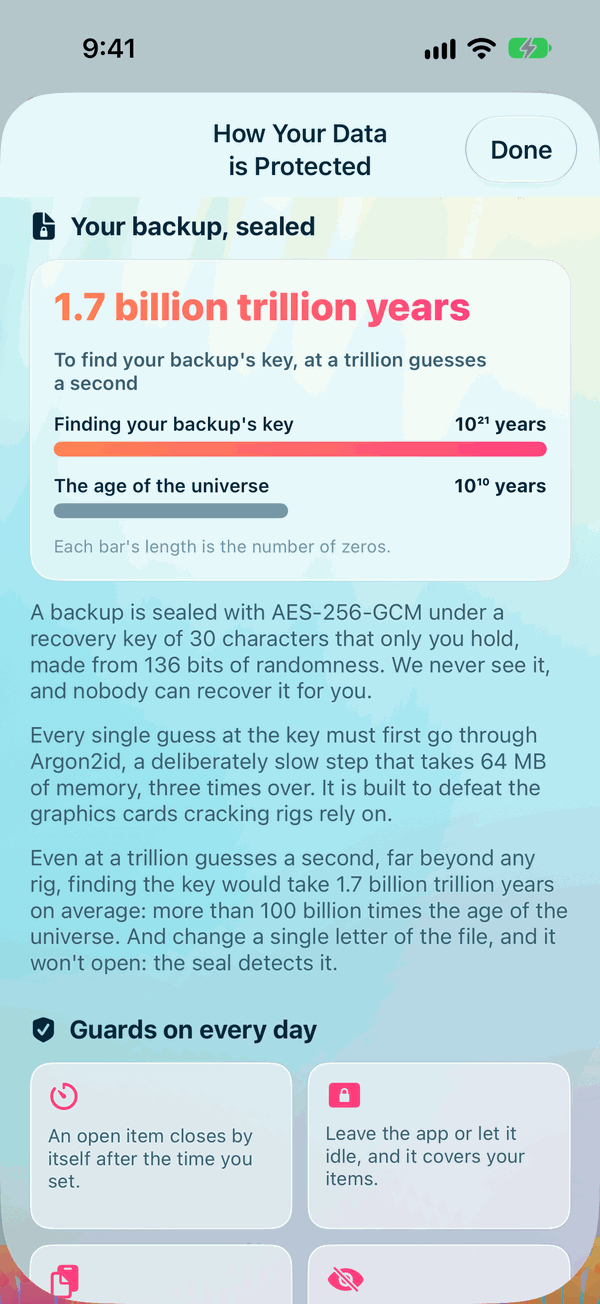
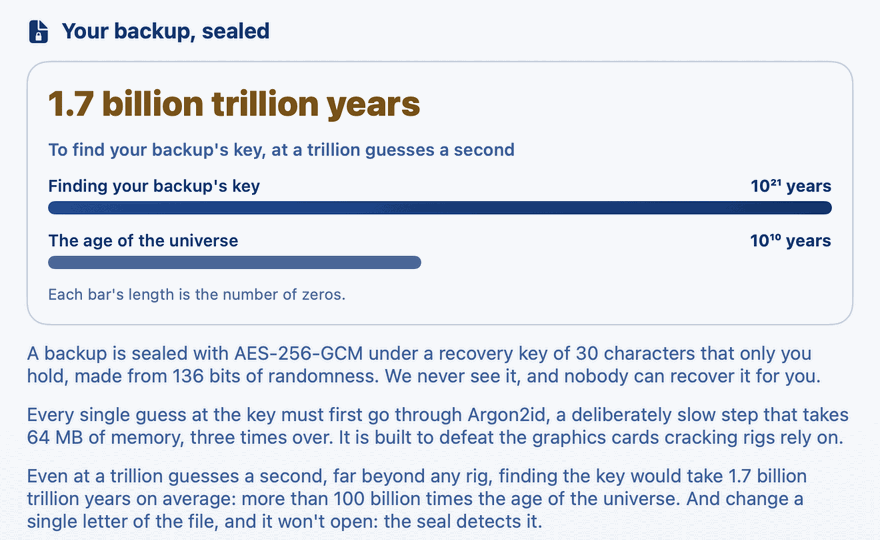
| Years | |
|---|---|
| Finding your backup's key, at a trillion guesses a second | about 1,700,000,000,000,000,000,000 (1.7 × 10²¹) |
| The age of the universe | about 13,800,000,000 (1.4 × 10¹⁰) |
How to make one and where to keep the key: Making and Restoring a Backup.
Guards on every day
- An open item closes by itself after the time you set (on the iPhone); on the Mac, when you click its Close, or when another opens.
- Leave the app or let it idle, and it covers your items (on the iPhone); when your Mac locks or sleeps, every open item closes and it asks again.
- A copied password leaves the clipboard after seconds, marked private. See Copying and the clipboard.
- A password you reveal never appears in a screenshot or recording.
- Repeated passwords are found by keyed fingerprints (HMAC-SHA256), never by comparing passwords.
- Your Apple Watch gets its codes straight from your iPhone, never through the internet.
What we never do
No account, no server, no tracking and no advertising. Nothing you keep is ever sent to Pebble IT or anyone else, so there is nothing of yours for anyone to breach. The full list is on What the App Never Does.
Free doesn't mean less. Private Passwords uses the strongest protection your Apple devices offer, fully, and adds its own guards on top.
Continue to What the App Never Does.