Adding Your First Login
A login is what you use to sign in to a website or an app: a username, a password, and where it signs in. Here's how to make one, for a site you already sign in to or for one you're signing up to now.
Start a new login
- Tap the + button at the top of Recent.
- Tap New Login.
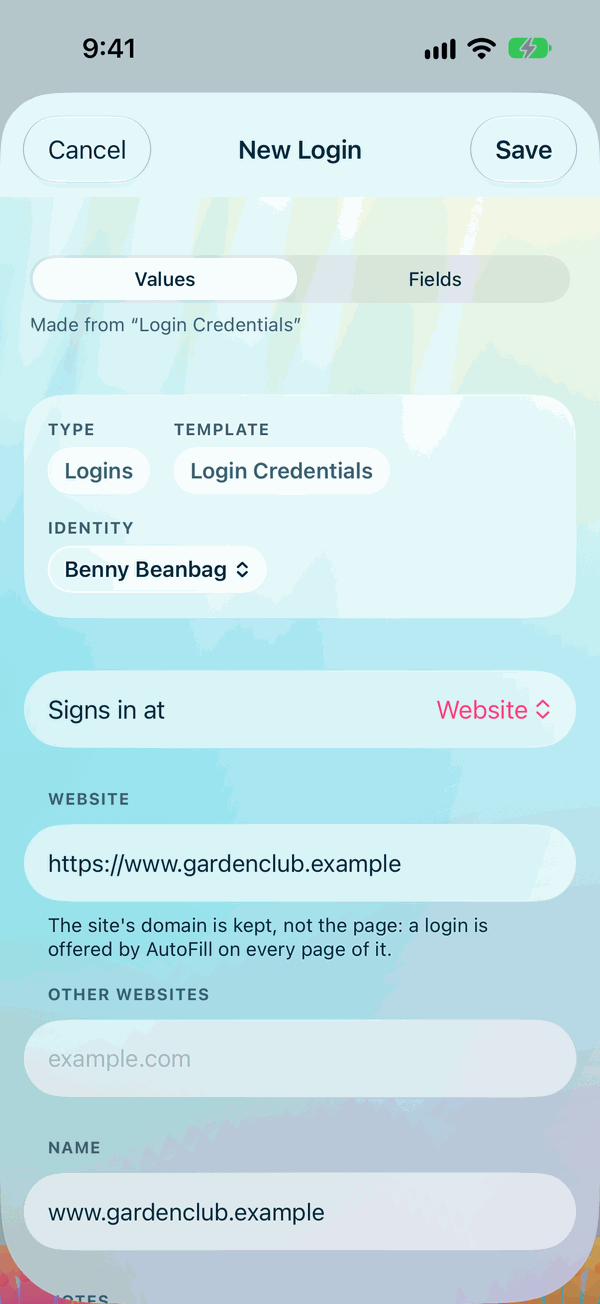
The new login opens ready to fill in:
- At the top, Type, Template and Identity are already chosen for you: Logins, the Login Credentials template, and your Default Identity, the person this login is for. Tap any of them to choose another.
- Password already holds a strong password, made for you.
Fill it in
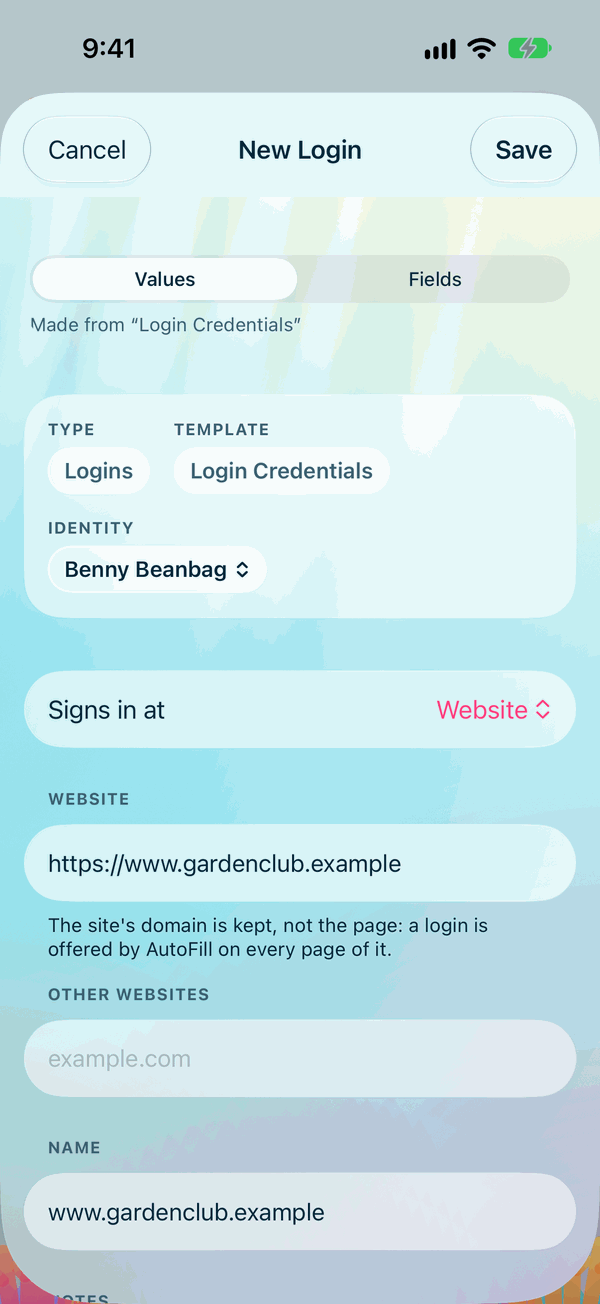
- Name: what you'll call it, such as the site's name.
- Signs in at: choose Website and type its address, such as
example.com. For an app rather than a website, choose iOS App, Mac App, Android App or Windows App, and its name. - Username: the email or name you sign in with.
- Password:
- Signing up? Keep the strong password that's already there, or tap Generate for another. Then tap Copy, and paste it into the site's sign-up form. To read it large instead, tap Magnify Password, which has its own Copy. The moment you copy it, Private Passwords keeps the login, so a site never holds a password you don't have.
- A site you already sign in to? Replace it with your existing password.
- Tap Save.
Your new login is now at the top of Recent.
Next time, let AutoFill do it
Once AutoFill is turned on, Safari and your apps offer this login above the keyboard when you tap the site's sign-in box. See AutoFill in Safari and Apps.