Adding Your First Login
A login is what you use to sign in to a website or an app: a username, a password, and where it signs in. Here's how to make one, for an account you already have or for one you're signing up for now.
Set up your identity first
Your Default Identity holds the names, emails, phones and address a site asks for when you sign up. Fill it in first, and every new login can use it. Double-click the key to open it. See Identities.
Start a new login
Right-click the key in the menu bar and choose New Login.
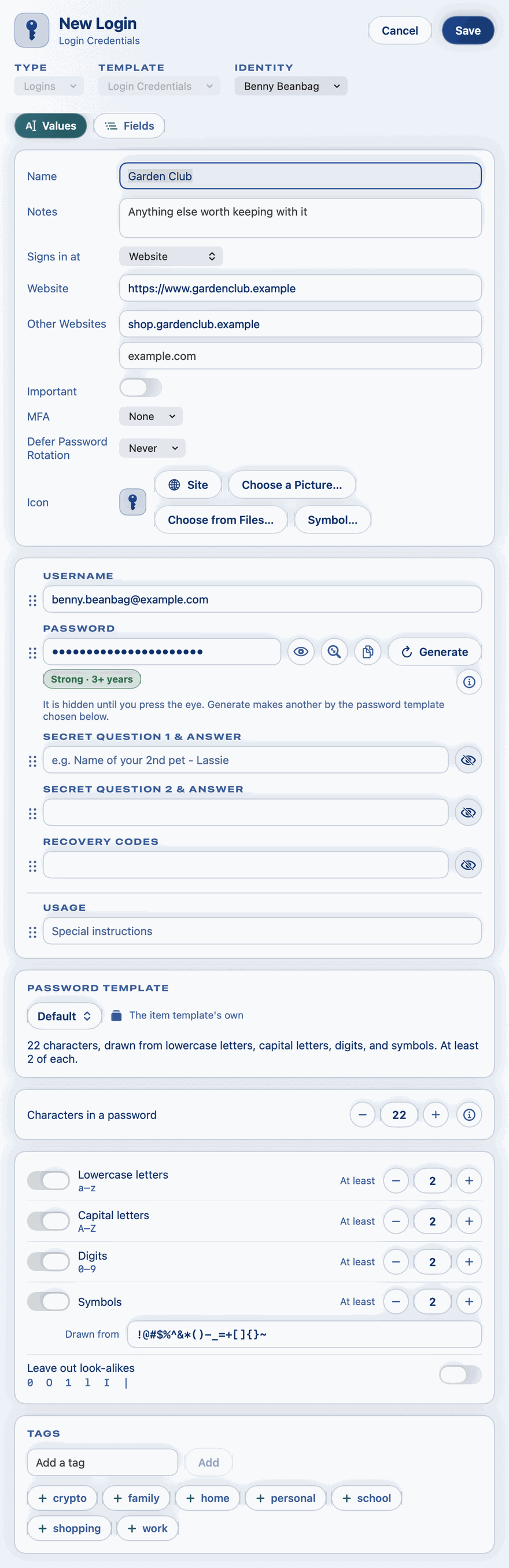
Two panels open side by side:
- New Login, ready to fill in. Its Type and Template are already chosen for you, and its Password already holds a strong password, made for you.
- Your Default Identity, beside it, with your names, emails, phones and address.
Fill it in
- Name: what you'll call it, such as the site's name.
- Signs in at: choose Website and type its address, such as
example.com. For an app rather than a website, choose Mac App, iOS App, Android App or Windows App, and its name. - Username: the email or name you sign in with. You can drag it from your identity's panel by the dots beside it, or type it.
- Password:
- Signing up for a new account? Keep the strong password that's already there, or click Generate for another.
- An account you already have? Replace it with your existing password.
- Click Save. Both panels close.
Signing up on a site at the same time
While both panels are open, you can fill in the site's sign-up form straight from them:
- Drag each of your details, such as your name and email, from your identity's panel into the matching box on the page. Grab a value by the dots beside it.
- Drag the new password from New Login into the page's password box, or copy it and paste it in.
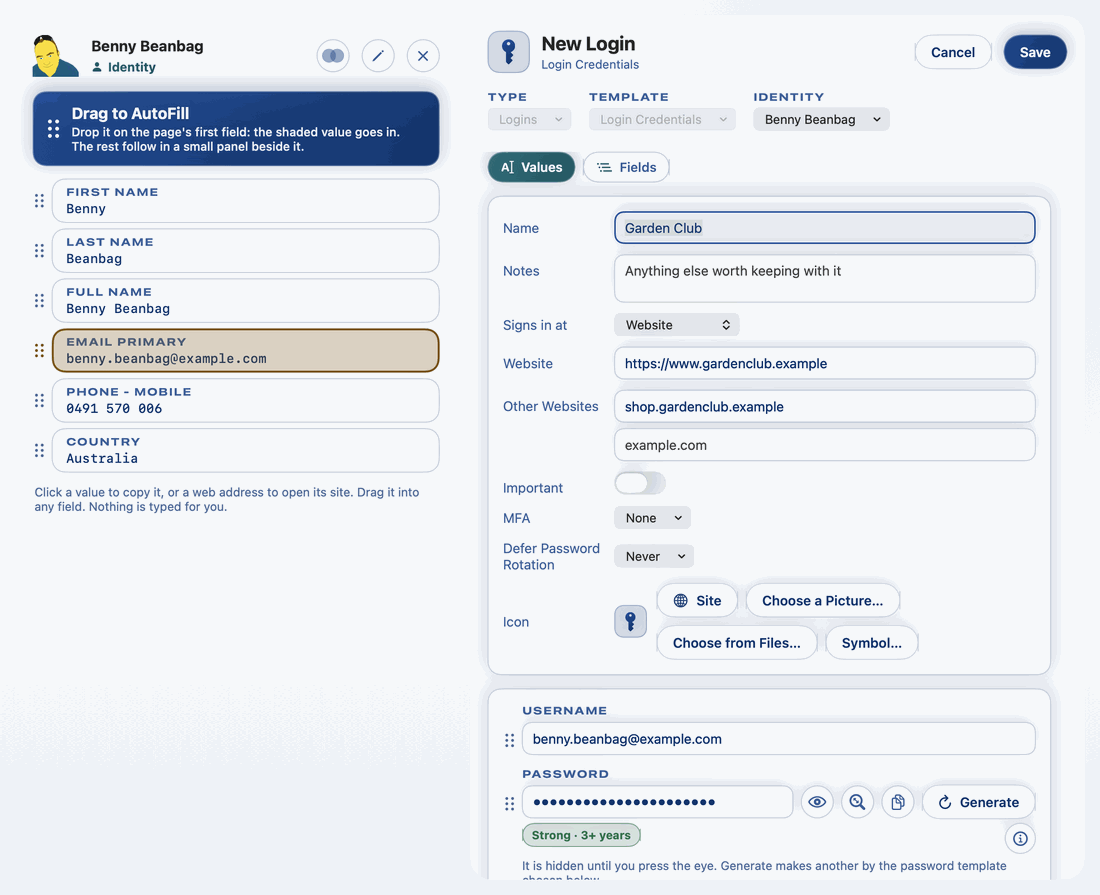
The moment the password leaves Private Passwords, by a drag or a copy, the new login is kept, so a site never holds a password you don't have. You can carry on filling it in and click Save when you're done.
See Dragging a Value into a Form for more.
Next time
When you come back to the site, bring the page to the key and drag your login in, or let AutoFill offer it. See Dropping a Page on the Key and AutoFill in Safari and Apps.