Credential Health
Credential Health looks over your logins and tells you, in points, how much safer each one could be. A login with nothing left to improve scores 0, and every point is something you can fix. The app puts them up one at a time, so it never becomes a chore.
Everything is worked out on your own devices: nothing is sent to anyone to do it.
Which items it looks at
Every item with a password or a passkey, whatever its Type: a website's login, and a Wi-Fi network's password too. The app calls each of these a login. Archived items and the Bin's are left out (see What is left out).
What it checks
| What it checks | |
|---|---|
| Strength | How long the password could last against a common cracking rig: a breached site that stored its passwords badly, and 300 billion guesses a second. Dangerous lasts under a week, Weak under three months, OK under three years, and Strong longer than that. |
| Breaches | Whether the password has appeared in a known data breach. Such a password counts as Dangerous, whatever its strength, because attackers try breached passwords first. See Breached passwords. |
| Repeats | Whether another item uses the same password, now or as one of its previous passwords. A breach of one site then exposes every site that shares it. |
| Age | Whether the password is older than its Type's Password Age. See Password Age and Rotation. |
| MFA | Whether the login has a second step after the password, such as a code or a security key. |
| Importance | Whether the login is one of those that matter most: your Apple Account, your email, your bank, your tax office. |
A password the app generated is rated by its Password Template. One you typed or imported is checked against common passwords, words and names.
How repeats are found without reading your passwords
Each password is given a fingerprint, made with a secret key kept in your Keychain. Two equal fingerprints mean two equal passwords, so repeats are found without opening a single item. Without the key, a fingerprint says nothing about the password.
The score
The Credential Health page leads with your score: the points to gain across all your logins.
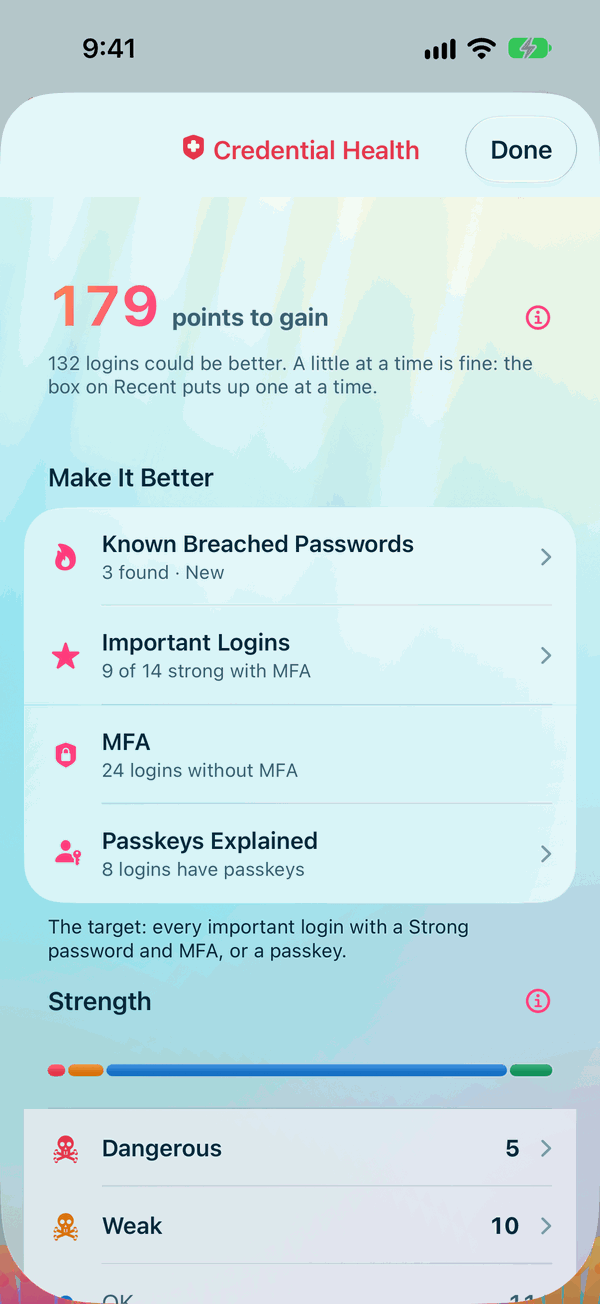
Under the score you may see:
- the highest score you've had, with its month, such as "From 8,647 in Oct-25";
- how far you've come in a week, such as "12 points better this week. Well done.";
- how many logins could be better.
In short, for each login:
- a Dangerous password counts most, then Weak, then OK;
- each other item using the same password, and each day past its Password Age, makes that count more;
- MFA cuts it down, a passkey or a security key the most;
- a website login with no MFA at all adds a point;
- an important login counts three times.
How the points are worked out, exactly
- Start from the password's rating: Dangerous 10, Weak 4, OK 2, Strong 1.
- Past the Type's Password Age, multiply by the password's age divided by the Password Age, up to 5. A password 500 days old, against 250, doubles.
- Multiply by the number of items using the password, this one included, up to 5.
- Take away 1, so that a Strong password of its own, within its age, has no points.
- Multiply by what the login's strongest MFA leaves: Text Message or Email 0.4; Phone Prompt or Call, or Other, 0.3; Authenticator Code, or a one-time code kept in the item, 0.1; Security Key or a passkey 0.05.
- Add 1 if the login is for a website and has no MFA of any kind, unless it is marked Not Offered.
- Multiply the lot by 3 if the login is important.
For example: a Weak password, 500 days old against a Password Age of 250, also used by one other item, with Text Message MFA, on an important login. 4 × 2 × 2 = 16; less 1 is 15; × 0.4 is 6; × 3 is 18 points.
A login whose rotation is deferred has no points at all. Points are shown rounded to whole numbers.
Where you see it
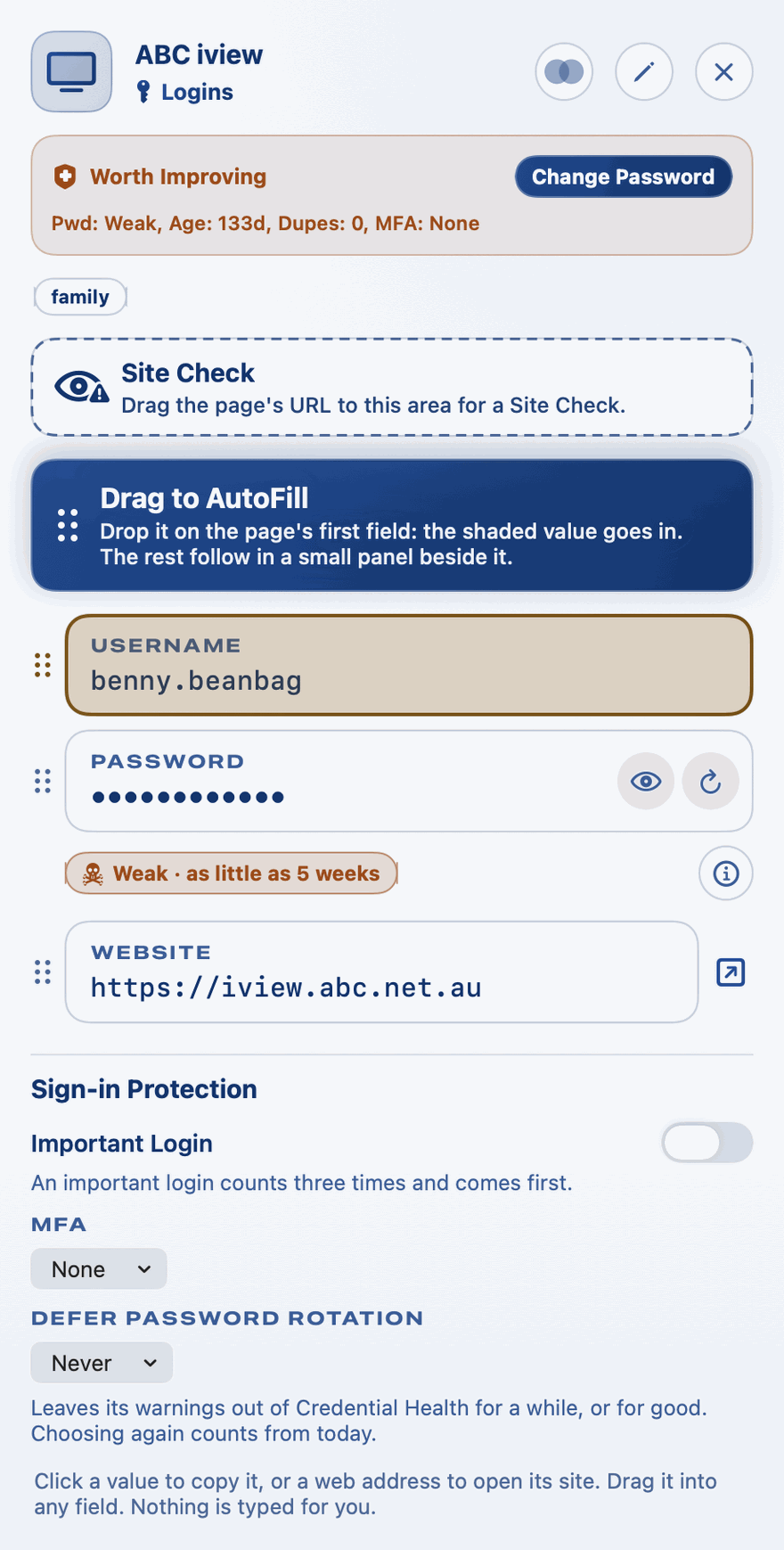
- On a login. Open a login that could be better and a coloured message stands at its head: red Change This Soon from 10 points, orange Worth Improving from 3, and blue Nearly There below that. Under its title, one line sums up the login, for example Pwd: Weak, Age: 500d, Dupes: 1, MFA: None, with Change Password where a new password would gain points.
- On the rows. Marks at the end of a row: a skull, red for a Dangerous password and orange for a Weak one; two keys and a number for a repeated password, orange where two items share it and red for three or more; and an hourglass for an old password, orange and then red. A green key badge marks a login with a passkey.
- On Recent. On the Mac, the Credential Health menu at the end of the filters, under its red shield: choose a warning to list only those items, or All. On the iPhone, a pill for each kind of warning some item carries; choose one to list only those items.
- On Info. The Credential Health line, with its red shield, just under the summary of your items: a bar in the ratings' colours, with a count beside each warning. Choose it to open the Credential Health page.
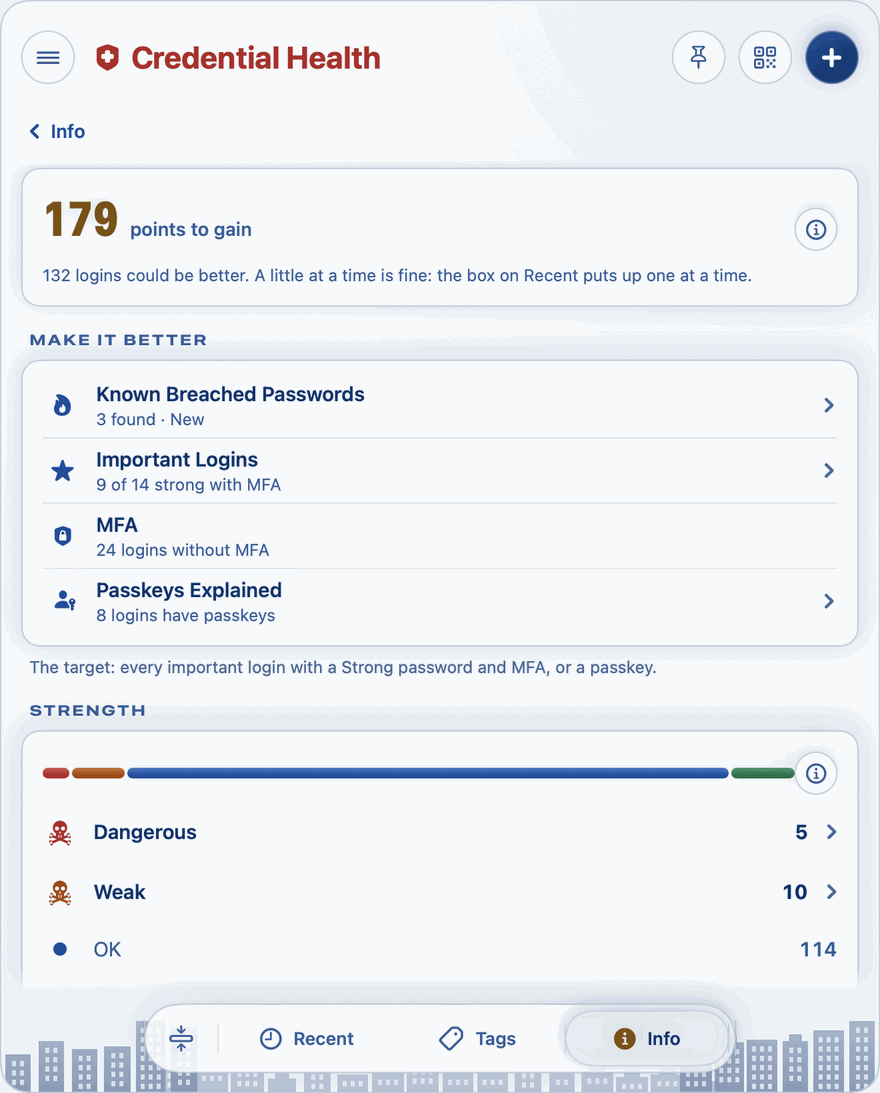
The Credential Health page
Open it from the Credential Health line on Info. While passwords are still being rated, after an import for example, the page and Info's line say Checking passwords, with how many are done. Below the score:
- Make It Better: Important Logins (below), MFA and Passkeys Explained. On the Mac, MFA is the count of logins without it; on the iPhone it opens the MFA page (below).
- Strength: your passwords by rating. Dangerous and Weak each open Recent with just those items.
- Repeated: Used by another item.
- Age: Past their age, and how many of these are 50% or more beyond your recommended age limit.
Important logins
An important login counts three times and is put up first. To mark one, open it and turn on Important Login under Sign-in Protection. To go through many at once, open Important Logins on the Credential Health page, choose a Type or Not Yet Set, and choose each login's Important pill. Each choice is saved at once.
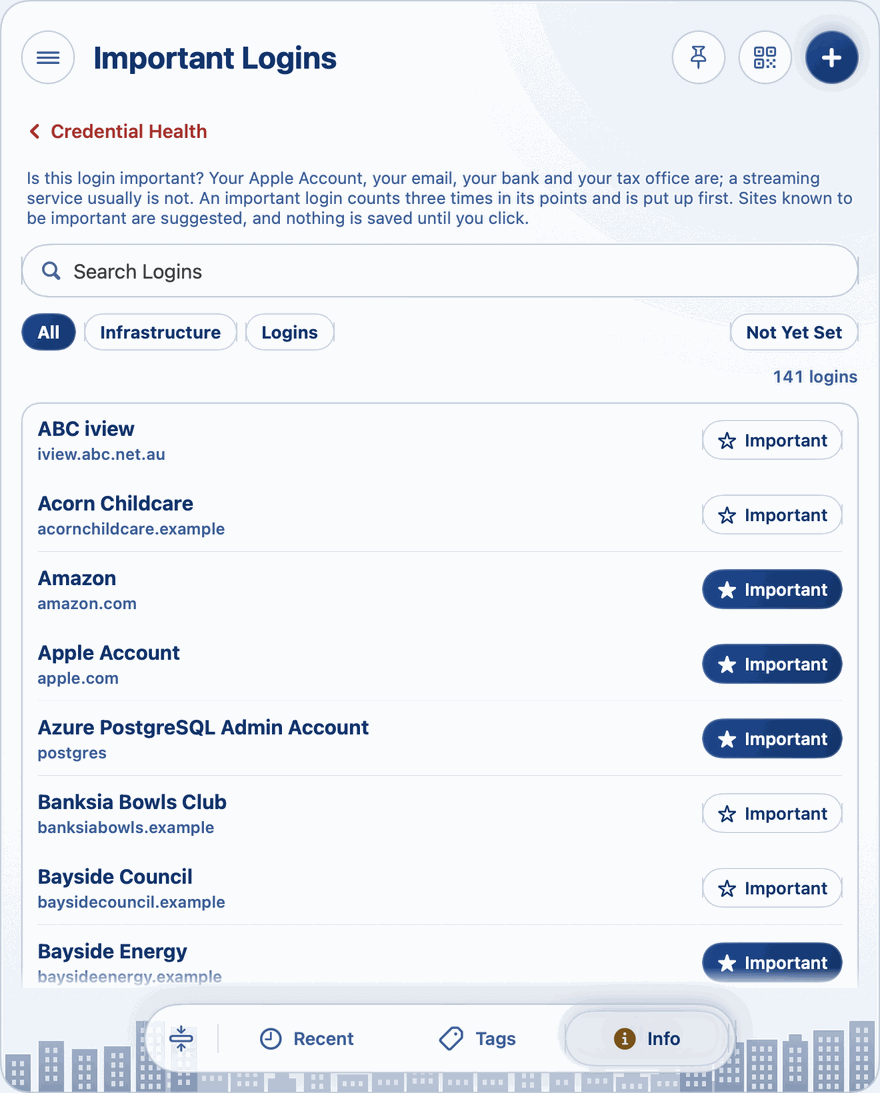
Some sites are suggested as important, and count as important until you say otherwise. Their pill says Suggested. They are:
- government sites, and any site ending in .ai;
- banks, payment services and crypto exchanges;
- mail providers, since a mailbox can reset every other password;
- phone carriers, since whoever holds that account can move your phone number, and the codes sent to it;
- domain registrars, password managers and large technology companies.
Streaming, music, games, news and shopping aren't on the list, apart from Amazon and eBay, which hold cards and money.
MFA
MFA is the second step a site asks for after the password. Tick each kind a login has, under Sign-in Protection on the open login or in its editor, or, on the iPhone, on the MFA page from Credential Health. You can tick several:
Text Message, Email, Phone Prompt or Call, Security Key, Passkey, Authenticator Code and Other.
On a login and in its editor, MFA is one menu. It names the kind ticked, says how many when you've ticked several, such as "2 MFA methods", or says None. Its list has the kinds from A to Z, then Not Offered under a line, and it stays open while you tick.
On a login and in its editor, MFA is one menu. It names the kind ticked, says how many when you've ticked several, such as "2 MFA methods", or says None. Its list has the kinds from A to Z, then Not Offered under a line. It closes after each tick.
A login given a one-time code has Authenticator Code ticked for you: see One-Time Codes. A login given a passkey has Passkey ticked for you, and Not Offered taken off.
Tick Not Offered for a site that has no MFA, so the login isn't counted as missing it. A login whose one-time code is kept in Private Passwords already counts as having an authenticator code, and a passkey counts as much as a security key.
What sites offer
With Check what sites offer on, in Settings under Credential Health, the iPhone fetches the public lists of which sites offer MFA and passkeys: the 2FA Directory and the Passkeys Directory, both run by 2factorauth. It fetches each list whole, at most once a month, so nothing of yours is sent, and matches it against your sites on the iPhone. A login then shows what its site offers, such as "Offers: Authenticator Code, Passkeys", and its advice takes that into account.
Check what sites offer is on unless you turn it off. Nothing is fetched while Credential Health is off.
With Check what sites offer on, in Settings under Credential Health, the Mac fetches the same two lists, the 2FA Directory and the Passkeys Directory, through the small helper that brings site icons. Private Passwords itself never uses the network, and the helper can't reach your passwords. Each list is fetched whole, at most once a month, so nothing of yours is sent, and matched against your sites on the Mac.
Check what sites offer is on unless you turn it off. Nothing is fetched while Credential Health is off.
Breached passwords
With Check Breached Passwords on, in Settings under Credential Health, Private Passwords checks whether a password has appeared in a known data breach, using the free Pwned Passwords service of Have I Been Pwned.
- What is sent: only the first 5 characters of a scrambled form of the password, its SHA-1 fingerprint. About a thousand known breached passwords share any such start, so nothing tells which one is yours. The service sends back that list, and your password's fingerprint is matched against it on your device. The password, its username and the site are never sent.
- Which passwords: every password you typed, edited or imported. A password Private Passwords generated is never checked.
- When: each time you open an item, it and up to 10 others are checked, in the background, the ones never checked first. A password is checked again after 30 days. One found in a breach isn't checked again until you change it. After an import, its passwords are checked straight away.
- What you see: a red flame on the login's row and beside its rating, "Breached" at the end of its Credential Health line, and Known Breached Passwords on the Credential Health page, which lists them all. When one is newly found, a card on Recent and Tags tells you, with Show and Later.
- Changing the password clears the flame at once.
Until you choose Show or Later on the card, a dot on the Recent tab says something new was found.
The check is made by iOS's own downloads: Private Passwords itself never connects to the network.
Until you've seen the card, the key in the menu bar turns red.
The check is made through the small helper that brings site icons: Private Passwords itself never uses the network, and the helper can't reach your passwords.
Check Breached Passwords is on unless you turn it off, and can't be turned on while Credential Health is off. Settings shows how many of your passwords have been checked so far.
The box on Recent and Tags
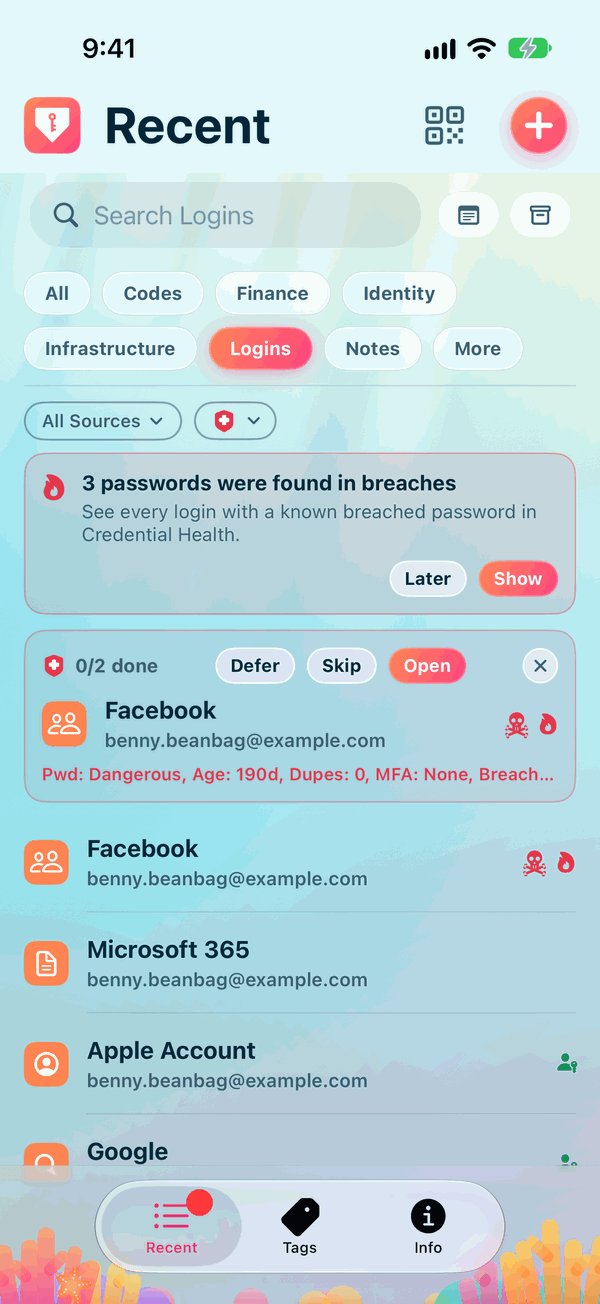
At the top of Recent and Tags, a box puts up one login at a time to fix: the important ones first, then those with the most points. It's red, orange or blue, by how much there is to gain.
- Its top line shows how many you've fixed today out of the day's number, for example "0/2 done", then Defer, Skip and Open, and the × at its end.
- Under that is the login, as its row in the list shows it.
- Last comes one line of facts: the password's rating, its age in days, how many other items use the same password, and its MFA. For example: "Pwd: Dangerous, Age: 720d, Dupes: 1, MFA: None".
Your score is on the Credential Health page.
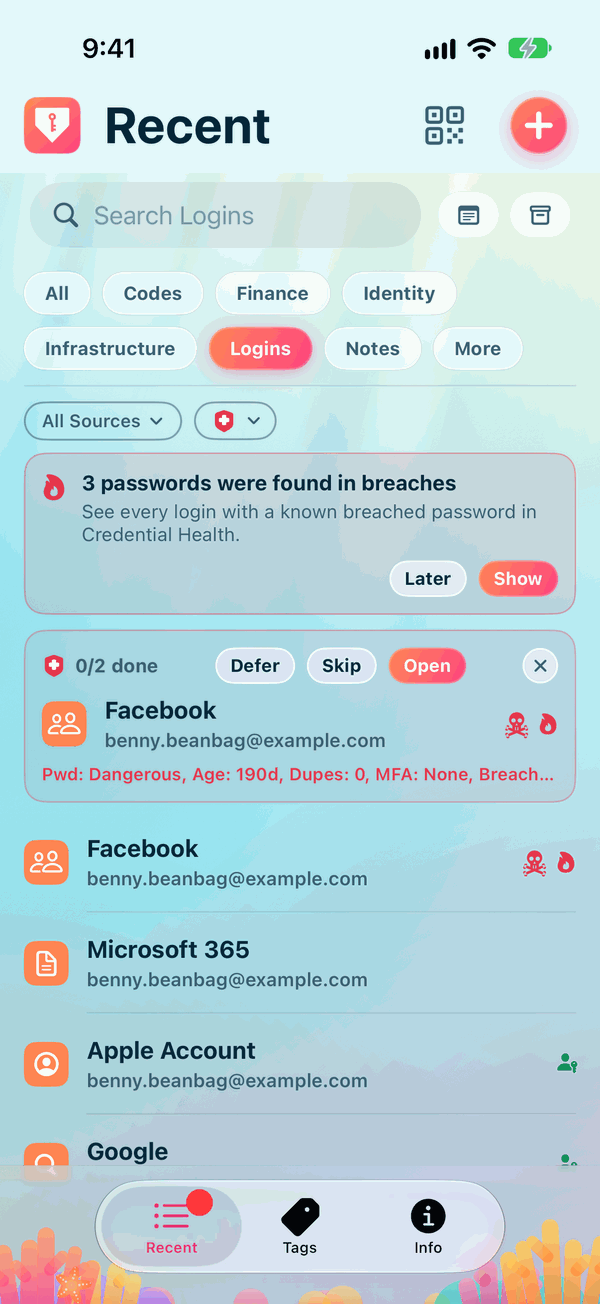
- Open opens the login.
- Skip puts up the next one. This one may come back tomorrow.
- Defer leaves this login out of Credential Health for 1, 3 or 6 months, or forever: see Defer Password Rotation. It counts as fixed today.
- The × rolls the box up into a thin red bar, and no login is put up again until tomorrow. Choose the bar, or pull it down, for the next one.
You can also swipe the box away, in either direction.
Click the ×.
A login counts as fixed once its points fall after the box has shown it, say with a new password, MFA or a passkey, or once it's archived or deleted. Fixes count on every device your items sync to. While a warning limits Recent, the box stands aside.
Fix items per day, in Settings under Credential Health, sets how many fixes the box asks of you in a day: 2 unless you change it, from 0 to 9. Once that many are fixed, the box rolls up into its bar until tomorrow; pull the bar down if you'd like to do more. With 0 there's no box at all.
Turning Credential Health off
Manage Credential Health, in Settings under Credential Health, is on unless you turn it off. Each device has its own.
Turned off, Credential Health shows nothing: no score, no box, no marks on the rows, no warning pills, no line on Info, and no message or Sign-in Protection on a login (a passkey still shows). Two things stay: the rating under a password as you type it in the editor, and the Credential Health page at the end of an import.
Nothing is deleted. Turn it back on and everything returns at once.
On an iPhone held on its side, or the iPhone Duo's cover held sideways, Credential Health is hidden from view, not turned off. Turn it upright, or open the Duo, and it appears again as you left it.
The Mac always shows it while it's on.
What is left out
- The archive and the Bin. Their items are never scored, counted or put up. One thing to know: an archived item still counts as another item using the same password. An item in the Bin doesn't.
- Items with no password and no passkey, such as notes and cards.
- A login whose rotation is deferred, until the date you chose.
Continue to Password Age and Rotation.