Dragging a Value into a Form
On the Mac, you fill in a web page by dragging values from Private Passwords straight into the page's boxes. Nothing is ever typed for you, and Private Passwords never reads the page.
How to drag a value
Every value in an open item has a row of dots beside it.
- Open the login, for example by dropping the page on the key.
- Put the pointer on the dots beside the username.
- Hold the mouse button or trackpad down, drag the value onto the page's username box, and let go.
- Do the same with the password.
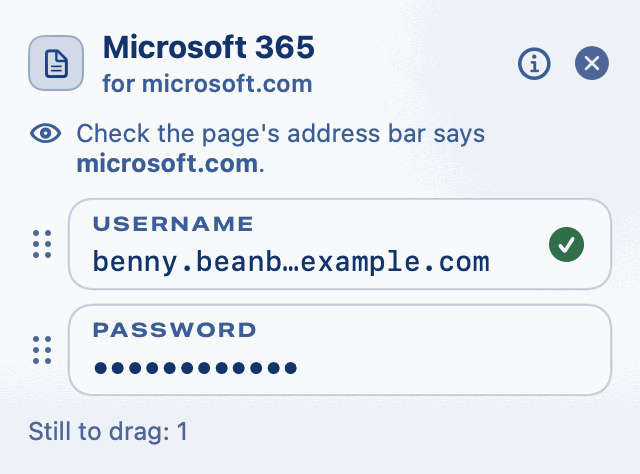
The value goes into the box, just as if you'd typed it.
Is it the right site?
Before you drag a password, you can check the page is a site recorded for the login. Drag the page's URL to the login's Site Check area, above Drag to AutoFill. See Site Check.
One-time codes
When a site asks for its six-digit code, drag the code into the code box the same way. The code shown is always the current one. If it's about to change, wait for the next.
Copying instead
Prefer to copy and paste? Click a value to copy it, then click into the page's box and paste with ++command+v++. A copied password is cleared from the clipboard after a few seconds. See Copying and the Clipboard.
Signing up: your identity and a new password
When you sign up for something new, your identity's panel lets you drag your name, email, phone and address into the form in the same way. Its Drag to AutoFill handle can fill several boxes in a row. See An Identity's Drag Panel.

Drag a new login's password into the page, and the login is kept that moment. See Adding Your First Login.