Saving a Login as You Sign Up
When you sign up at a site, Private Passwords makes sure the new login is kept, so you never end up with a password you don't have. There are two ways to do it.
Make the password in Private Passwords
This works on every iPhone:
- In Private Passwords, tap +, then New Login. A strong password is already made.
- Tap Copy beside the password. To read it large first, tap Magnify Password, then Copy.
- Paste the password into the site's sign-up form.
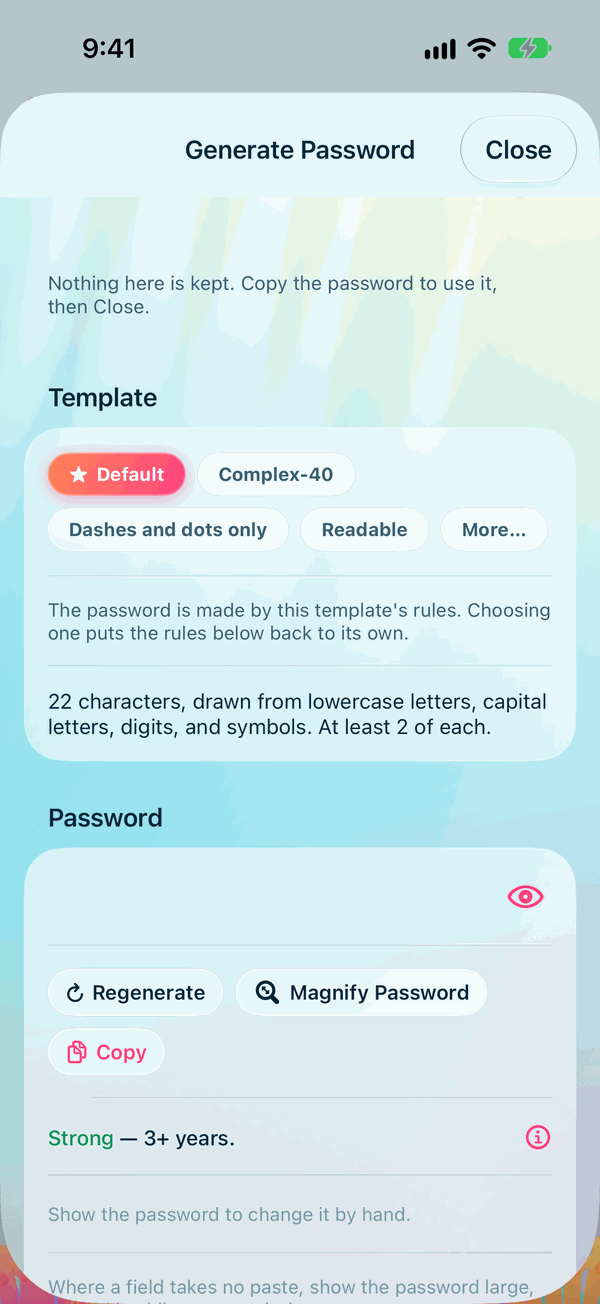
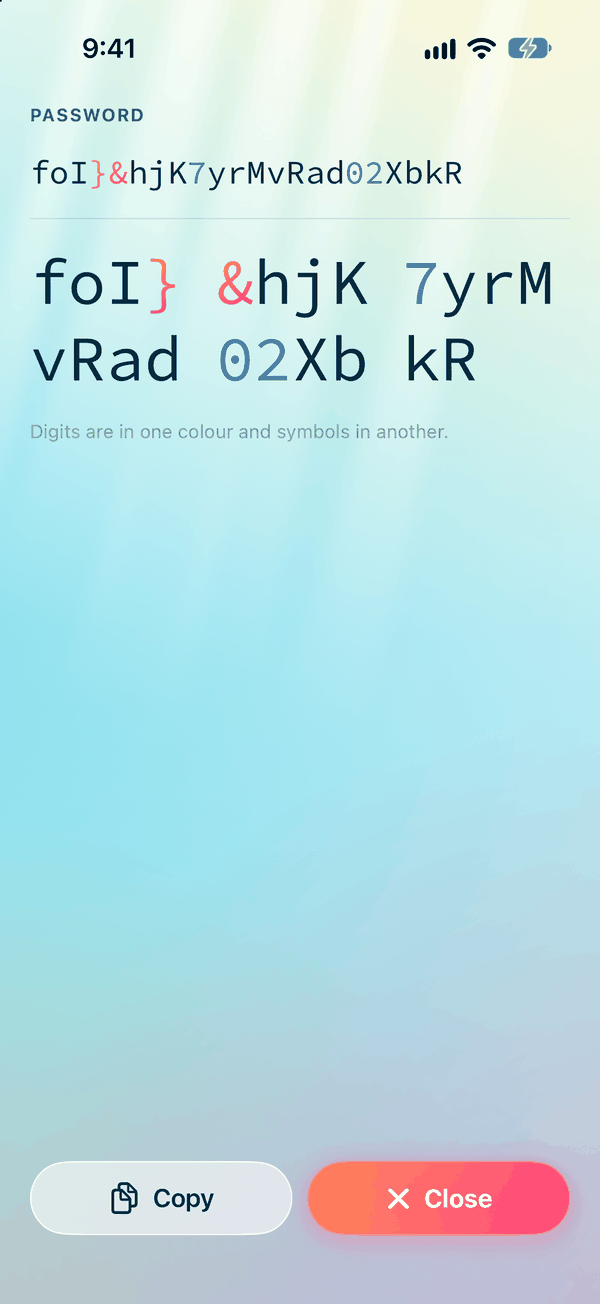
The moment you copy the password, Private Passwords keeps the login. Fill in its name, website and username, and tap Save. See Adding Your First Login.
Let Safari offer a password
From iOS 26.2, when you tap the password box of a sign-up form, Safari can suggest a strong password from Private Passwords, and offer to keep the new login once you've signed up.
- On the sign-up form, tap the password box and accept the strong password offered.
- Finish signing up on the site.
- When you're asked to save the login, choose Private Passwords.
- Private Passwords shows the new login, with its Type, Template, Name and Username to check. Change anything you like and save it. Where you already have a login for the site, it offers Update Password, to give that login the new password, or Save as New Login, to keep both.
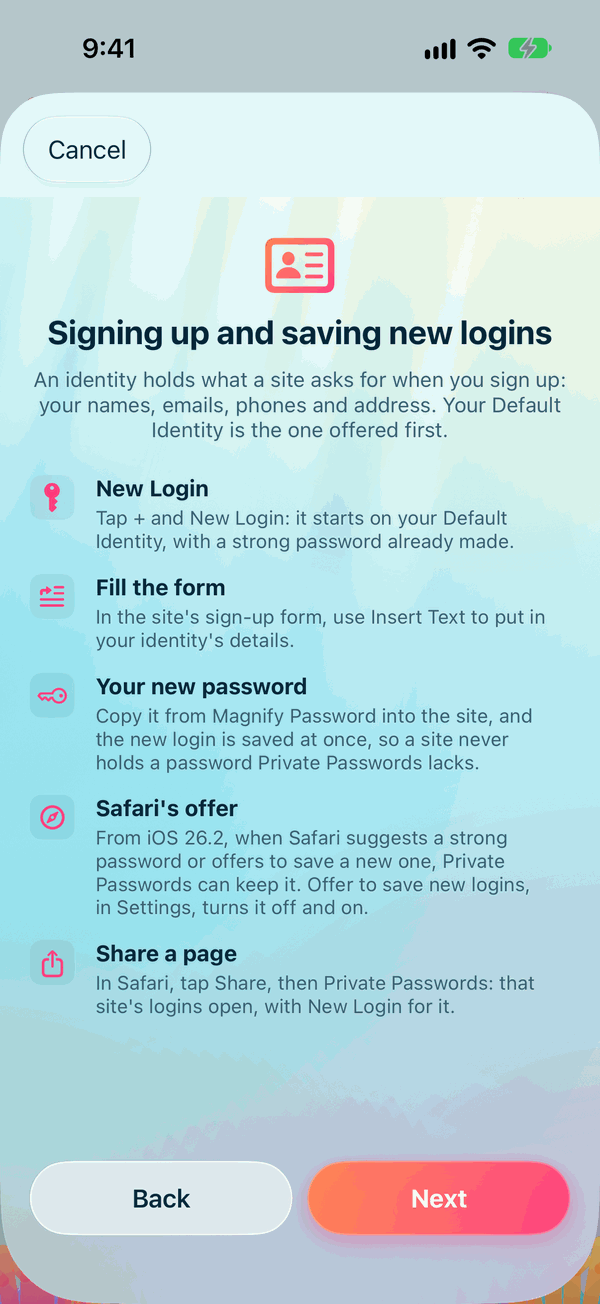
This is switched on in Settings, under Offer to save new logins. For a site where you'd rather not be asked, tap Never for this site.
Changing a site's password
The same goes for a new password on a site you already use: the moment you copy it, it's kept, and the old one is kept among the login's previous passwords. See Changing a password.