Private Passwords on the Mac
On the Mac, Private Passwords lives as a key in your menu bar, at the top right of the screen. It has no window in the Dock: everything starts at the key. This book shows you how to use it.
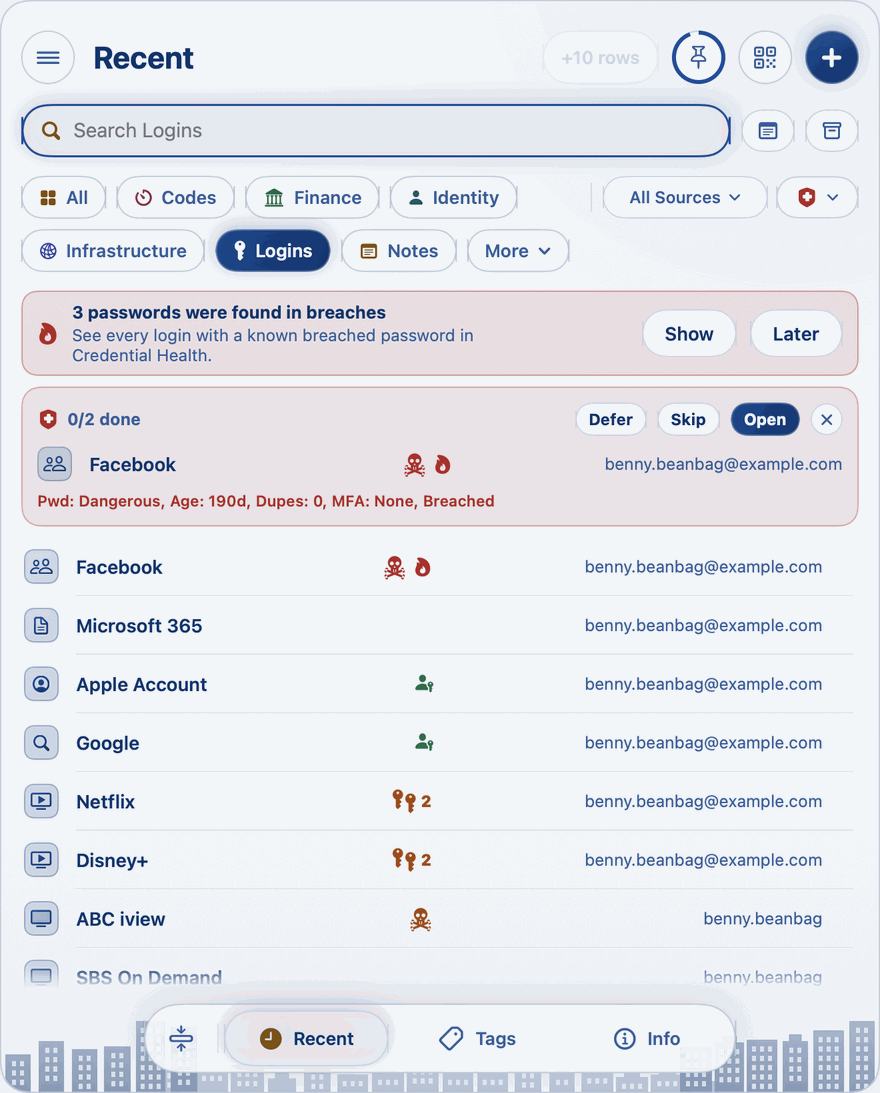
The key in your menu bar
- Click it to open the panel: Recent, Tags and Info.
- Double-click it to open your Default Identity, ready to fill in a sign-up form.
- Right-click it for New Item, New Login, Generate Password, Settings, About Passkeys, Help, Close Windows and Quit.
- Drag a web page's address onto it to see that site's logins.
What you can do
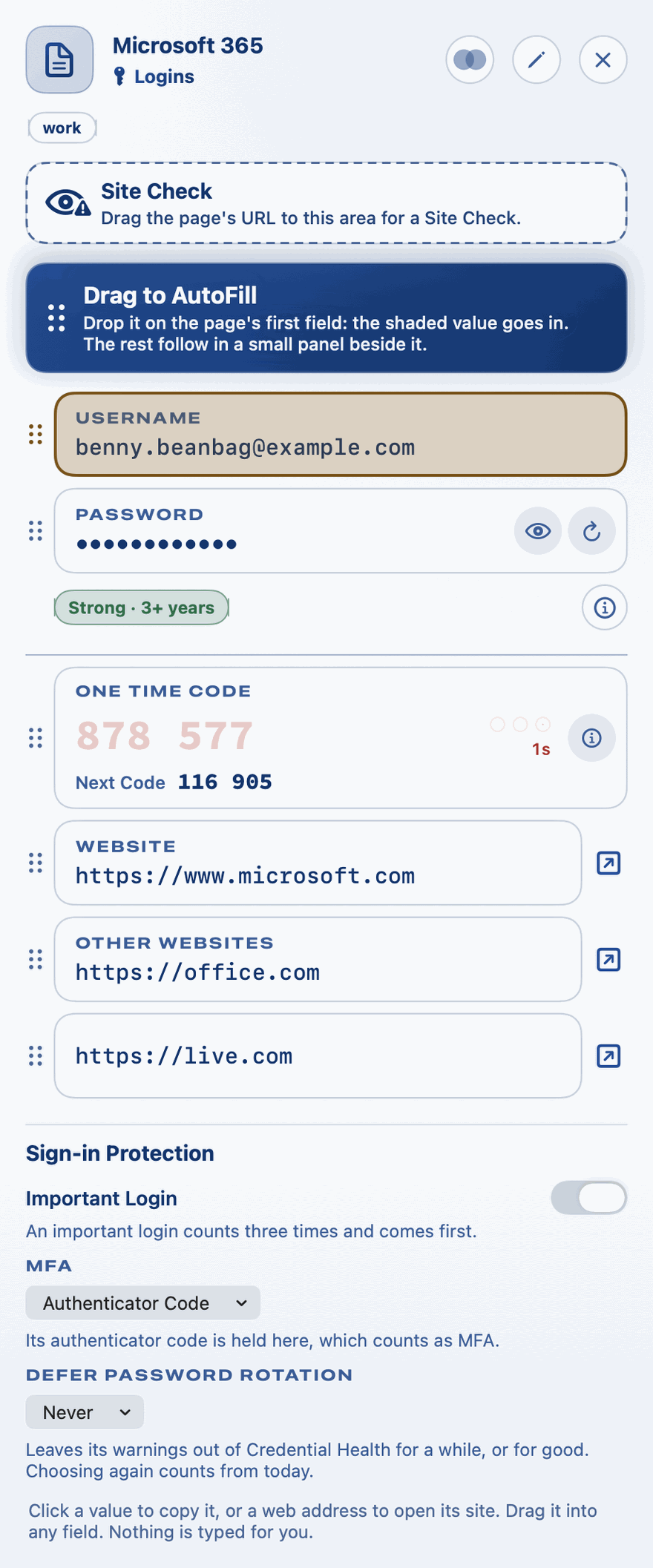
- Fill in sign-in and sign-up forms by dragging your details from Private Passwords into the page. Nothing is ever typed into a page for you, and Private Passwords never reads the page.
- Use AutoFill in Safari and your apps, after Touch ID.
- Keep your one-time codes, cards, notes and identities beside your logins.
- Stay in step. With iCloud Keychain, your items follow you to your iPhone, iPad and other Macs.
Where to start
New to Private Passwords? Read these in order:
The rest of this book
- Everyday Use: the panel, finding, opening, adding and editing your items.
- Filling In Passwords: bringing a page to the key, dragging values, your identity's panels and AutoFill.
- Settings: Touch ID, copying and syncing.
What works the same on every device, such as templates, identities, backups and importing, is in the Every Device pages.