Syncing Between Your Devices
Private Passwords can keep your items in step across your Mac, iPhone and iPad, using Apple's iCloud Keychain. Nothing goes through Pebble IT, and nobody else can read your items: Apple encrypts them end to end.
How it works
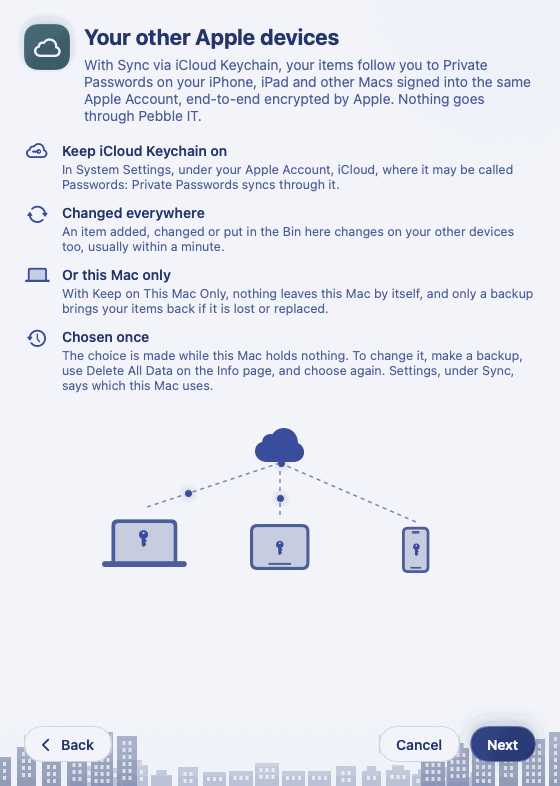
- You chose Sync via iCloud Keychain or Keep on This Mac Only during the Welcome.
- With sync, your items appear in Private Passwords on every Mac, iPhone and iPad signed into the same Apple Account with iCloud Keychain turned on.
- An item you add, change, or put in the Bin on one device changes on the others too, usually within a minute.
- Your templates, tags and types follow too. Settings stay on each device.
Keep iCloud Keychain on
- Open System Settings and click your name.
- Click iCloud, then Passwords.
- Keep Sync this Mac on.
Which do I have?
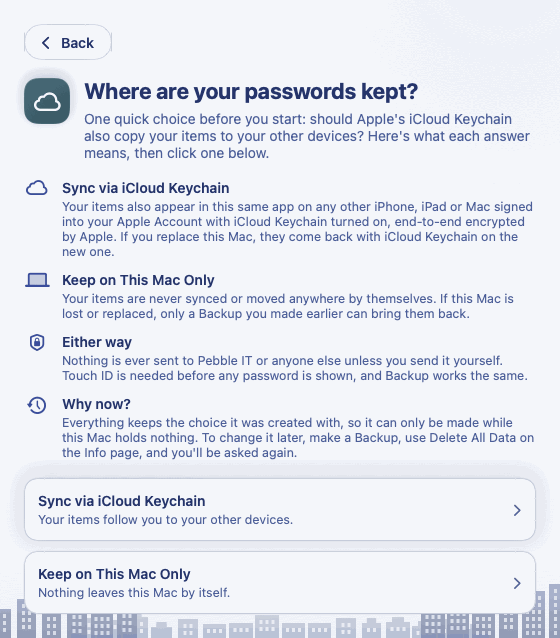
Open Settings in Private Passwords and look under Sync.
Changing your choice
Everything you keep remembers the choice it was made with, so the choice can only be made while Private Passwords is empty. To change it:
- Make a backup. See Making and Restoring a Backup.
- Click the key, then Info, then Delete All Data…, and choose Delete Data on This Device. Not Delete Everything, Including iCloud: that deletes your iCloud backups too.
- The Welcome asks again. Choose the other answer.
- Restore your backup.
When sync is on, do I still need a backup?
Yes. Sync copies a mistake as faithfully as anything else: delete an item by accident and it's deleted everywhere. A backup is a copy you can go back to. See Why Back Up?.